Press .
Press .
Enter a new password and press .
Retype the new password and press .
The front panel displays this message briefly.
Press to end the operation and the device will return to the display of normal
operating messages.
Or, after a moment, it will display normal operating messages.
Configuring the IP Address Using the Front Panel
Configuring the IP Address Manually
Configuring the IP Address Using DHCP
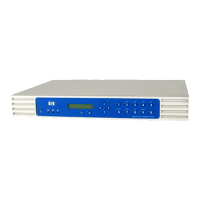
These procedures explain how to manually configure an Internet Protocol (IP) address on the appliance using the front
panel. (The TCP/IP page in the web interface can also be used to do the same.) Configuring the IP address allows the
appliance to route print tasks properly.
If the network does not use Dynamic Host Configuration Protocol (DHCP), use the front panel of the appliance to
manually enter the IP address, subnet mask, and default gateway.
To begin configuring the IP address for the appliance, press
once. The following screen is displayed:
Press again to go to the Change Configuration function. (Pressing starts the Change Password process.)
The display shows Manual mode. Press or to toggle between DHCP and manual modes.
Press
to cancel the operation and go to the main display, or press to continue the configuration process.




 To Next Page