that printer, and then select Drivers. In the drop-down list, select any other driver and click . Then,
select the original driver and click
again.
Use the following procedure to install an upgrade:
Download the firmware image (*.hp) from the HP support website HP support website and save it on a
local hard drive or CD (http://www.hp.com/cposupport). The exact file location will be needed for step
3.
1.
Access the appliance's web interface and click Install Upgrade (under General on the menu).2.
On the Install Upgrade page, type the complete path to the firmware image on the local hard drive (for
example, "C:\TEMP\UPGRADE.HP") or click Browse to find the firmware image downloaded in step
2.
3.
Click Install Upgrade to upload the file to the appliance.4.
Restart the appliance immediately by selecting Restart Appliance under General on the menu. The
restart process takes several minutes. During this time, ensure that power is not removed from the
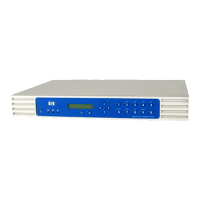
appliance. On the appliance's front panel, a series of messages will appear, including "Shutdown in
progress ... Booting ... Configuring ... Verifying ... Validating ... Uncompressing ... Extracting ..." and so
on. The standard display will appear when the appliance has been restarted.
5.
When the appliance is ready to function, re-enter the network address if necessary. If no errors occur
during the upgrade process, this is not necessary. All configuration information is retained.
6.
System Messages for Upgrading the Firmware




 To Next Page