IMPORTANT: Labels described in this section might be located at the bottom of the computer, inside the
battery bay, under the service door, on the back of the display, or on the bottom of a tablet kickstand.
● Service label—Provides important information to identify your computer. When contacting support, you
might be asked for the serial number, the product ID, or the model number. Locate this label before you
contact support.
Table 2-8 Service label components
Component
(1) Serial number
(2) Product ID
(3) HP product name, model number
● Regulatory label—Provide regulatory information about the computer.
● Warranty information—Included in the regulatory information.
● Wireless
certication labels—Provide information about optional wireless devices and the approval
markings for the countries or regions in which the devices have been approved for use.
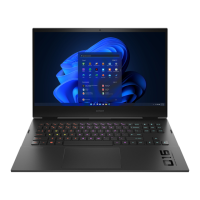
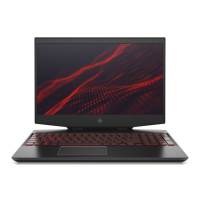
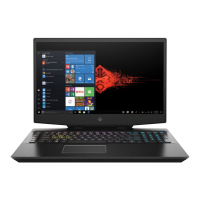
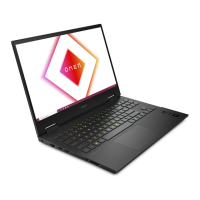
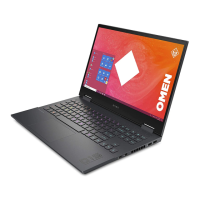
HP OMEN Gaming Hub
HP OMEN Gaming Hub allows you to customize your computer for your specic gaming needs.
▲ To open HP OMEN Gaming Hub, select the Start button, select
OMEN Gaming Hub, and then follow the
on-screen instructions.
– or –
Press the OMEN key
at the top right side of the keyboard.
The HP OMEN Gaming Hub dashboard provides a central location to access and congure the following
f
eatures:
NOTE: Some features are available on select products only.
● System Vitals
: Monitor the computer status and performance.
● Undervolting: Adjust the voltage of the computer to use less power and decrease the amount of heat
g
enerated.
● Light Studio: Coordinate your color scheme and easily sync your lighting eects across your OMEN
de
vices.
● Rewards: Join daily challenges to win in-game items and exclusive prizes.
● Lighting
: Customize the keyboard lighting.
HP OMEN Gaming Hub 13


 To Next Page