EnglishEnglish 13
HP 19” Color Monitor User’s Guide
Adjusting Your Monitor
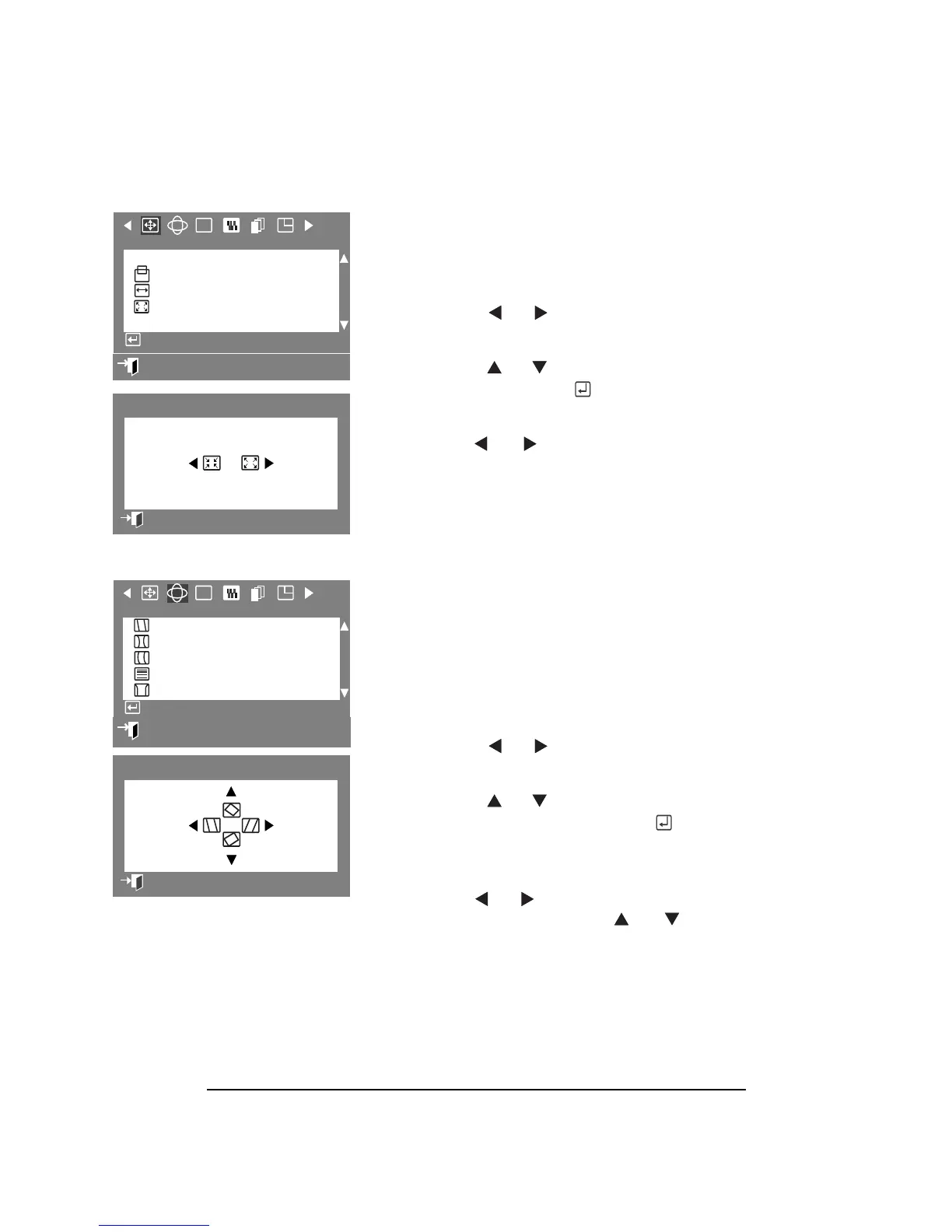
ZOOM
The Zoom parameters allow you to zoom in
or out of the picture.
1 Press the Menu button.
2
Press the or buttons to display
Position / Size OSD.
3 Press the or buttons to highlight
Zoom, then press the button to
display the Zoom adjustment OSD.
4 Use the or buttons to enlarge or
reduce the monitor’s viewing area.
PARALLEL/ROTATION
The Parallel/Rotation parameter allows you to
adjust the parallelogram setting when the
picture is leaning left or right, and the
rotation setting when the picture is tilted
left or right.
1
Press the Menu button.
2 Press the or buttons to display
the Geometry OSD.
3
Press the or buttons to highlight
Parallel/Rotation, then press the
button to display the Parallel/Rotation
adjustment OSD.
1 Use the or button to adjust the
parallel setting or use the or
buttons for rotation setting
adjustments.
:
Exit
RGB
Position/Size
Position
Size
Zoom
Access Function
Zoom
Previous Menu
RGB
Geometry
Parallel/Rotation
Pincushion/Trapezoid
Pinbalance
Linearity
Corner Distortion
Access Function
:
Exit
1
Parallel/Rotation
Previous Menu



 To Next Page