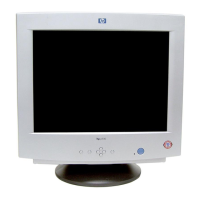
HP 19” Color Monitor User’s Guide
Adjusting Your Monitor
12 EnglishEnglish
Menu Features
The Menu features allow you to adjust the quality of the picture using
your monitor’s On-Screen menu facility.
When you have finished making adjustments to a setting, press the
Menu button to return to the Main Menu, then press Menu again to turn
off the On-Screen menu.
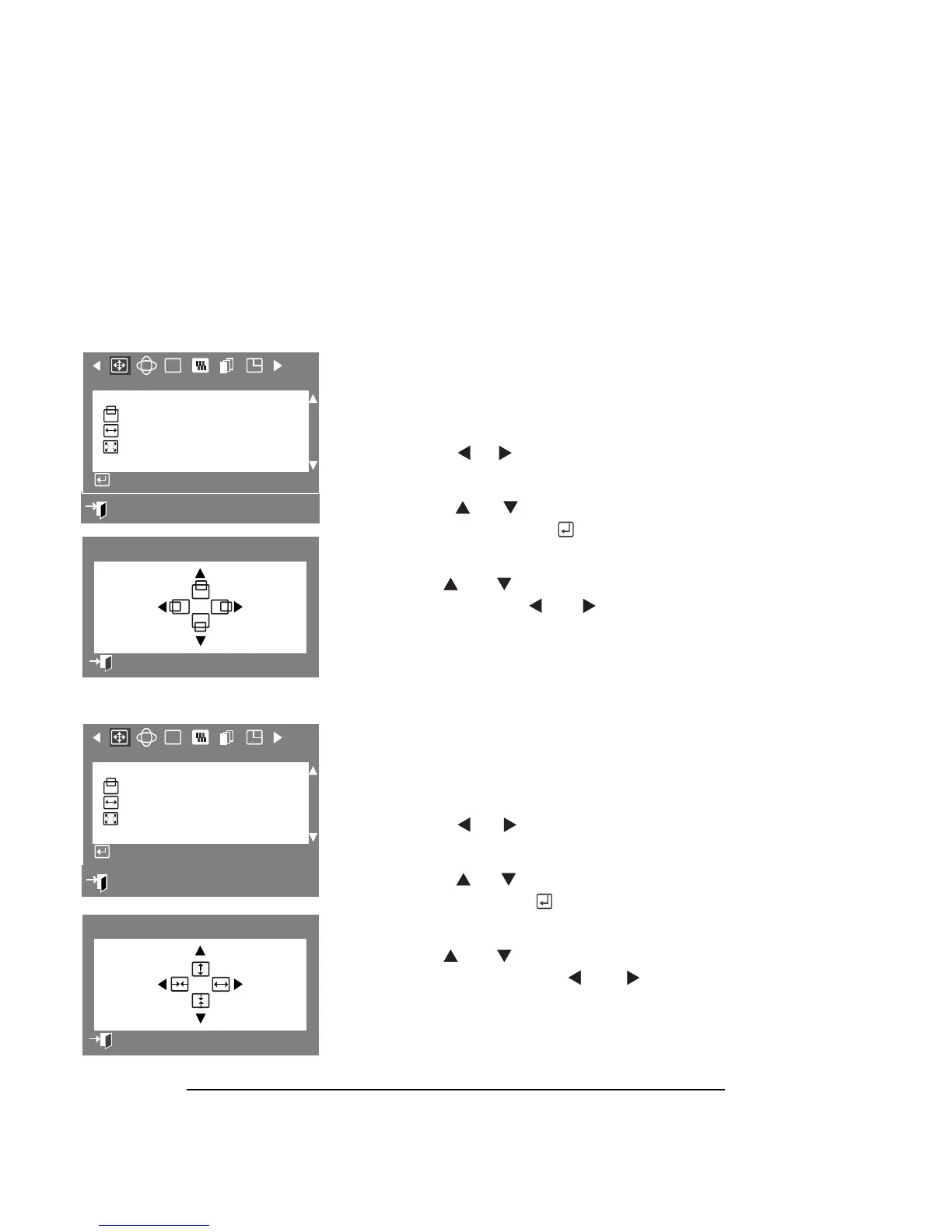
POSITION
The Position parameters allow you to change
the position of the picture.
1 Press the Menu button.
2 Press the or buttons to display
the Position / Size OSD.
3 Press the or buttons to highlight
Position then press the
button to
display the Position adjustment OSD.
4 Use the and buttons for vertical
adjustment, or the and buttons
for horizontal adjustment.
SIZE
The Size parameters allow you to change the
size of the picture.
1 Press the Menu button.
2 Press the or buttons to display
the Position / Size OSD.
3 Press the or buttons to highlight
Size, then press the button to
display the Size adjustment OSD.
4 Use the and buttons for vertical
size adjustment, or the a nd
buttons for horizontal size adjustment.
:
Exit
RGB
Position/Size
Position
Size
Zoom
Access Function
Position
Previous Menu
RGB
Position/Size
Position
Size
Zoom
Access Function
:
Exit
Size
Previous Menu



 To Next Page