EnglishEnglish 15
HP 19” Color Monitor User’s Guide
Adjusting Your Monitor
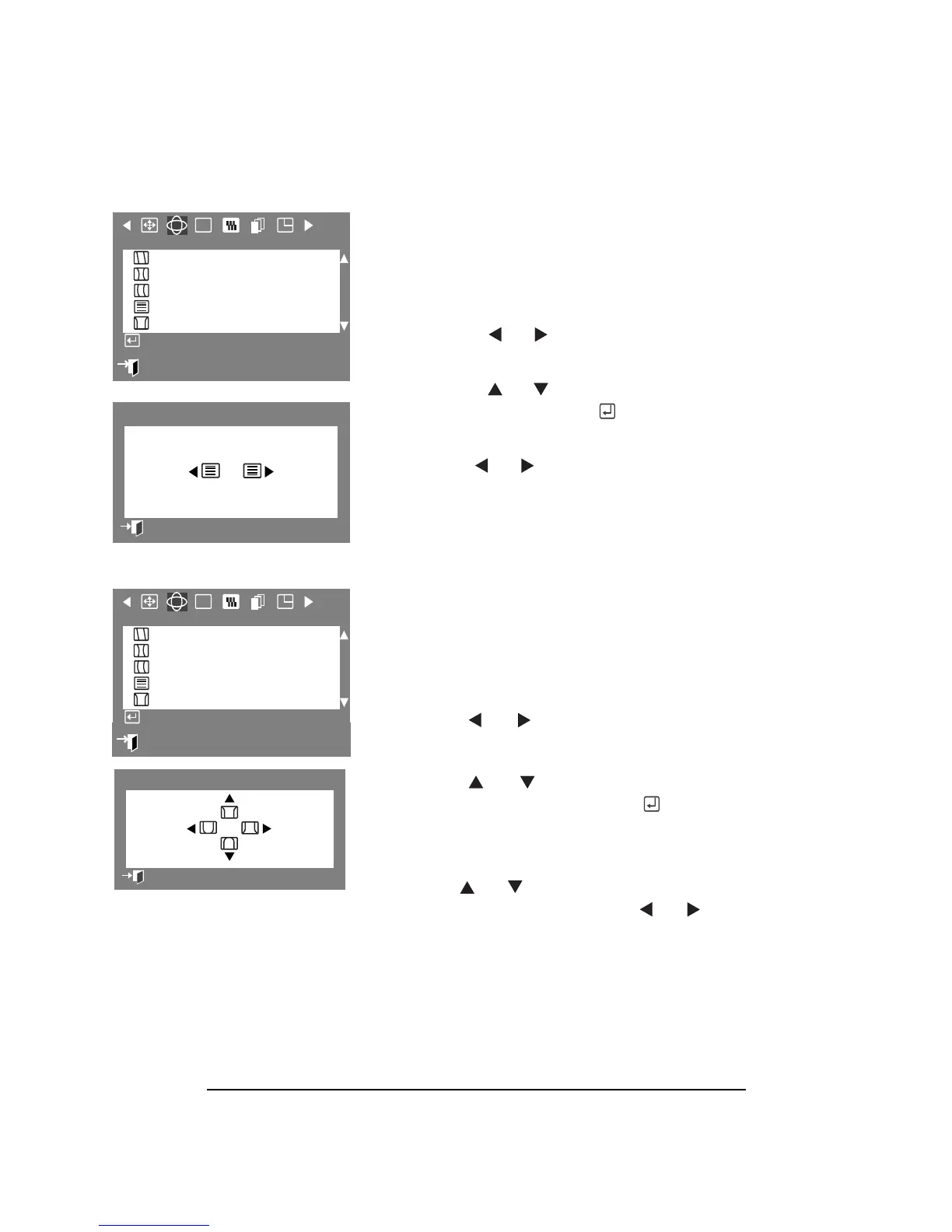
LINEARITY
The Linearity parameters allow you to adjust
the linearity setting when the picture is
compressed at the top or bottom.
1 Press the Menu button.
2 Press the or buttons to display
the Geometry OSD.
3 Press the or button to highlight
Linearity then press the button to
display the Linearity adjustment OSD.
2 Use the or button for vertical
linearity adjustments.
CORNER DISTORTION
The Corner Distortion parameters allow you to
adjust corner distortion when the border
displayed on the screen is not straight.
1 Press the Menu button.
2 Press the or buttons to display the
Geometry OSD.
3 Press the or buttons to highlight
Corner
Distortion, then press the
button to display the Corner Distortion
adjustment OSD.
4
Use the o r buttons for upper
border/line adjustment. Use the or
buttons for lower border/line
adjustment.
:
Exit
RGB
Geometry
Parallel/Rotation
Pincushion/Trapezoid
Pinbalance
Linearity
Corner Distortion
Access Function
Linearity
Previous Menu
:
Exit
RGB
Geometry
Parallel/Rotation
Pincushion/Trapezoid
Pinbalance
Linearity
Corner Distortion
Access Function
:
15
3
Corner Distortion
Previous Menu



 To Next Page