EasyManua.ls Logo

HP StorageWorks SN6000 - User Manual

HP StorageWorks SN6000
114 pages
Print Icon
To Next Page IconTo Next Page
Loading...
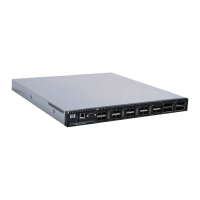
HP StorageWorks SN6000 Fibre Channel Switch
QuickTools Switch Management User Guide
This user guide describes the QuickTools web applet (version 8.00.4) for the HP SN6000 Fibre Channel Switch (firmware
version 8.0.4). The QuickTools web applet is a graphical user interface that provides tools for fabric, switch, and port
management tasks. This user guide is intended for users responsible for installing and using switch management tools.
Part Number: 5697-0417
Published June 2010
Edition: 2

Table of Contents

Other manuals for HP StorageWorks SN6000

Questions and Answers

  • P
    Pamela HillAug 17, 2025
    What to do if HP StorageWorks SN6000 Switch has a configuration file system error blink pattern?
    • L
      Lisa DavisAug 17, 2025
      If your HP Switch displays a configuration file system error blink pattern, restore the configuration. The switch will reset once the restore is complete.
  • A
    Andrew EdwardsAug 20, 2025
    How to restore configuration file system on HP StorageWorks SN6000?
    • D
      Daniel WestAug 20, 2025
      To restore the switch configuration on your HP Switch, establish communications with the switch using Telnet by entering 'telnet xxx.xxx.xxx.xxx' or 'telnet switchname' on the command line. When a Telnet window opens, enter the account name and password (default is admin and password respectively). Open an admin session using 'SN6000 $> admin start'. Then, restore the configuration using 'SN6000 (admin) $> config restore'. If a configuration does not exist, enter the config backup CLI command, then enter the config restore command.
  • L
    Lisa SandersAug 22, 2025
    What to do if I have excessive port errors on my HP StorageWorks SN6000?
    • B
      branchjessicaAug 23, 2025
      If you're seeing excessive port errors on your HP Switch, first check the event browser to see if these errors are disabling the port. If so, examine the alarm configuration using the `show config threshold CLI` command to ensure the thresholds and sample window are correctly configured. If the configuration is correct, reset the port and perform an external port loopback test to validate the port and the SFP. If the port fails the test, replace the SFP and repeat the test. If it still fails, contact your authorized maintenance provider. If the port passes the test, replace the Fibre Channel port cable. Finally, inspect the connected device and its HBA to ensure they are working correctly.
  • R
    Rachel MillerAug 26, 2025
    What to do if HP StorageWorks SN6000 has an over-temperature blink pattern?
    • M
      mcfarlandbryceAug 26, 2025
      If your HP Switch is showing an over-temperature blink pattern, start by checking the switch vents to make sure they are clear of any obstructions. If the vents are clear and the problem continues, consider the ambient air temperature around the switch and ensure there is adequate clearance. If the condition persists after these checks, power down the switch and contact your authorized maintenance provider.
  • U
    uscottAug 28, 2025
    Why is the System Fault LED illuminated on my HP StorageWorks SN6000 Switch?
    • B
      briannabatesAug 28, 2025
      If the System Fault LED is illuminated on your HP Switch, this indicates a fault in the switch firmware or hardware. You should identify the Heartbeat LED error blink pattern and take the necessary actions described on page 52.
  • R
    rebecca27Aug 30, 2025
    How to troubleshoot an extinguished input power LED on an HP Switch?
    • A
      Amanda GillAug 30, 2025
      If the input power LED is off on your HP Switch, inspect the power cords and connectors to ensure they are properly plugged in and undamaged. Also, check the AC power source to verify it's delivering the correct voltage. If the condition remains, contact your authorized maintenance provider.
  • R
    rebecca31Sep 1, 2025
    What does a fatal POST error blink pattern mean on my HP StorageWorks SN6000?
    • L
      lisasalinasSep 2, 2025
      If your HP Switch shows a fatal POST error blink pattern, this indicates a POST failure or a system error that has rendered the switch inoperable. Momentarily press and release the Maintenance button to reset the switch and contact your authorized maintenance provider.
  • J
    Justin HuffmanSep 4, 2025
    What to do if HP StorageWorks SN6000 has excessive port errors?
    • M
      Michael FordSep 4, 2025
      If your HP Switch shows excessive port errors, review the event browser to see if these errors are disabling the port. Check for messages about monitored error types. Examine the alarm configuration for the associated error using the show config threshold CLI command to ensure the thresholds and sample window are correct. If the thresholds are correct, reset the port and perform an external port loopback test to validate the port and the SFP. If the port fails the test, replace the SFP and repeat the test. If the port passes the test, replace the Fibre Channel port cable. If the problem persists, inspect the device connected to the affected port to ensure it and its HBA are working correctly. Make repairs and corrections as needed.
  • K
    Kevin CastilloSep 6, 2025
    What to do if HP Switch shows over-temperature blink pattern?
    • M
      Michael JonesSep 6, 2025
      If your HP Switch is showing an over-temperature blink pattern, first inspect the switch vents to ensure the intake and exhaust vents are clear of any obstructions. If the vents are clear, consider the ambient air temperature near the switch and ensure there is adequate clearance around the switch. Make necessary corrections to improve ventilation. If the condition persists, power down the switch.
  • N
    nicholasestradaSep 12, 2025
    Why is the input power LED extinguished on my HP StorageWorks SN6000 Switch?
    • A
      Anthony CruzSep 12, 2025
      If the input power LED is off on your HP Switch, inspect the power cords and connectors to ensure the cord is plugged in and not damaged. Also, check the AC power source to ensure it is delivering the proper voltage. Make necessary repairs if needed.

Summary

Using QuickTools

Workstation Requirements

Specifies system and hardware needed for QuickTools.

Managing Fabrics

Transparent Router Configuration

Set up inter-fabric routing using TR ports and mapping.

Zoning Management

Zoning Concepts and Data Windows

Understand zones, aliases, zone sets, and view zoning databases.

Managing Zoning Database

Procedures for editing, saving, and restoring zoning configurations.

Switch Management

Switch Data Window and Properties

Access switch status, configuration, and properties.

User Account Management

Create, modify, and manage user accounts on switches.

Network Configuration

IP and DNS Settings

Configure IP addressing and DNS parameters for network connectivity.

SNMP Configuration

Switch Testing and Maintenance

Port Management

HP StorageWorks SN6000 Specifications

General IconGeneral
ModelSN6000
Port Speed8 Gbps
Data Transfer Rate8 Gbps
Form Factor1U
Fibre ChannelYes
ManageableYes
Hot-swappableYes
Redundant Power SuppliesYes
ManagementCLI
Width17.3 in
Depth44.5 cm
Height1.7 in
Weight7.7 kg

Related product manuals