Phone Basics 31
Note: To add an app from the All Apps screen, press and hold an app and drag it to . Drop
the app on an empty space in the Home screen.
Move or Remove Items on Your Home Screen
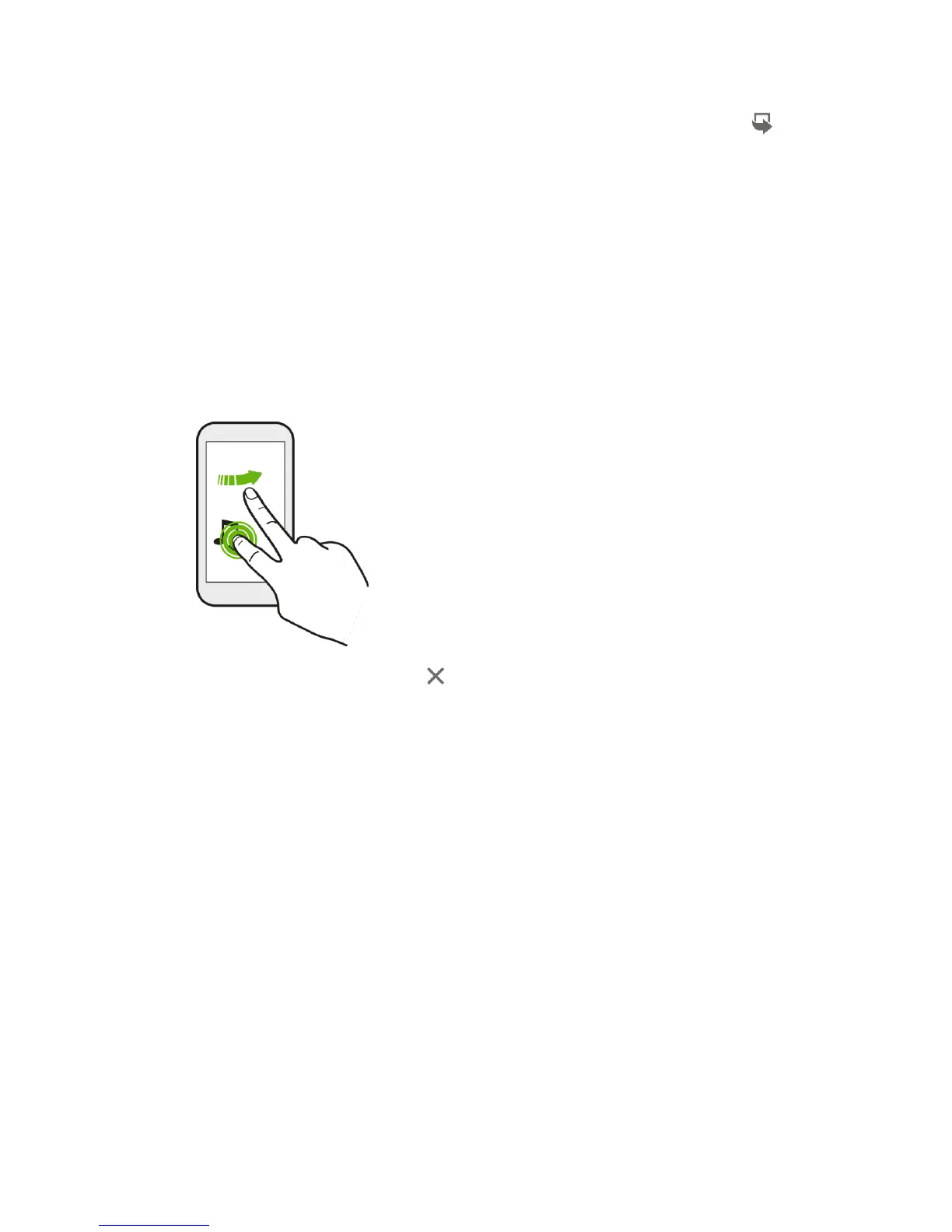
1. Touch and hold the widget or app shortcut you want to move or remove.
2. Do one of the following:
To move the item to another position on the same panel, just drag it to a new area
and then release it.
To move the item to another Home screen panel, flick left or right to rotate the screen
to another Home screen panel, and then release it.
To remove the item, drag it to and then release it.
Group Apps in a Folder
You can group apps into a folder in the All Apps screen, and then move the folder to the launch
bar or the Home screen.
1. From the All Apps screen, touch and hold an app, and then drag it over to another app to
automatically create a folder.


 To Next Page