1615
2. Display Description
Initial Operation
Product boot/shutdown
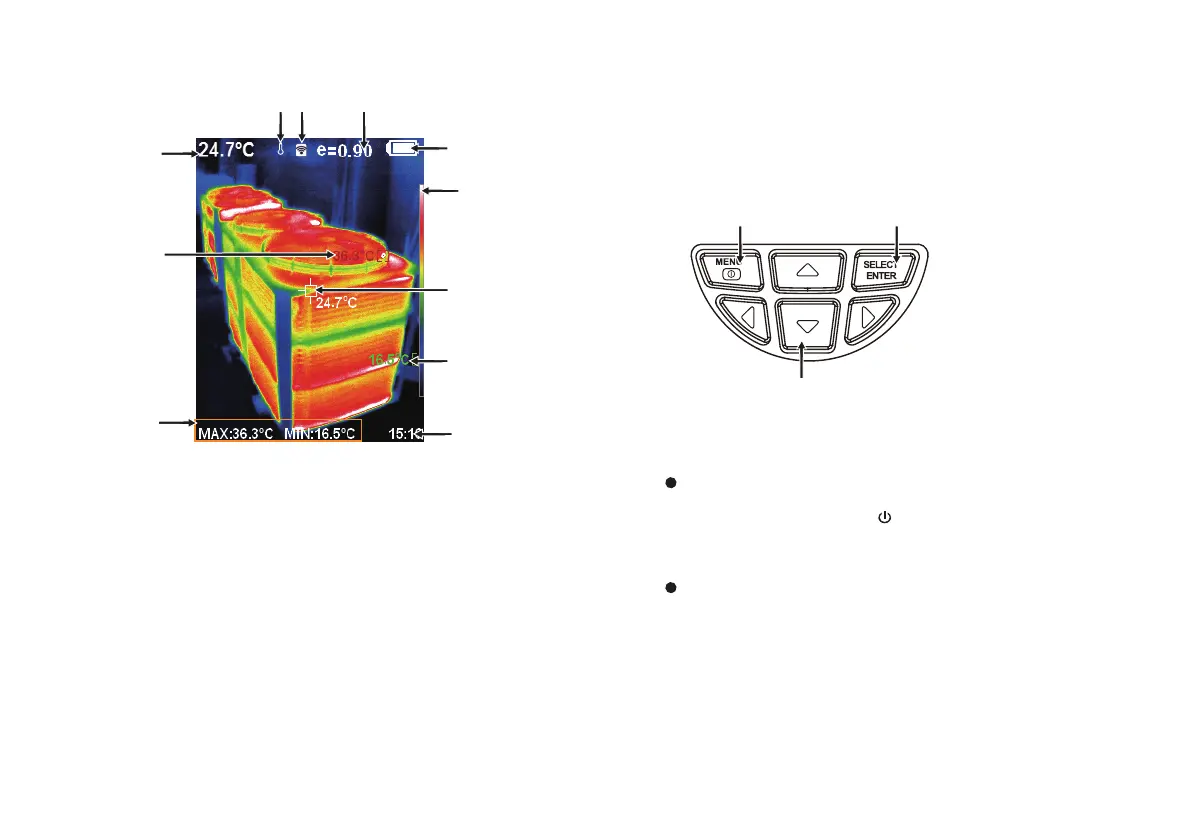
Color code: Used to mark the color corresponding to the relative temperature
from low to high in the field of version.
Press and hold the “ MENU/ ” button for more than 3 seconds to
turn the Thermal Imaging on or off.
The central point temperature cursor: Used to indicate the central position in
the screen area. The cursor color displays white. The temperature value is
displayed top left corner of the screen.
The lowest temperature cursor: Used to indicate the lowest temperature
position in the screen area. It will move with the movement of the lowest
temperature. The cursor displays green. The temperature value is displayed
at the central position of the screen.
LCD screen display
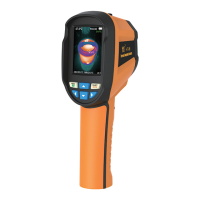
After turning on the power, the screen shows the thermal imaging
status.
Note:
Time adjustment may be required when you move the camera
between environments with widely varying ambient temperatures.
The highest temperature cursor: Used to indicate the highest temperature
position in the screen area. It will move with the movement of the highest
temperature. The cursor displays red. The temperature value is displayed
at bottom left corner of the screen.
Maximum value/
minimum value of
field temperature
Color code
Current emissivity
Battery power
The highest
temperature
cursor
Temperature
cursor at
central point
Time
Central point
temperature
The lowest
temperature
cursor
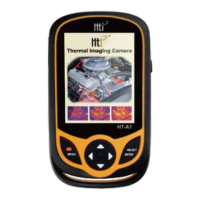
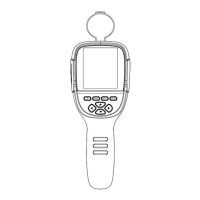
3. Key Description
Menu key/On/off key
Navigation key: Up, down, left and right
Selection key/Entry key
Temperature range
Wifi
L
H
Temperature range: The range of temperature measurement.


 To Next Page