33 34
Thermal Imaging Image Analysis Software
Operation Guide
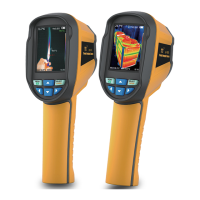
1. Connect the product with a USB cable, and then connect to the computer.
Open the removable disk in the computer, find the "INSTALLATION
PACKAGE" folder and open it, and click to install the software.
Software Installation And Operation
2. After installation, open Enter the picture analysis software
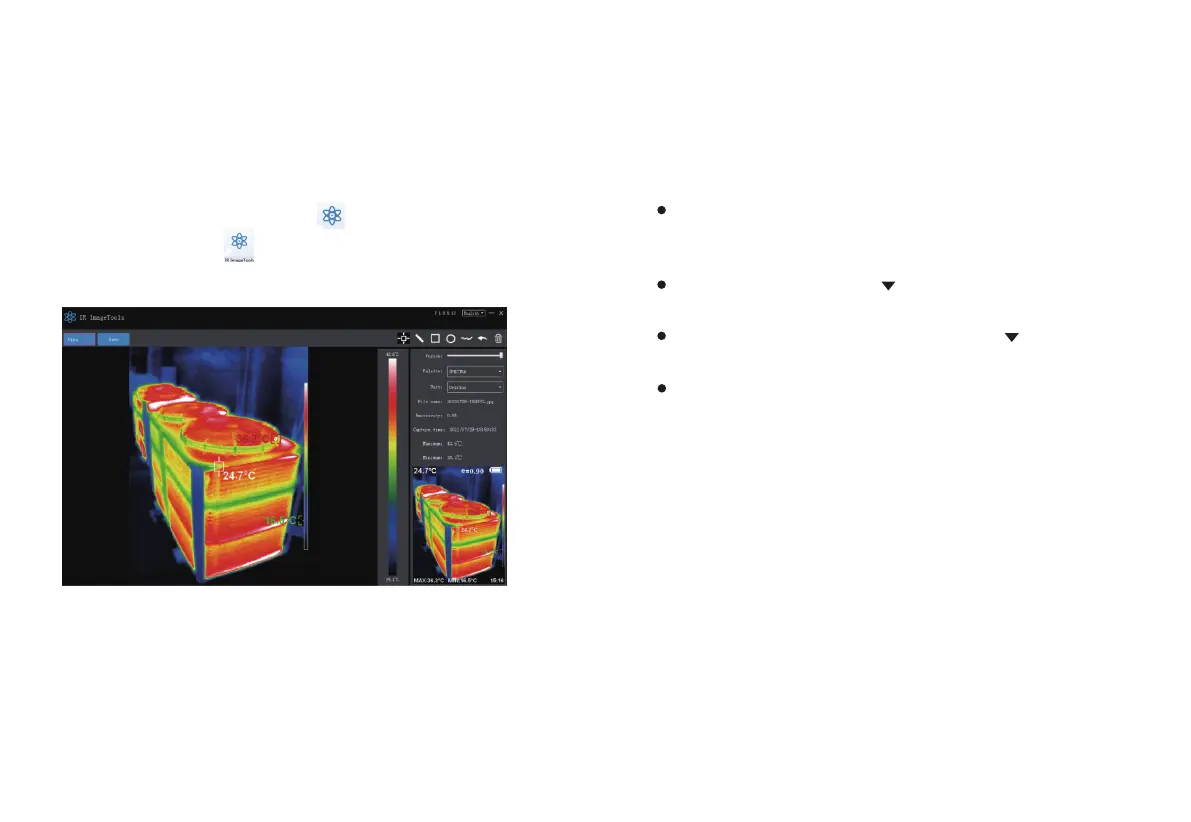
interface,click "Open File", and select the picture to be analyzed,as shown
in the figure:
1. Select the language in the upper right corner of the interface, you can
choose Chinese, English, and switch between the two languages.
2. On the right are shown as: fusion rate, color palette, temperature unit,
picture information.
3. "Open File" in the upper left corner of the interface, open the thermal
image to be read. When you need to save the picture after the operation,
click "Save"(Note: the saved picture cannot be opened again with this
software).
Fusion rate: Moving the slider can realize the fusion of visible light image
and infrared thermal image. The left end is a visible light image, and the
right end is an infrared thermal image.
Palette: In the palette, click the “ ” icon to choose from five color
palettes: rainbow, iron red, cold, white hot, black hot.
Temperature unit: In the temperature unit, click the “ ” icon to select
three temperature units: Celsius, Fahrenheit, and Kelvin.
Picture information: display file name, emissivity, capture time, maximum
temperature, minimum temperature, center point temperature, original
thermal image.
Interface Introduction


 To Next Page