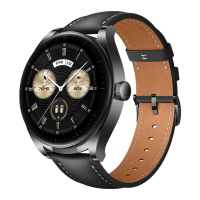
In wrist mode, tap the touch key below the screen until you nd the Find Phone screen, then
touch and hold the touch key to enable the Find phone feature. If your phone is within the
Bluetooth range, it will play a ringtone to alert you, even in Silent mode. On the Find Phone
screen, tap the touch key to disable the feature.
• To enable the Find Phone feature, ensure that the band is connected to your phone
and that the Huawei Health app is running in the background or foreground.
• The Find Phone feature is automatically disabled when there is no response for more
than 30 seconds.
• The media music played on an Android phone is dierent from that played on an iOS
phone.
Setting an Event alarm
You can use the Huawei Health app to set a maximum of ve Event alarms to remind you of
work and social activities, such as meetings or get-togethers.
For Android users:
1 Open the Huawei Health app, touch Devices, touch your device, and go to Alarm >
EVENT ALARMS.
2 Set the alarm time, tag, and repeat cycle.
3 Touch √ in the upper-right corner to save the settings.
4 Swipe down on the home screen to ensure that the alarm settings are synced to your
band.
For iOS users:
1 Open the Huawei Health app and touch Devices.
2 Touch the band's Bluetooth name from the device list.
3 Go to Alarm > Event alarms.
4 Set the alarm time, tag, and repeat cycle.
5 Touch Save.
6 Swipe down on the home screen to ensure that the alarm settings are synced to your
band.
Convenient life
15


 To Next Page