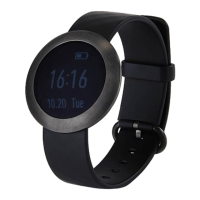
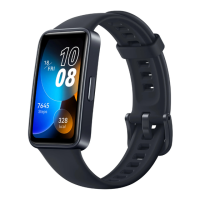
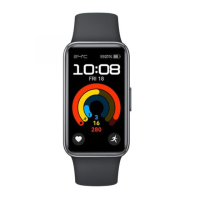
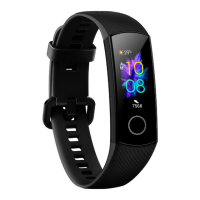
Gestures
Action Function
Touch the touch key Switch between screens
Touch and hold the
touch key
Enable the corresponding feature
Waking the screen
To wake the screen, raise your wrist or rotate it in an inward direction, and the screen will
stay on for 5 seconds.
• Open the Huawei Health app, then enable the Raise wrist to wake screen feature on
the device details screen.
• The screen brightness cannot be adjusted manually.
Switching between screens
To switch between screens, rotate your wrist when the screen is on.
• Open the Huawei Health app, then enable the Rotate to switch screen feature on the
device details screen.
• The Rotate to switch screen feature is not supported in Foot mode.
Turning o the screen
• To turn o the screen, lower your wrist.
• The screen automatically turns o when the band is idle for 5 seconds.
When the screen wakes up within 5 seconds after turning o, it returns to the previous
screen. When the screen wakes up more than 5 seconds after turning o, it switches to
the home screen.
Wearing mode
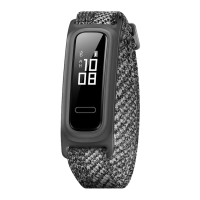
The band comes with Wrist mode and Foot mode.
• The following features are supported in Wrist mode: daily activity tracking, sleep tracking,
message reminders, incoming call
notications, alarm reminders, and nding your phone
using your band.
• The following features are supported in Foot mode: professional running data monitoring
(cadence, stride, ground contact time, foot strike pattern, landing impact, eversion
excursion, and swing angle.), basketball performance tracking (average vertical jump
height, maximum vertical jump height, number of jumps, average hang time, average
moving speed, and maximum moving speed), and cycling monitoring (cadence).
Getting started
7


 To Next Page