14
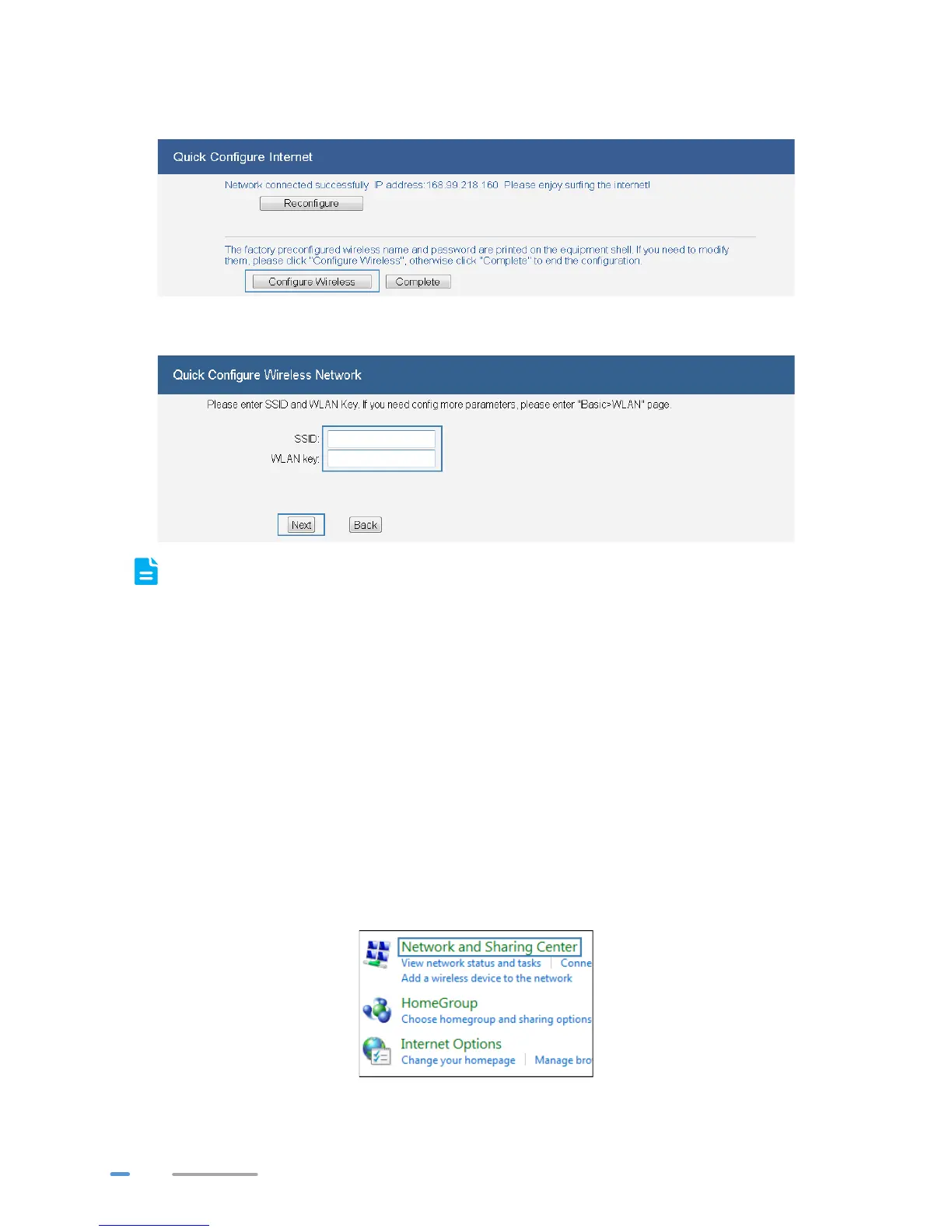
3. If Network connected successfully is displayed, the HG532d is connected to the Intenet.
You can click Configure Wireless to modify the wireless settings.
4. Enter the SSID (WLAN name) and key and click Next.
To obtain the default SSID and key, check the label on the rear panel. To better secure your
WLAN, promptly change the SSID and key.
5. In the displayed Wireless config successful page, click Completed to complete the
configuration.
Setting Dial-Up Connection Parameters
When the HG532d works in Bridge mode you need to perform this operation. The other three
connection types PPPoE, DHCP and Static do not need to perform this operation.
Before setting dial-up connection parameters, verify that the HG532d is correctly connected to your
computer and you have the dial-up connection account name and password provided by your Internet
service provider (ISP). This section demonstrates how to set up a Point-to-Point Protocol over Ethernet
(PPPoE) connection on Windows.
On Windows 7
1. Choose Start > Control Panel > Network and Internet > Network and Sharing Center.


 To Next Page