from our official website.
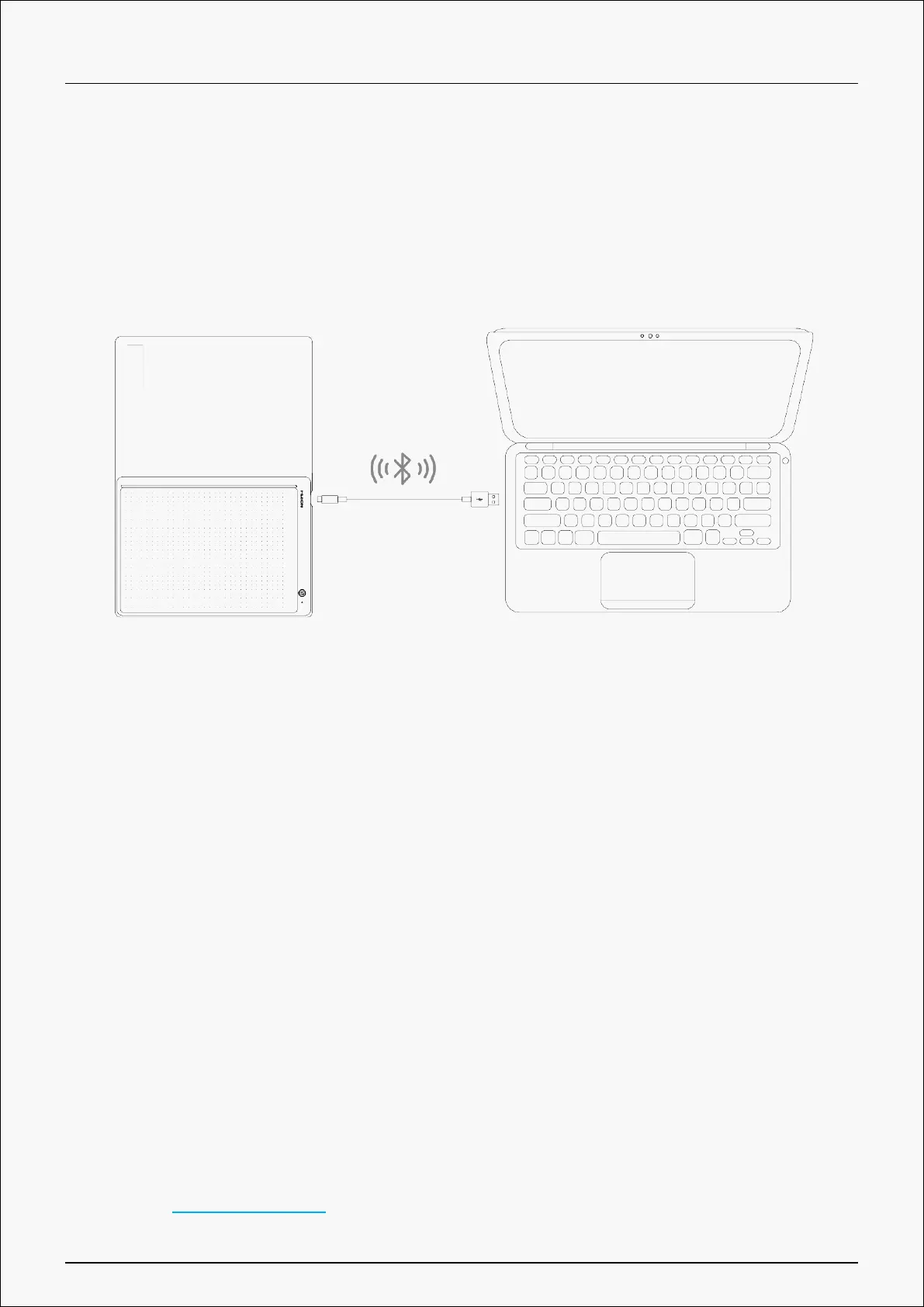
2. Connect the smart digital notebook to your computer via a USB-C cable.
3. Or you can turn on Bluetooth on your computer, and pair the computer with Huion Note
hardware to connect.
4. Open the driver, and a picture of the smart digital notebook will appear, indicating that they
are connected successfully and you can use the smart digital notebook now.
Driver Installation
Windows
How to Install the Driver on Windows Device
Notice:
① Before installing the driver, please close all graphic software and antivirus programs. The
note (“HuionTabletCore.exe” failed to launch!) below appears only on devices with Windows
OS, indicating that the driver is blocked by antivirus programs or drawing applications.
② Please make sure your computer operating system is Windows 7 or later.
③ Open the driver and a picture of Huion Note will appear, indicating that the pen display is
successfully connected to your computer. Now you can use your pen display.
④ If the connection fails, please restart the driver or your computer.
Note: The pen display cannot work once the driver is uninstalled or deleted. In this case
please click Driver-Huion Note to reinstall a driver, and your pen display and digital pen will
restore to their default settings.
12 / 44


 To Next Page