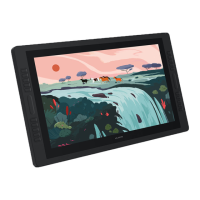
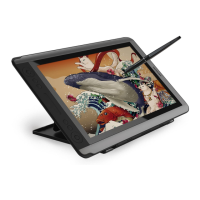
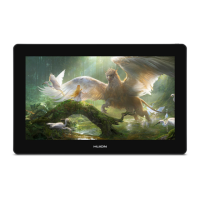
1. Connect the pen display to your computer.
2. Choose the correct driver for your device from our website: Driver-Huion Note.
3. Click Driver-Huion Note to download it.
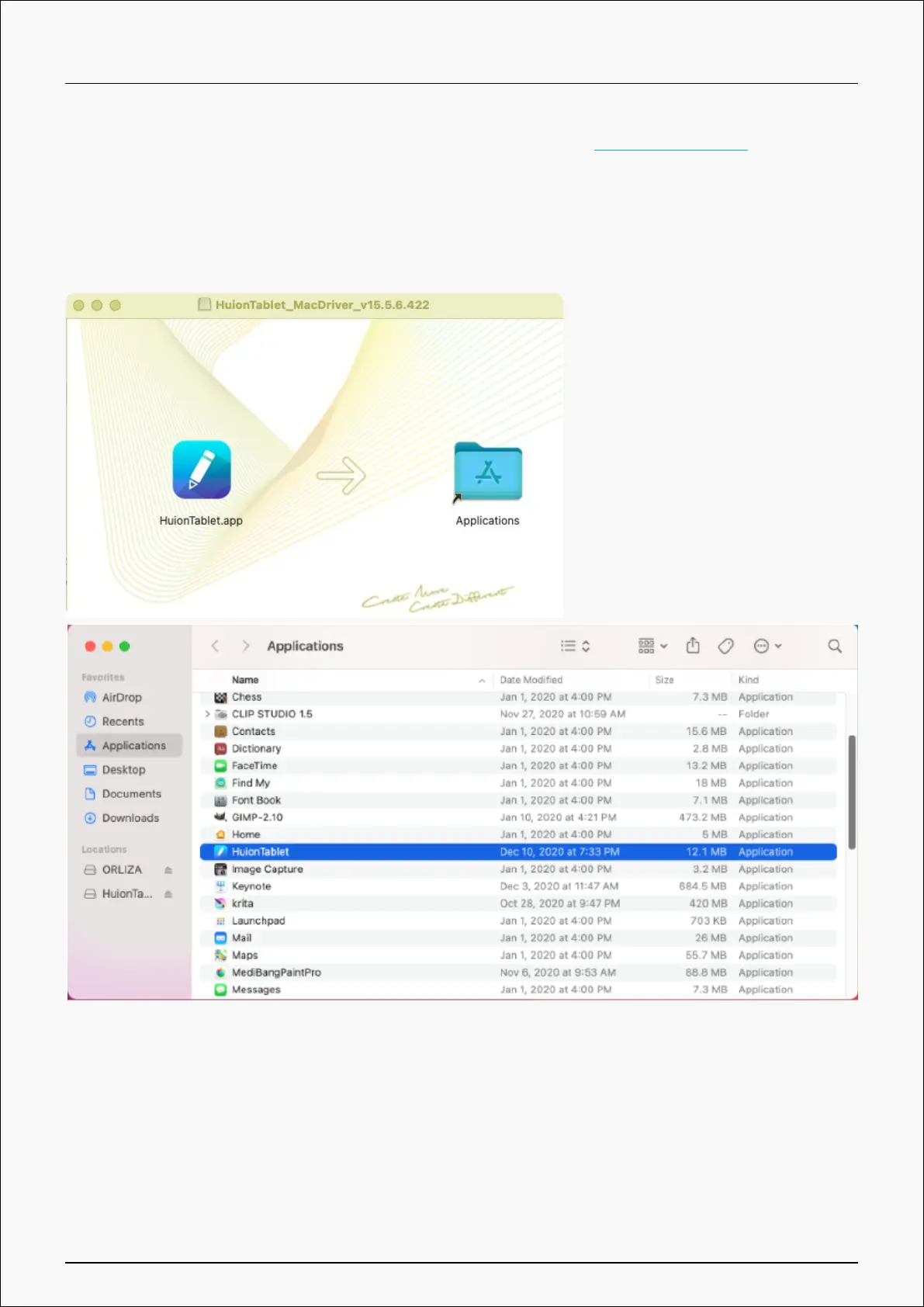
4. Unzip the driver file and drag the HuionTablet driver application into the “Applications”
folder.
5. Open the folder and then find and double-click the HuionTablet driver application.
6. Connect the pen display to your Mac, and click “Open System Preferences" when prompted.
Go to Security & Privacy > Privacy > Accessibility settings and click the lock icon to unlock the
settings.
Tick the checkbox on the left of the HuionTablet driver application to enable accessibility. Then
click the lock icon to lock the settings.
16 / 44


 To Next Page