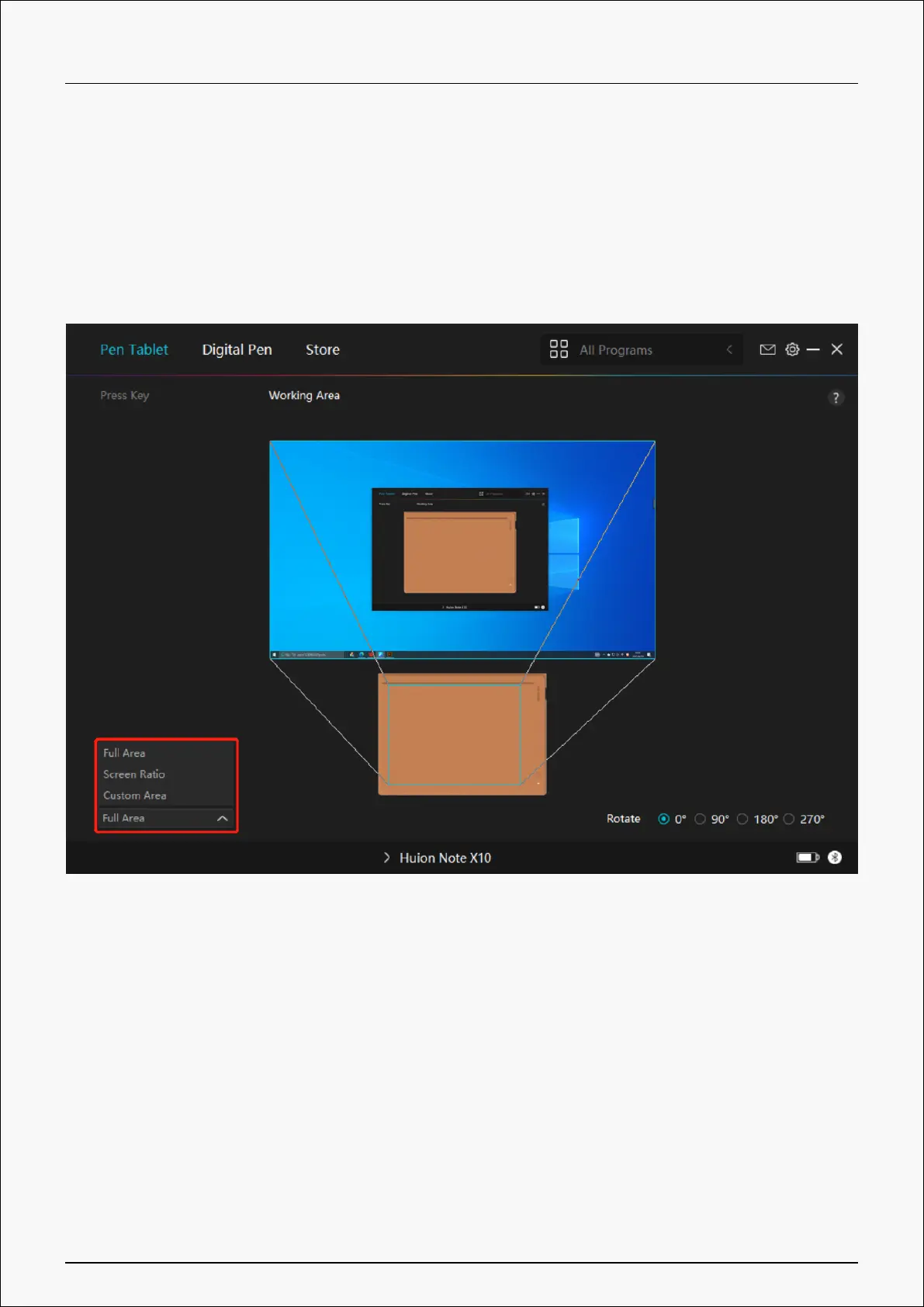
In mirror mode (All monitors display the same content), the pen tablet maps to the entire
screen on each monitor and cursors displayed on them move simultaneously.
1. Working Area Setting
Note: After your smart digital notebook is connected to the other device and the driver is
turned on, by default the Screen Ratio mode is enabled and the aspect ratio of the active
working area of Huion Note hardware will be the same as that of the monitor.
Define the active working area of Huion Note X10 that will be mapped to the monitor. Three
modes on the driver can be chosen:
[1] Full Area: The entire active area of the pen tablet will be mapped to the monitor.
[2] Screen Ratio: The aspect ratio of the active pen tablet area depends on that of the
connected monitor screen. In Screen Ratio mode, these two ratios keep the same.
[3] Custom Area:
1> Enter coordinate values.
2> You can adjust the working area of the pen tablet by changing the outlines of the smaller
rectangle. You can also drag the two blue rectangles to select the active areas of the digital
pen on the screen and the pen tablet. (See pictures 1 and 2).
30 / 44


 To Next Page