39 Display Settings
C MEGA L V D S
Use the following instructions to change how the MEGA Live View is displayed.
Some of the menu options in this section may be displayed in other parts of the menu system so that you can access them quickly.
No matter where you make the change, the control head will update the setting across the system.
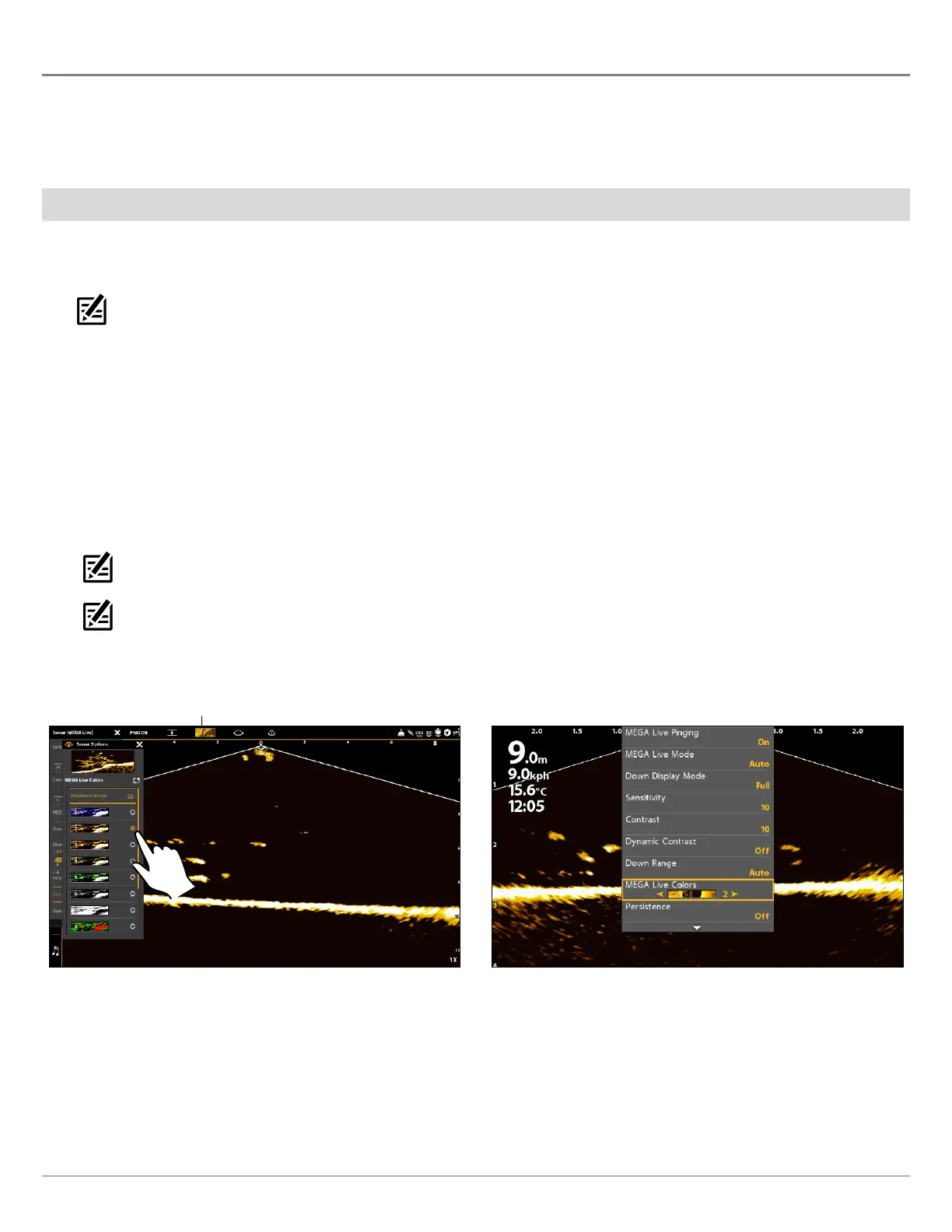
Change the View Color
Change the Color Palette
The MEGA Live Imaging X-Press Menu allows you to quickly change the display palette while you fish.
NOTE: The palette you choose will be applied to all Mega Live Views in the View database.
APEX/SOLIX Series HELIX Series
1. X-Press Menu: With a MEGA Live View or MEGA Live
Combo View displayed on-screen, press the MENU key
once, or tap Sonar (MEGA Live) on the status bar.
2. Select Sonar Options > Preferences > MEGA Live Colors.
3. Tap a sonar color palette, or use the Joystick to select a
palette.
4. Close: Tap the X icon.
QUICK TIP! You can also change this setting by tapping
the color palette icon in the status bar.
NOTE: When Global is turned on in the Sonar Options
menu, the selected menu setting on the control head is
shared with other control heads in the network.
1. X-Press Menu: With a MEGA Live Imaging View displayed
on-screen, press the MENU key once.
2. Select MEGA Live Colors.
3. Press the RIGHT or LEFT Cursor Keys to select a palette.
4. Close: Press the EXIT key.
Adjusting the Color (APEX) Adjusting the Color (HELIX)
color palette


 To Next Page