User Manual
HV Diagnostics Page 18 Rev 9.0
5.2 User Interface
Display Navigation
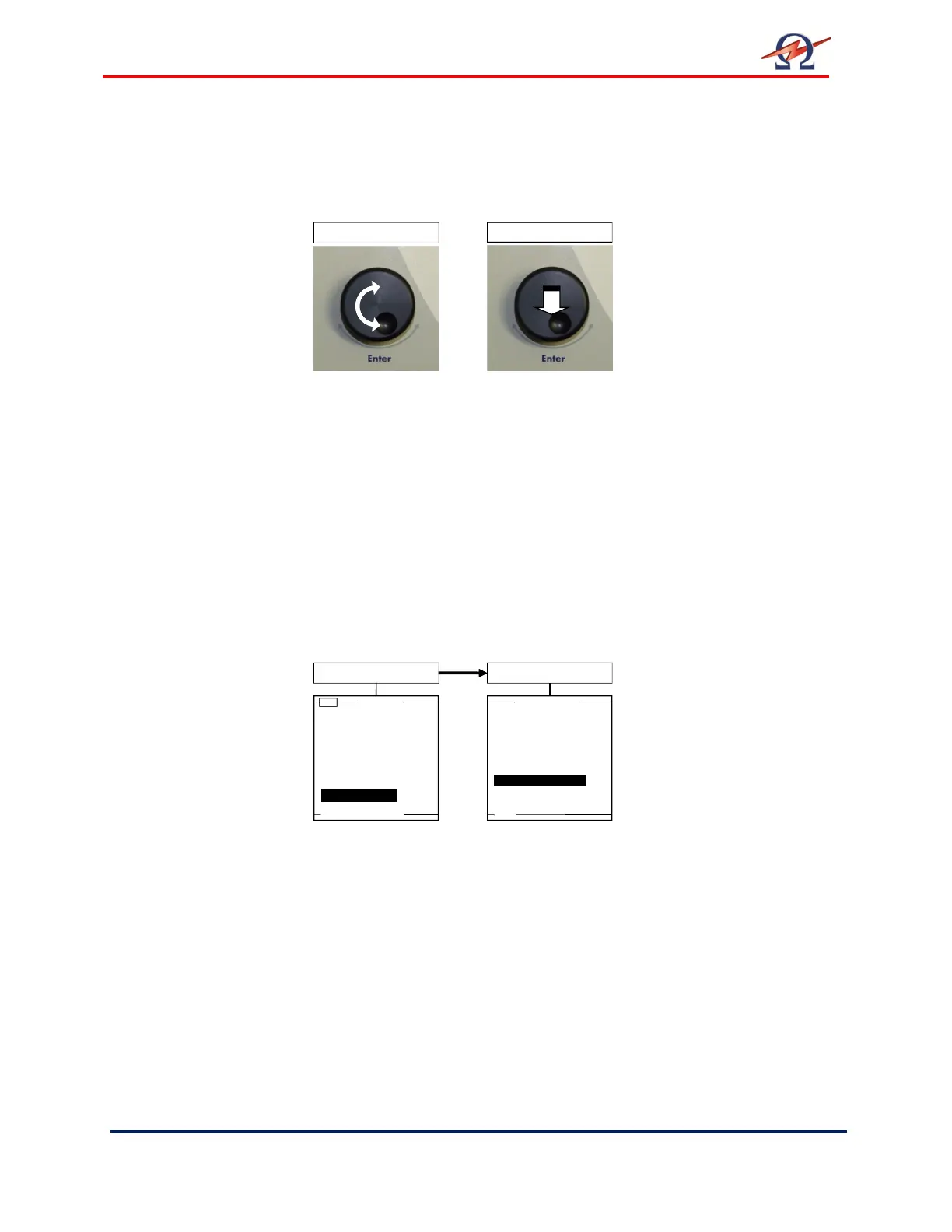
The navigation knob (5) enables the user to select or change options
shown on the HVA display screen (4).
• To move to another item in a menu list or to any other field possible
on the screen Rotate the knob.
• To scroll through options or to change value displayed of an active
field Rotate the knob.
• To select marked option or to accept set value Push in / “click”
Display Contrast
The contrast of the HVA display screen (4) can be adjusted. The
“Display Contrast” setting is found in the “Reports & Setup” menu.
• The lowest value is “1”, refers to the lightest background.
• The greatest value “10” refers to the darkest background.
To select, Push in / “click” the navigation knob (5) until “Display
Contrast” is highlighted. Rotate the knob to change the value.
Push in / “click” in to enter the new value.
5.3 Instrument Set-up
The HVA instrument settings should be established prior to first
utilization and can be modified at any time thereafter. “Instrument
Settings” is found in the “Reports & Setup” menu.
Push in / „Click“
Main Menu
Use Last Test Seq.?
(T)
Start a New Test
Manual Mode
Reports & Setup
Reports &Setup
Store Rep. to USB
Edit Auto Test Seq.
Instrument Settings
Display Contrast 4
Service


 To Next Page