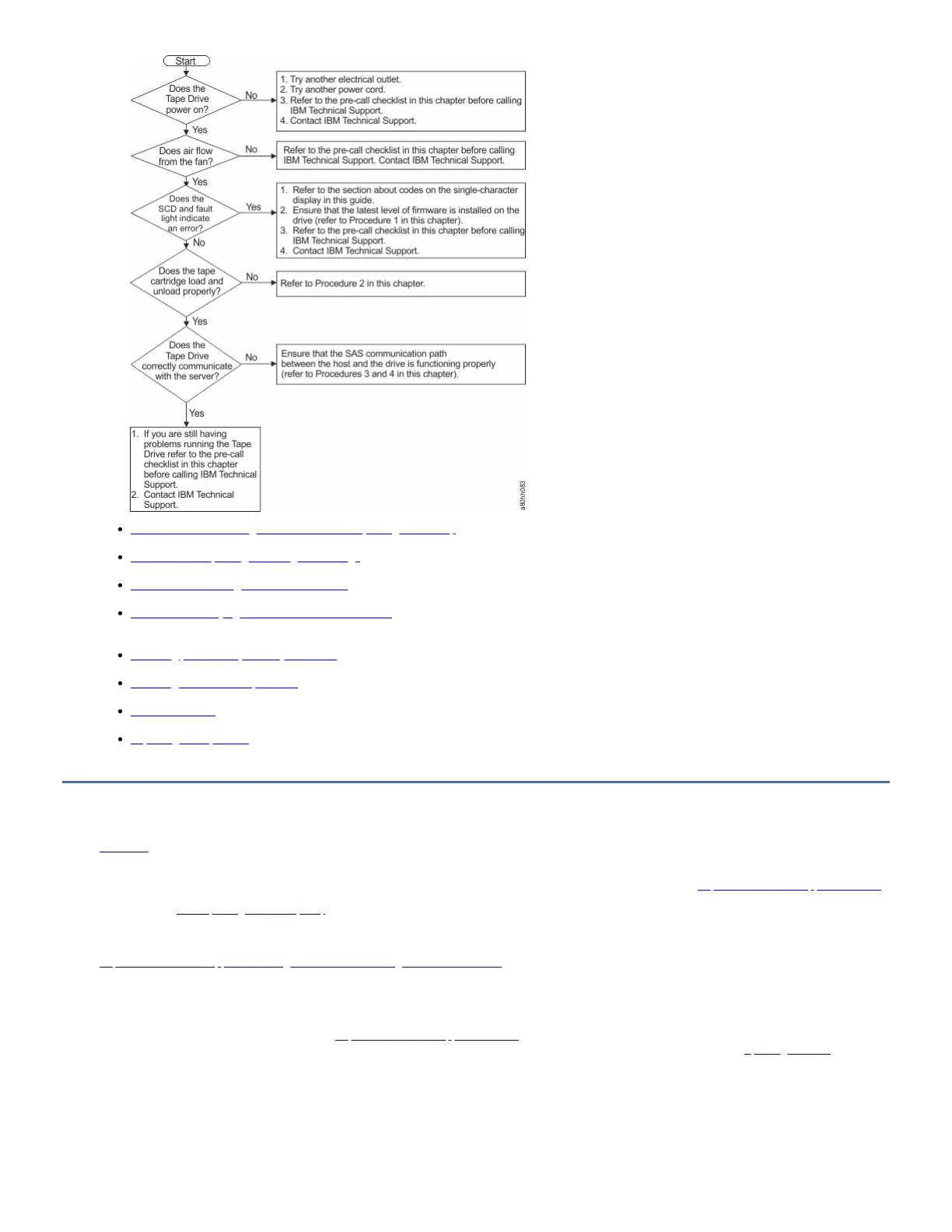
Procedure 1: Determining firmware level and capturing drive dump
Customers are responsible for updating drive firmware.
Procedure 2: Inspecting a cartridge for damage
If the cartridge fails to load or unload properly, complete the following steps.
Procedure 3: Checking SAS host connections
Check the host connections for your drive by following these steps.
Procedure 4: Verifying host interface communications
The Wrap Diagnostic tests the communication function at the device interface. However, to thoroughly verify host-to-device communications, it is highly
recommended to exercise activity over the SAS interface bus from the host to the drive and back.
Resolving problems reported by the server
The procedure for fixing interface bus errors varies, depending on whether the error is consistent or intermittent, and on your configuration.
Resolving media-related problems
Media-related problems can be diagnosed and solved in various ways.
Pre-call checklist
If you have questions or problems, go through this checklist before IBM technical support is contacted.
Replacing the tape drive
To replace your tape drive, complete these steps.
Procedure 1: Determining firmware level and capturing drive dump
Edit online
Customers are responsible for updating drive firmware.
For optimum performance, the customer must obtain the current level of firmware for the unit by downloading the firmware from http://www.ibm.com/support/fixcentral.
The ITDT utility (IBM Tape Diagnostic tool (ITDT)) is used to update the firmware level and to capture a drive memory dump that might be requested by technical support
to aid in problem analysis.
For instructions about updating firmware from a server that uses an IBM® tape device driver, refer to the IBM Tape Device Drivers and Diagnostic Tool User's Guide at
https://www.ibm.com/support/knowledgecenter/STAKKZ/dd_iug_kc/DD_kchome.html.
To update firmware from a server that uses a non-IBM tape device driver, refer to the documentation for that device driver.
Complete the following steps to determine the current firmware level that is installed on the drive.
1. Use the ITDT utility (available on the web at http://www.ibm.com/support/fixcentral) to view the current drive firmware level.
2. Compare this level with the current available firmware level by going to the same website. For information about the ITDT utility, see Updating firmware.
Note: The ITDT utility is used to either update drive firmware to the current level or to capture drive memory dumps from a drive that might be experiencing
problems.
Another way to capture a drive memory dump is with the Ethernet port. To capture a memory dump on the drive with the Ethernet interface, follow the steps.
Note: The drive uses a limited version of FTP protocol to communicate on the Ethernet interface. It is recommended to use a simple, command-line FTP session, such as
the DOS command prompt, when communicating with the drive.



 To Next Page