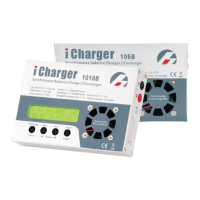
DX8
Dual Balance Charger/Discharger/DC Power
Memory Add & Delete & Edit
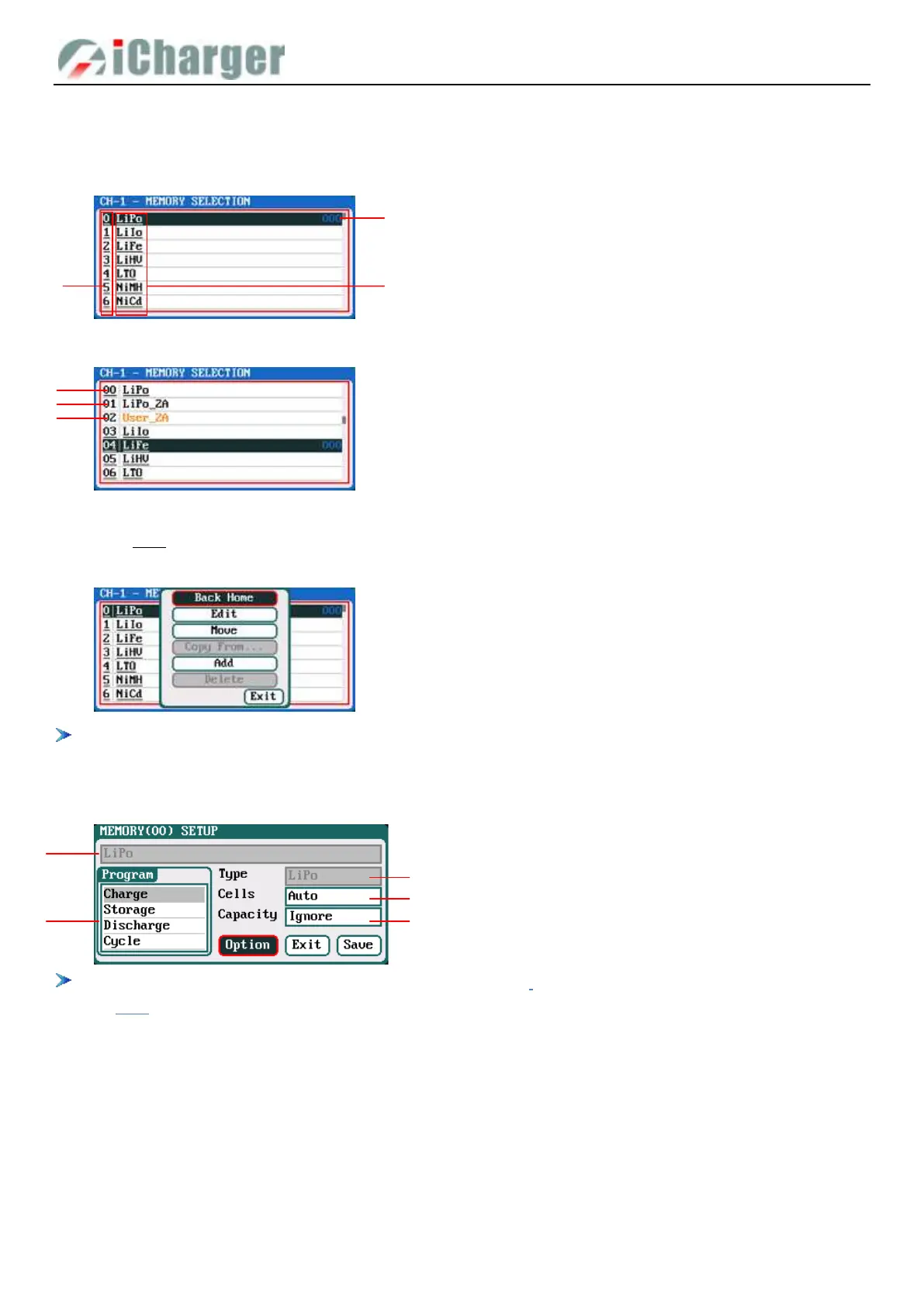
Click <STOP/START-x> button on the initial interface to pop up the MEMORY SELECT interface.
Except 10 built-in memorys, there are 54 customized ones can be added. All memorys include three types as below:
Long press <> to pop up the MANAGE, and click "Edit" to enter MEMORY SETUP to edit the memory, or click "Add"
to add new memory and enter its editing interface at the same time.
If the memory selected is a built-in program, "Copy From…" and "Delete" options are shown in grey as inactive status,
and unable to be set.
After adding new programs or editing saved programs, the system will enter MEMORY SETUP interface. Users can set or
modify the program on this interface.
1. When editing the memory name, Turn <> to select the character, press <> to confirm the selected character, long
press <> to delete the character. Press <> after editing program name to finish. If the program name is empty, the
system will name it automatically.
2. If the Editing program is the built-in memory, the program name and battery type etc. parameters cannot be changed.
After setting the basic parameters of a battery, click "Option" to enter MEMORY OPTION interface.
1. Memory No.
2. Memory Name
3. Running times
1. Built-in types: it cannot be edited or deleted, which
is in black and with underline
2. Non-User types:
it can be edited or deleted, which is in black
3. User types:
it can be edited or deleted, which is in orange
1. Memory name 2. Battery type
3. Quantity of cells 4. Battery capacity
5. Available program


 To Next Page