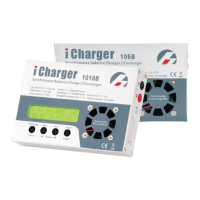
DX8
Dual Balance Charger/Discharger/DC Power
Firmware Upgrades
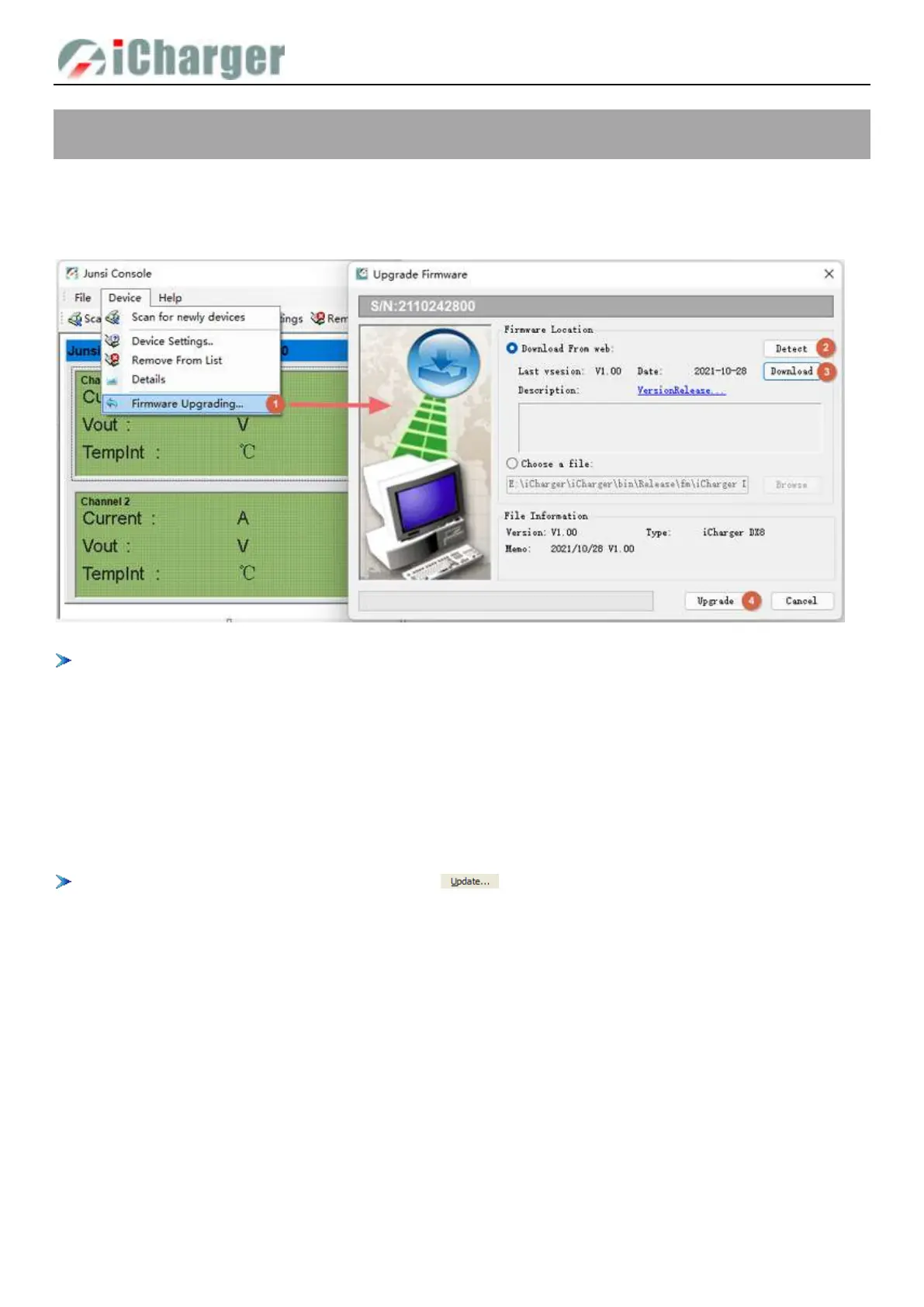
Firmware Upgrades via Junsi Console
First, connect Junsi Console for DX8 as the last chapter; then do as the follow steps to finish the update:
If there is any mistake during update, please keep the power supplying for DX8 and try again.
If the charger cannot start normally for the updating (e.g.: in the event of an unexpected power outage during the update
process), enter into BOOT mode firstly, and then update again.
Boot Mode
Press the <>+<STATUS-2>+<STOP/START-2> at the same time and connect the power supply of the charger, After
hearing a “beep” sound, release the button.
If the charger fails to start normally (ex. Unexpected power outage), please enter the Boot mode again, it will repeat the
above steps to upgrade again.
Upgrade failed in the case of not power outages, click " " to upgrade again;
Firmware Upgrades via SD Card
1. Create a new directory in the available SD card: X:\Junsi\Upgrade ;
2. Rename the firmware file to DX8.BIN, and copied to the new directory;
3. Insert the SD card into the charge to enter Boot mode, the charger will automatically upgrade the firmware, and it
finishes after hearing a beep sound. (The process lasts about 15 seconds, and please not turn off the power)
4. After the upgrading is complete, the charger will reboot.
.


 To Next Page