15
6
BASIC OPERATIONS
■ Adjusting the volume level
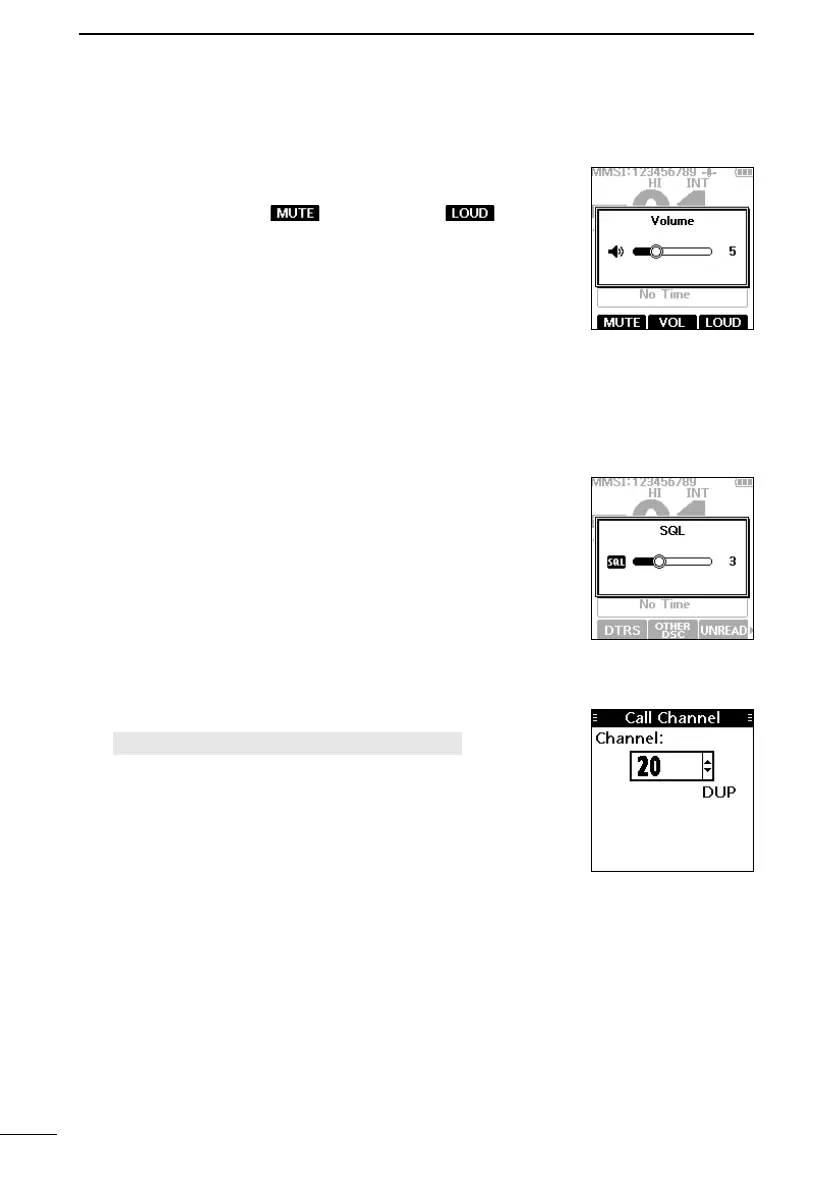
1. Push [VOL/SQL].
• The volume level adjustment screen is displayed.
2. Push [▲], [▼], [◄], or [►] to adjust the audio volume level.
L You can also push to select OFF, or to set
the maximum volume level.
L If no key is pushed for 5 seconds, the screen automatically
closes.
3. Push [ENT] to set.
■ Adjusting the squelch level
Squelch enables the audio to be heard only while receiving a
signal that is stronger than the set level. A higher level blocks
weak signals, so that you can receive only stronger signals. A
lower level enables you to hear weak signals.
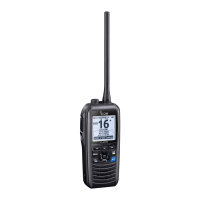
1. Push [VOL/SQL] twice.
• The squelch level adjustment screen is displayed.
2. Push [▲], [▼], [◄], or [►] to adjust the squelch level.
L If no key is pushed for 5 seconds, the adjustment screen
automatically closes.
3. Push [ENT] to set.
■ Setting the Call channel
By default, a Call channel is set in each Channel Group.
You can set your most often-used channel as your Call channel
in each Channel Group for quick recall.
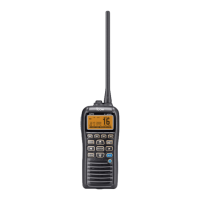
1. Open the “Call Channel” screen.
[MENU] > Settings > Radio > Call Channel
2. Push [▲] or [▼] to select the channel.
3. Push [ENT] to set the selected channel as the Call channel.
• The transceiver returns to the previous screen.


 To Next Page