52
11.2 CONNECTION
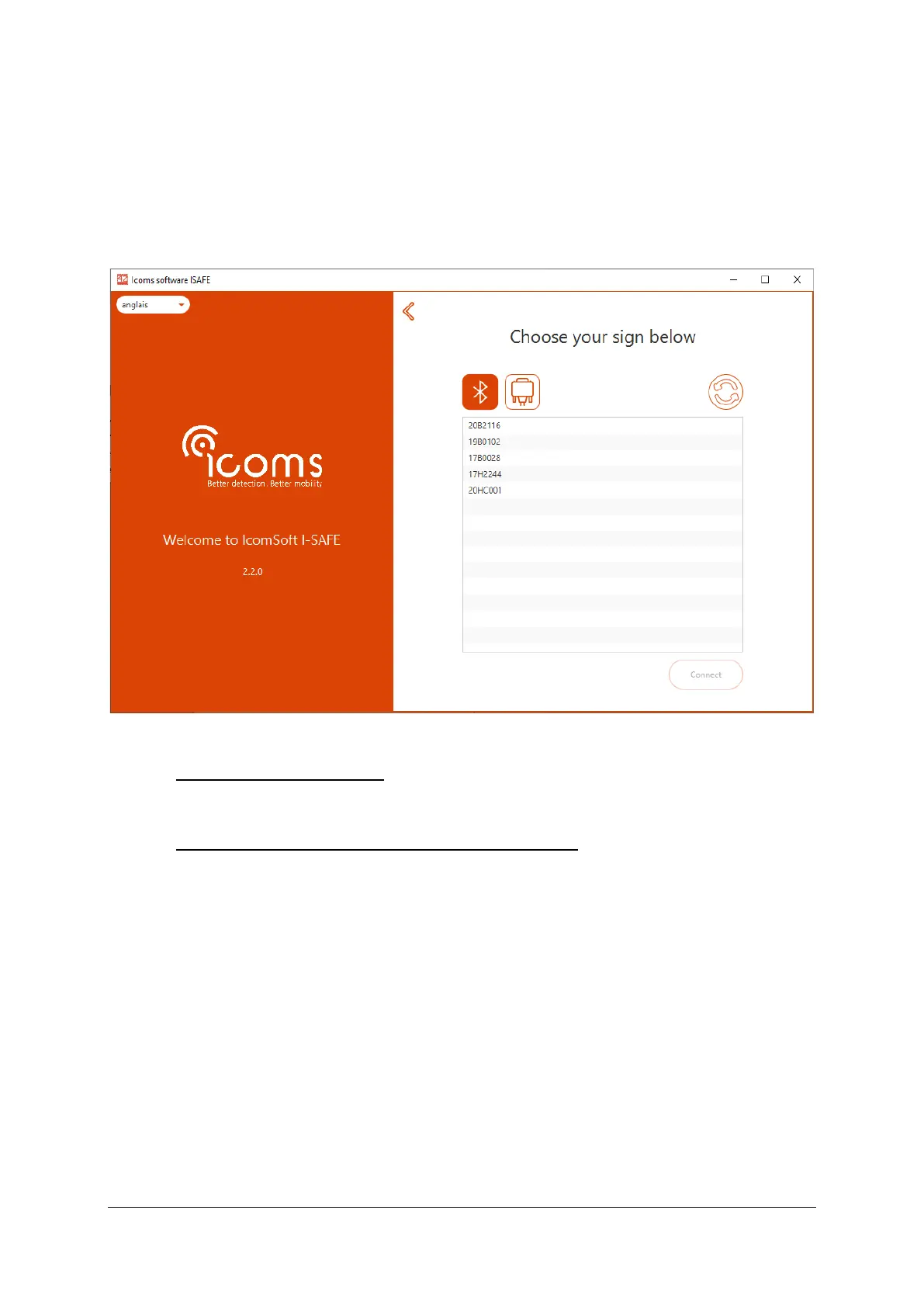
Launch the Icoms Software and follow the instructions given by the software: select the type of display
to connect to (I-SAFE 1 or I-SAFE 2) and then click on the Bluetooth icon to start scanning the Bluetooth
devices in your vicinity, see Screenshot 29.
Once the device chosen, click on “Connect” to connect with the device.
Screenshot 29: select the device from the list to connect to
11.2.1 Bluetooth password
If the device asks for a password, use “icoms” as password.
11.2.2 Adding a Bluetooth device to Windows
When connecting to the device, Windows asks to add the device with a pop up being shown on the
right hand bottom corner of your screen, see Screenshot 30. Click on the pop up to add the device.


 To Next Page