MiniPad – rPad User Guide
5
© 2015-2017 – Identix Inc. All Rights Reserved.
Downloading Windows drivers and SDK
Before getting started, download and install the following on your PC:
https://idntx.zendesk.com
1. Identix MiniPad – rPad USB Driver for windows
2. Impinj RS500 Software Utility
3. The Software Developers Kit (SDK) for the MiniPad and rPad is available for download at the
same location. The SDK is available for Microsoft .NET C#. For other programming languages,
please contact Identix.
Installing the MiniPad – rPad USB Driver on Windows
1. Download the MiniPad-rPad Windows USB driver file from https://idntx.zendesk.com
2. Connect the MiniPad or rPad to your PC using the mini USB cable provided.
3. Once Microsoft Windows detects the new device, set the downloaded INF file as the device
driver file.
4. Open Windows Device Manager, search for the MiniPad / rPad device, right-click on the
device and then select Update Driver Software.
5. Browse your computer and find the location of the MiniPad-rPad.inf, click Next
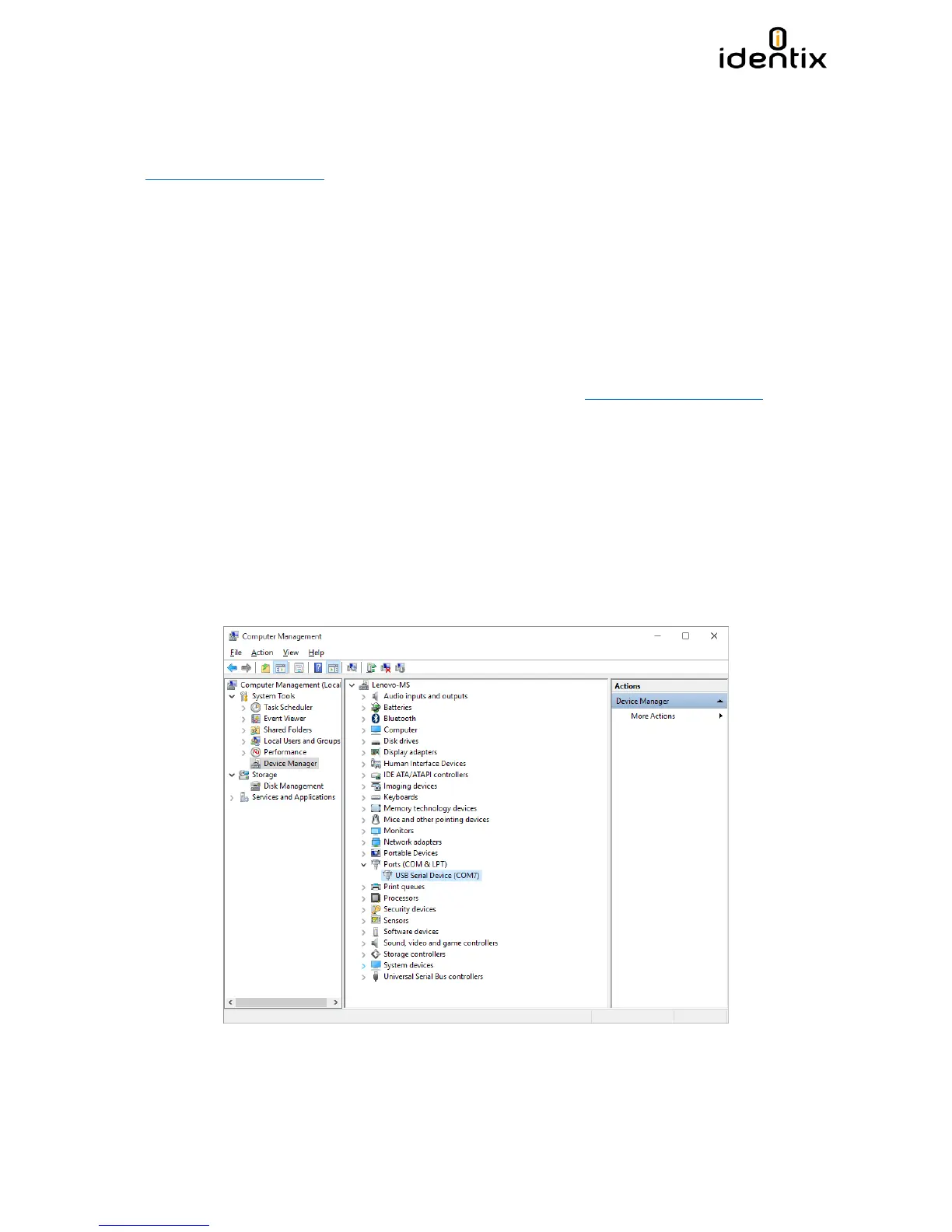
6. After installing the drivers correctly, Windows will map a new virtual COM port to the
connected MiniPad / rPad RFID reader.
7. You may check the successful installation of the driver looking at the Computer management
applet


 To Next Page