15
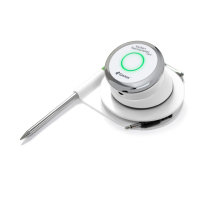
• While still powered on, remove the Kitchen Thermometer battery
door and press the reset button down with a pin for ve seconds
and reinstall the battery door.
• Power up your smart device and turn Bluetooth back on.
• Tap on the iDevices logo in the gray toolbar at the top of the app.
Select your Kitchen Thermometer from the device manager. Your
smart device will pair with the Kitchen Thermometer and you are
ready to congure your settings and start cooking!
Android device:
If the Kitchen Thermometer device appears in your Bluetooth settings but
is not showing in the iDevices Connected app, follow these steps from
your Bluetooth settings menu:
• Tap on the icon to the right of the device and tap “unpair”
• Turn Bluetooth OFF on your smart device
• Completely shut down your smart device
• Separate the Kitchen Thermometer from its base by rmly holding
the base with one hand and gently pulling the Kitchen Thermometer
upwards with the other hand.
• While still powered on, depress and remove the Kitchen
Thermometer battery door, press the reset button down with a pin
for 5 seconds and reinstall the battery door.
• Replace the battery cover.
• Power up your device and turn Bluetooth back on.
• Click on the iDevices logo in the gray toolbar at the top of the app.
Select your Kitchen Thermometer from the dropdown menu. Your
device will pair with the Kitchen Thermometer and you are ready to
congure your settings and start cooking!
If you are having intermittent Bluetooth issues with your Android device
and want to restart Bluetooth from the app:
• Tap “More” located at the bottom of the app
• Tap “Support”



 To Next Page