Part 1 - Remote Setup
14
• Use FEN is a feature that allows you to register a
unique name for a camera that utilizes a dynamic
IP address to the FEN Server and connect to the
camera using the registered name instead of an
IP address, which can change from time to time.
Moreover, you can access the camera without
having to congure NAT (Network Address
Translation) device settings even when the camera
uses a NAT device. In order to use this feature, you
must rst register a FEN name to the FEN Server.
• If network settings have been changed, click Save
at the bottom of the setup window to save the
changes and then setup the FEN.
• Inquire with your network administrator for the FEN
Server’s IP address or domain name. If a DNS server
has been congured under Network setup, you can
enter the FEN Server’s domain name instead of its IP
address for the FEN Server setting.
• FEN Server's default address is fen.idisglobal.
com. DNS server must be congured under network
setup to ensure normal operation.
• You will not be able to save FEN settings unless
you click on the OK button next to the FEN name
eld and check the entered name's availability.
In addition, you will be prompted with an error
message if you do not enter a FEN name or enter
a name already registered to the FEN Server. If
the FEN name contains special characters, the
connection may not be made when the WebGuard
or remote setting is accessed by FEN name
through the Web browser. (If you can not access
special characters, you can access by changing the
encoding.)
The FEN Server operated by IDIS is a service to its
clients and may go oine without notice for server
update purposes or due to an unexpected failure.
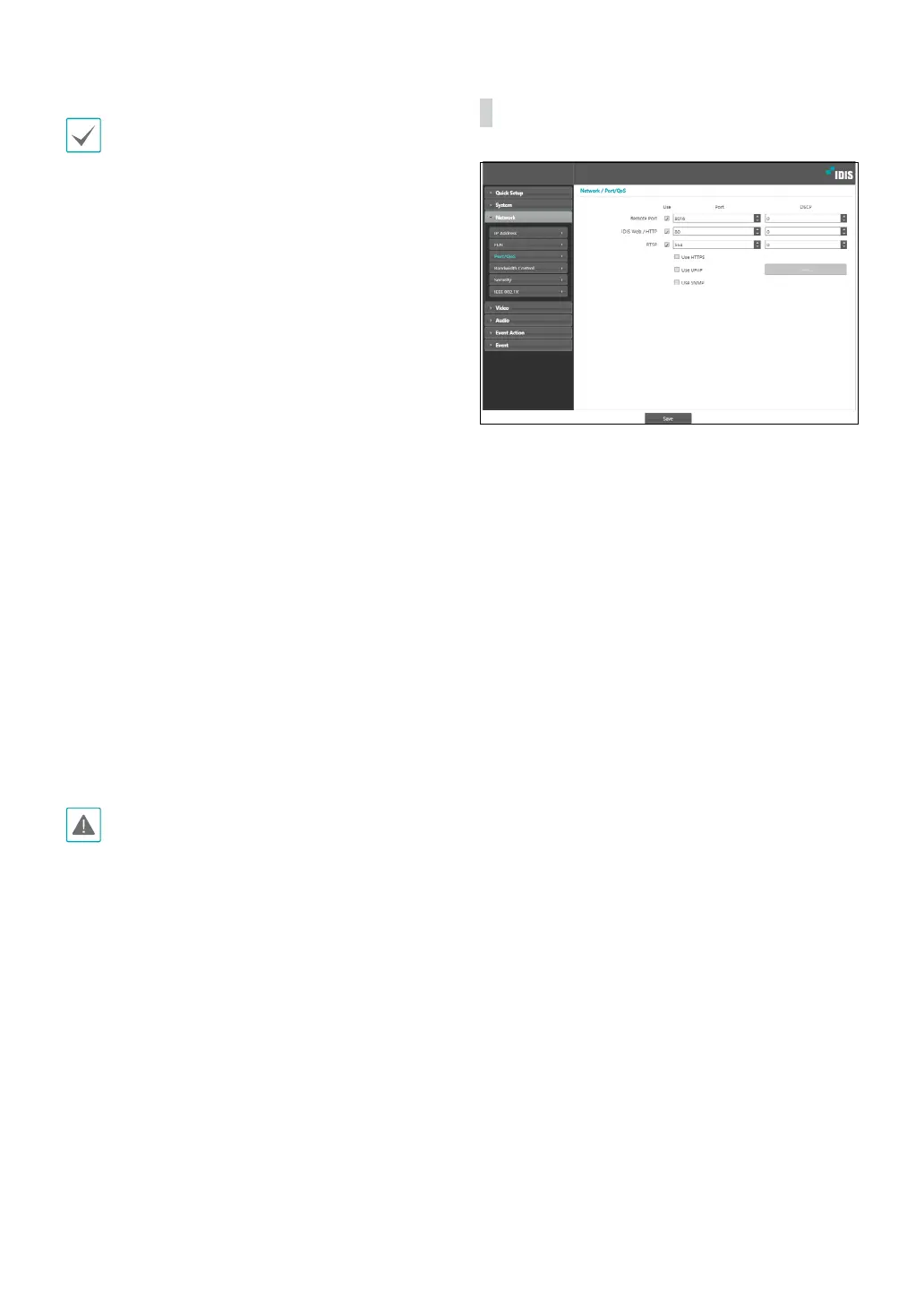
Port/QoS
• Use/Port: Enable/disable ports and designate
corresponding port numbers. Remote Port and IDIS
Web / HTTP ports are enabled by default and cannot
be disabled. By enabling IDIS Web and RTSP ports, you
will be able to use the IDIS Web program or a media
player that supports RTSP (Real-Time Streaming
Protocol) service to connect to the camera. When
the HTTP port is enabled, you can run the camera’s
Remote Setup. If this option has been changed, click
Save to apply the current settings, and then restart
Remote Setup. If you do not restart Remote Setup, the
changes afterwards will not be applied.
• DSCP: Designate each port’s QoS (Quality of Service)
level using DSCP values. Assigning QoS levels
prioritizes the ports for network bandwidth use.
Higher the DSCP value, higher the QoS level and thus
higher on the network bandwidth allocation priority
list. Use 0 if you do not want to assign a QoS level. The
network environment must support DSCP in order
for this feature to function properly. Contact your
network administrator for more details.
• Use HTTPS: Select this option to apply https protocol-
based security on IDIS Web.


 To Next Page