26
EN
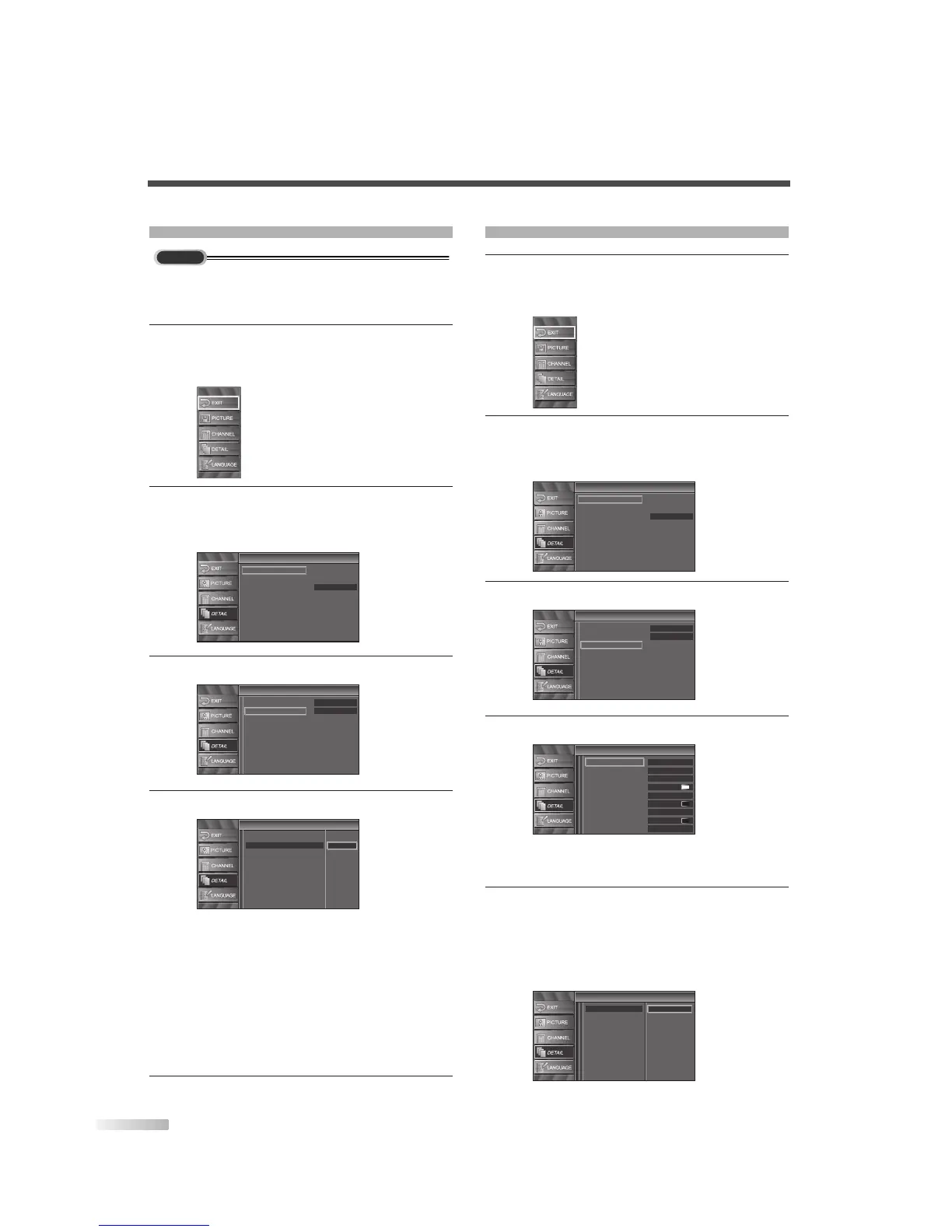
DTV CLOSED CAPTION
Apart from closed captions, DTV has its own closed
captions called DTV CC. Use this menu to change
the settings for DTV CC.
1 Display the setup screen.
• Press
[SETUP].
The following setup screen is displayed.
2
Select “DETAIL” and press [ENTER] to confirm.
• Using
[
K
/
L
], select “Closed Caption” and press
[ENTER] to confirm.
3 Select “DTV CC” and press [ENTER] to confirm.
4
Switch the DTV Closed Caption mode.
• Using [
K
/
L
], select the desired DTV Closed
Caption, then press
[ENTER].
Off:
Select if you do not want DTV CC. This is the
default.
Service 1 to Service 6:
Select one of these before changing any other
item in the Closed Caption menu. Choose
Service 1 under normal circumstances.
5 To exit the setup, press [SETUP].
CLOSED CAPTION STYLE
1 Display the setup screen.
• Press
[SETUP].
The following setup screen is displayed.
2
Select “DETAIL” and press [ENTER] to confirm.
• Using
[
K
/
L
], select “Closed Caption” and press
[ENTER] to confirm.
3
Select “CC Style” and press [ENTER] to confirm.
4 Switch the Closed Caption Style.
• Using
[
K
/
L
], select the desired Closed Caption
Style.
5 Use “User Setting”.
• The “User Setting” function lets you change CC
style.
• Using
[
K
/
L
], select “User Setting”.
• Press
[ENTER] and set “User Setting” to “ON”.


 To Next Page