another email account you are able to switch to another account by
touching the account name from the Inbox screen.
2.7 Sending an email.
- Touch the pen icon from the Inbox screen.
- Enter the recipients email address in the To field.
- If required, touch the popup menu (down arrow) icon Add
Cc/Bcc.
- Enter the subject and the content of the message.
- Touch the paperclip icon to add an attachment.
- When finished press the send icon to send the email.
- To add a signature to emails, touch the icon, touch Settings
from the Inbox, choose an account, then select Mobile Signature.
2.8 Receive and read emails
When you receive a new email you will get a notification by either
a ringtone or vibration and an icon will be displayed on the Status
bar. Drag down the Status bar to display the Notification panel.
Select the new email to view it. You can also view the email via
the Gmail app.
3 Phone Calls
3.1 Making a call
To make a call when the phone is active, go to the Home
screen and touch the phone icon in the Favourites
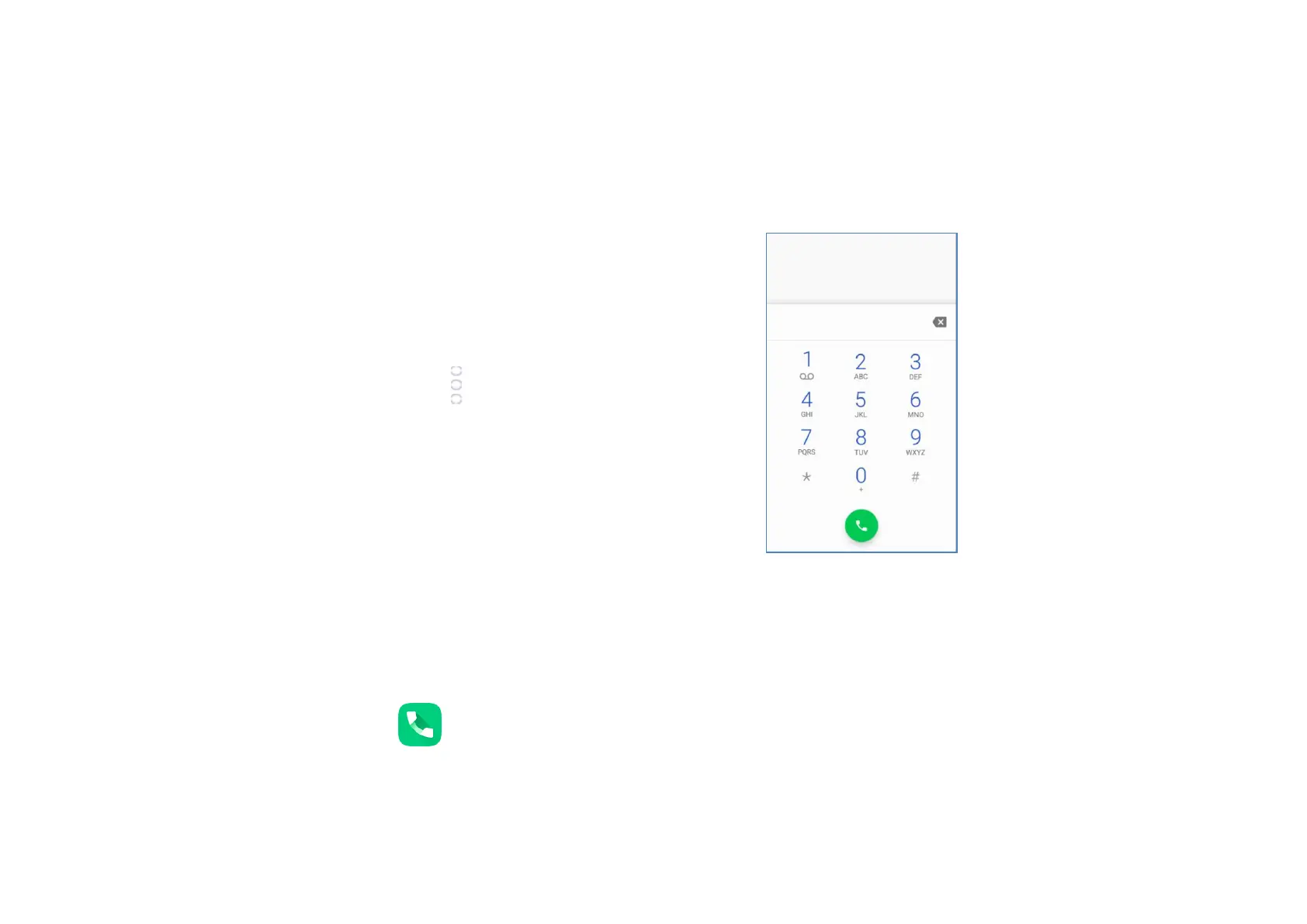
tray. Enter the phone number you want into the dial pad
directly by touching the dial pad in the centre or bottom right
of the screen or select contact from Favourites, Recent,
Contacts by touching tabs, then touch (phone icon) to
activate the call.



 To Next Page