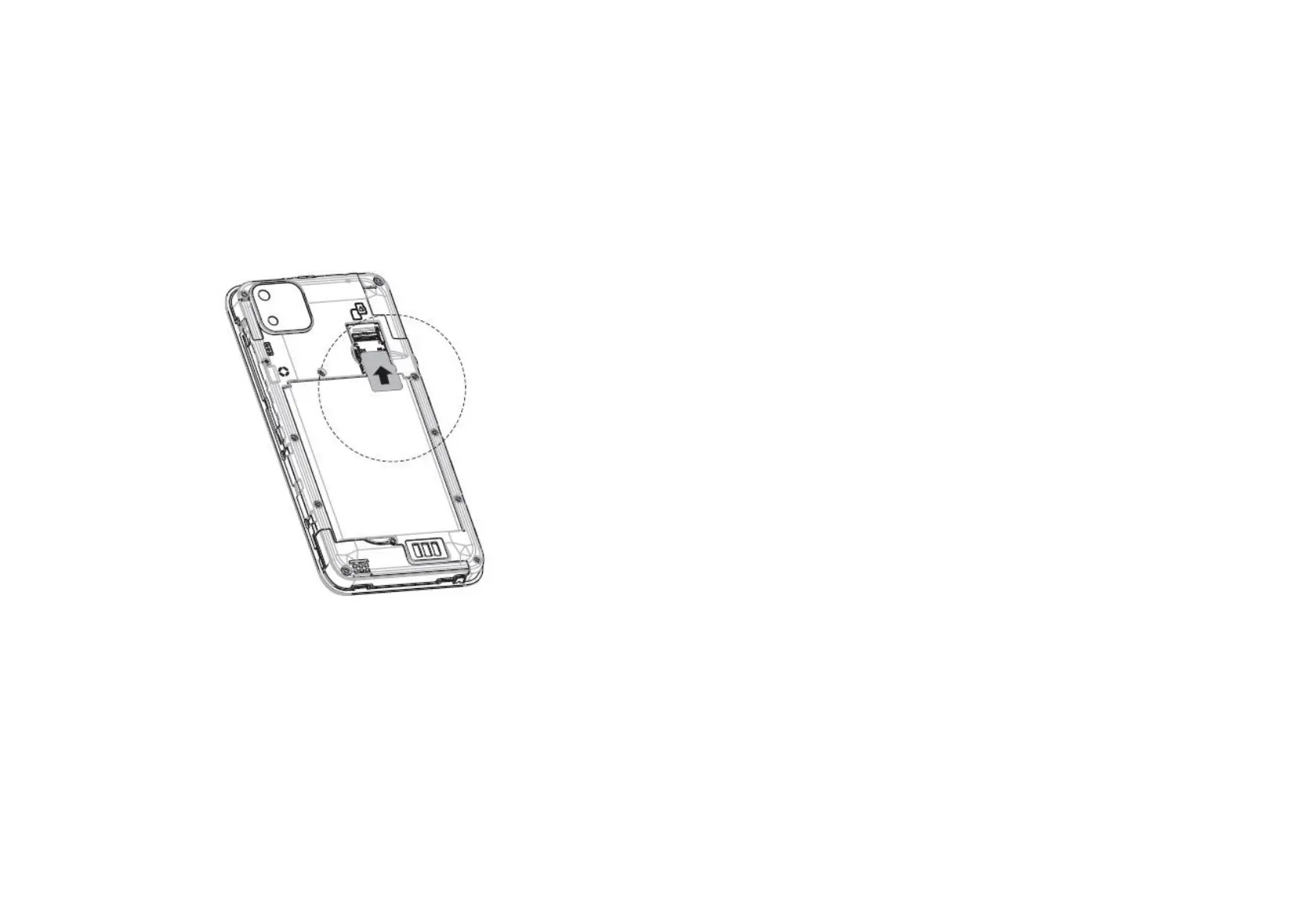
Insert a microSD card as shown in the diagram below.
Note some applications may require a microSD card to work
and may save data on it. Therefore it is recommended you
keep the microSD card installed and do not remove or replace
it randomly.
1.6 Setting up your phone for the first time
- The first time you power on your phone you will
be asked to set language, mobile network, Wi-Fi,
date and time.
- Select the phone’s language, then touch START.
- Insert the SIM or press SKIP.
- Select a Wi-Fi network or touch SKIP and then
continue.
- Select if you want to copy apps and data or start
as new.
- Sign in with your Google account if you already
have one or if you do not have an account
already touch Create a new account or press
Skip.
- Read Google Services and then ACCEPT
- Protect your phone, set the screen lock option
you wish using Fingerprint only, Fingerprint and
pattern/PIN/Password or select SKIP.
1.7 Home Screen
- Touching the Home button always takes you to
your main Home screen and you can personalise
all your Home screens by adding your favourite
apps, shortcuts and widgets to them.
- Status bar: Displays notifications and status icons.
Touch and drag down to open the Notification
panel.
1.8 Using the touchscreen
- Touch to launch applications and other functions.
- Touch and hold for more than 2 seconds to open
the control options for the current screen.
- Touch and hold an item to be able to drag it to
another location.



 To Next Page