You can view and create contacts on your phone and
synchronise these with your Gmail contacts or other apps or on
your phone.
4.1 View your Contacts
To access the Contacts app, touch the Application tab and
select > Contacts .
The default setting will display your mobile phone contacts
and SIM card contacts.
4.2 Adding a Contact
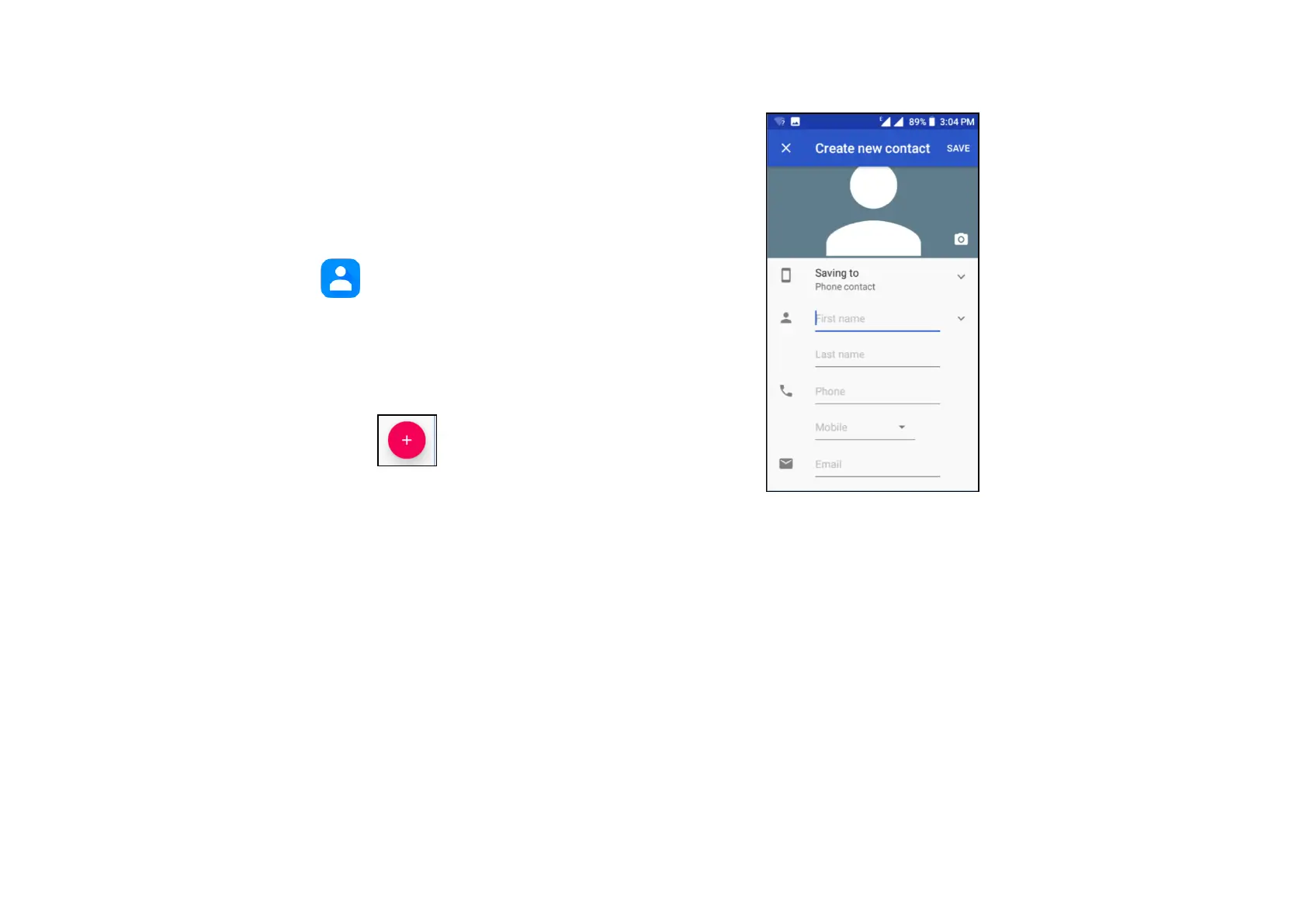
Touch the Application tab on the Home screen, select
Contacts, then touch the icon in the contact list to
create a new contact. The first time you do this you will be
prompted to select a default account for new contacts:
Google account, Phone or SIM card.
To add a contact to favourites, you can touch a contact to
view details then touch the “star” key to add the contact to
your favourites. To remove a contact from favourites, touch
the “star” key on the contact details screen.
4.3 Editing Contacts
To edit contact information touch the pencil icon in the
contact details screen. When finished touch SAVE.
4.4 Importing, exporting and sharing contacts



 To Next Page