- Touch icon after the device you want to unpair and touch
FORGET.
7. Connecting to a Computer via USB
With a USB cable you can transfer media files such as music and
photographs and other files between your phone and a
computer. To do this you need to set your phone as a drive.
- Connect the phone to the computer with a USB cable. A
notification icon will appear in the status bar that the USB is
connected.
- Open the Notification panel and select Media device (MTP)
option. The phone is now connected as a media device to your
computer.
To locate data you have transferred or downloaded in the internal
storage touch the Application tab from the Home screen to open
the apps list.
- Touch Files. All data you have downloaded is stored in Files,
where you can view media files (videos, photos, music and
others), rename files, install apps onto your phone, etc.
8. Calendar
The calendar application can be used to keep track of meetings,
appointments and events. To access this function, touch the
Application tab from the Home screen, then touch Calendar.
8.1 Viewing Mode
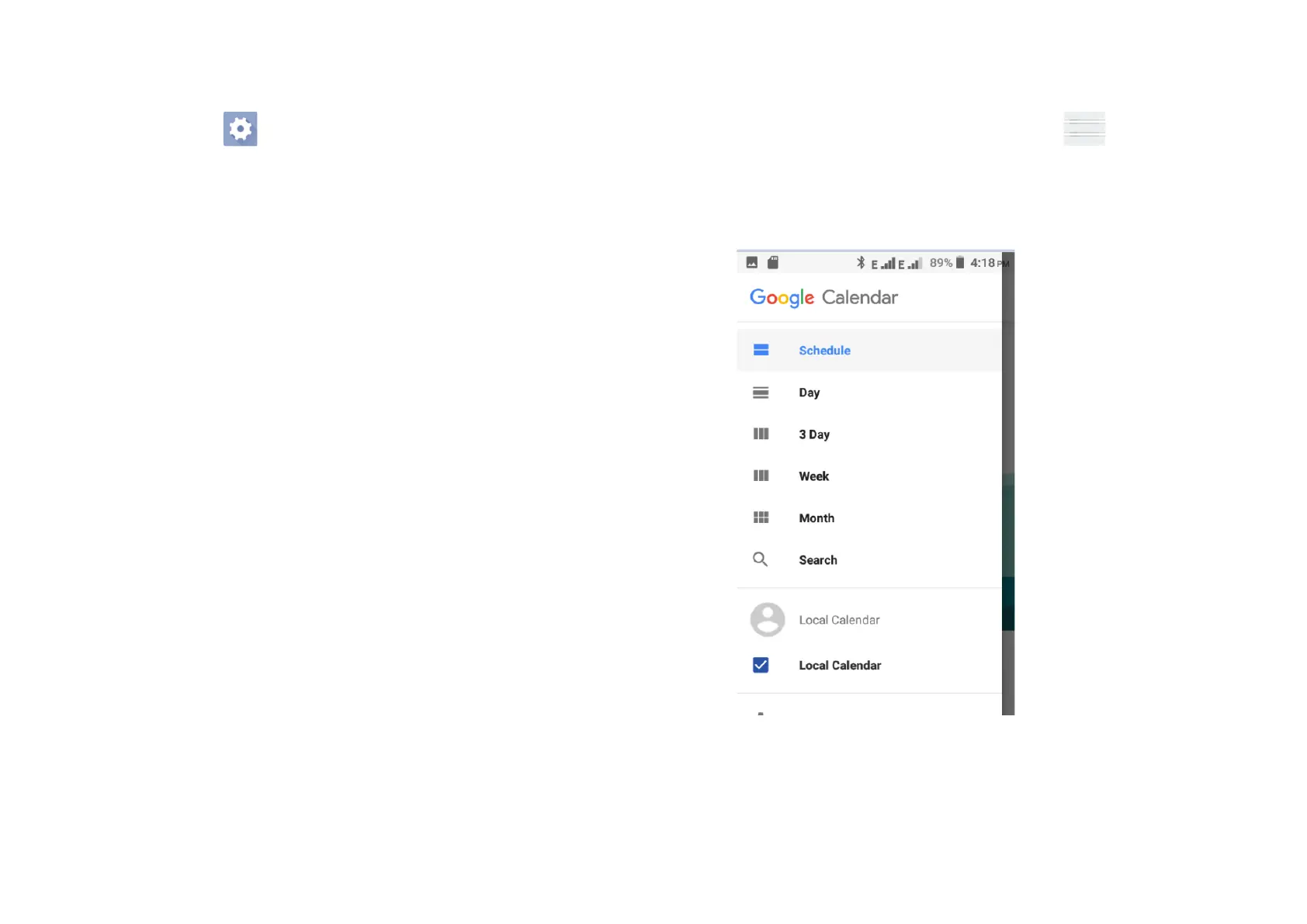
Once you are in the calendar program, click on . This will
display Schedule and 4 options for viewing mode Day, 3-Days,
Week and Month. The search option allows you to enter a
schedule keyword in the search box and it will search the
calendar for this item
8.2 To create a new event



 To Next Page