2 Software
Before using the GUI, the seleceted microcontroller must be flashed with the communication firmware. The
sections Flashing/Updating Aurix TC277 Software and Flashing/Updating XMC Software explaining the steps to
be taken for a successful flashing of the microcontroller GUI interface software.
2.1 Flashing/Updating Aurix TC277 Software
Following steps should be taken to flash the Aurix TC277 Triboard and enable a communication with the GUI:
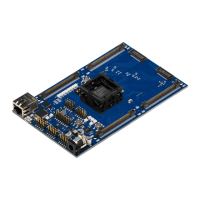
Plug the TriBoard and the Evaluation PCB on the Connection PCB
Install the Infineon DAS-Tool inclustive drivers on your computer
(https://www.infineon.com/cms/en/product/promopages/das)
Install the Infineon Memtool SW: https://www.infineon.com/cms/en/product/microcontroller/32-bit-tricore-
microcontroller/#!tools (NOTE: DAS-tool should already be installed)
Supply and connect the Evaluation board
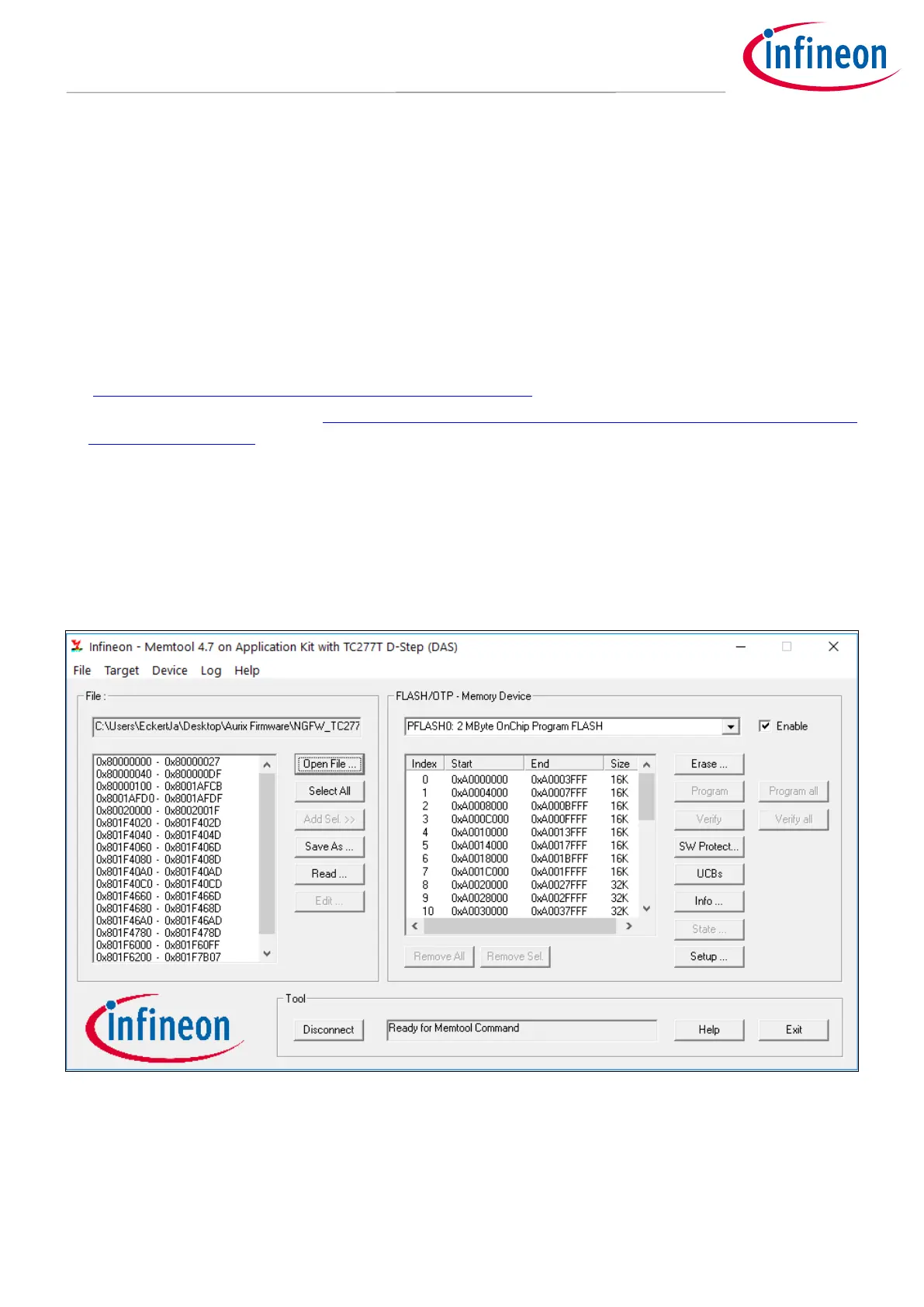
Select the Target TriBoard (Target -> Change -> new)
Select the appropriate Triboard (Tricore Aurix -> Application Kits (DAS) -> Application Kit with TC277T D-Step
(DAS))
Click the Connect button in Memtool and load the provided HEX file via the button “Open file”
Click “Select All”, Click “Add Sel.”, Click “Program all”
A small window should pop up and program the Aurix. The “result” should show “success”
Figure 21 Successful flashing setup of Memtool
2.2 Flashing/Updating XMC Software
The Evaluation board can be fully controlled via the GUI by following Infineon XMC board
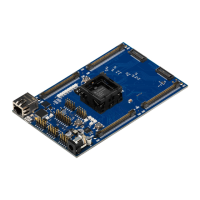
XMC1100 Boot Kit (SP001069652)
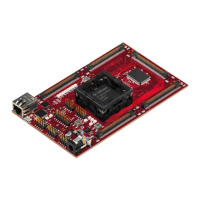
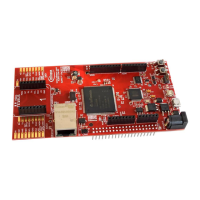
XMC4700 Relax Kit (SP001427974) - recommended





 To Next Page