English
36
USING THE PROJECTOR
Auto
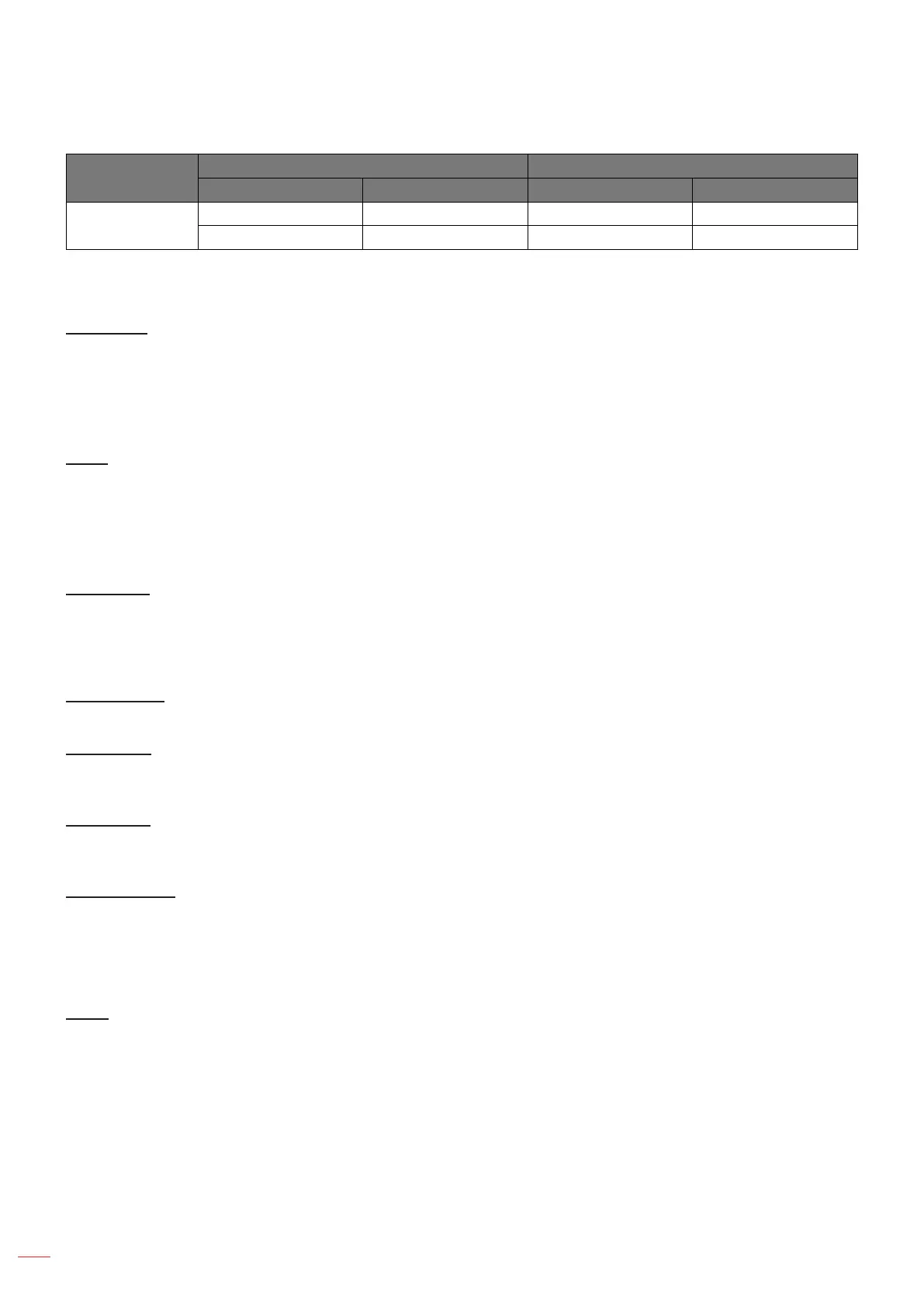
Input resolution Auto/Scale
H-resolution V-resolution 1920 1080
HDTV
1280 720 1920 1080
1920 1080 1920 1080
Display edge mask menu
Edge Mask
Use this function to remove the video encoding noise on the edge of video source.
Note: This function is grayed out if the input source is VIDEO or S-VIDEO and the resolution is 1080P or WUXGA.
Display zoom menu
Zoom
Use to reduce or magnify an image on the projection screen.
Note: Pan functions are not supported.
Display image shift menu
Image Shift
Adjust the projected image position horizontally (H.) or vertically (V.).
Display keystone menu
Four Corners
Allow the image to be shaped to t an area dened by changing the x,y position of the four corners.
H Keystone
Adjust horizontal image distortion making the image more square. Horizontal keystone is used to correct a
keystoned image shape in which the left and right borders of the image are unequal in length.
V Keystone
Adjust vertical image distortion making the image more square. Vertical keystone is used to correct a keystoned
image shape in which the top and bottom borders of the image are unequal in length.
Auto Keystone
Correct keystone digitally to t the projected image on the area on which you are projecting.
Note:
• The image size will reduce slightly when adjusting the horizontal and vertical keystone.
• When Auto Keystone is enabled the Four Corner Adjustment function will be disabled.
Reset
Return the factory default settings for keystone settings.



 To Next Page