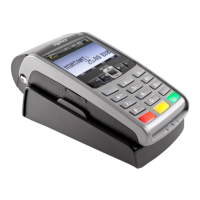
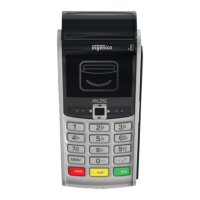
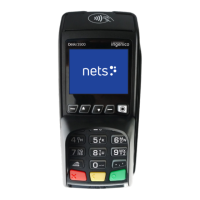
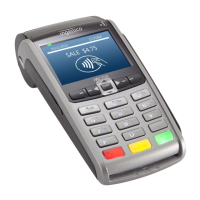
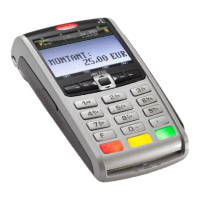
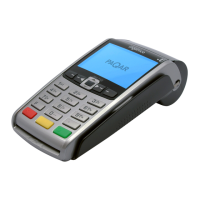
Processing A Contactless Payment
Your terminal has the latest software that enables you to take contactless payments. Please be aware that even if the
customer’s card allows contactless transactions, the terminal may ask you to process the sale by using either the Chip
& PIN function or by using the Magnetic Swipe. This is due to a security feature that means after a certain number of
contactless transactions, the customer will need to either enter their PIN to pay or use their card at an ATM. To
process a contactless transaction follow the steps below. Please note that you need to ensure the customer’s card
has this facility enabled. If it does, it will have the contactless logo in the top right hand corner of the card.
Enter the transaction amount into the terminal. Please refer to your Merchant Operating
Instructions for confirmation of the maximum transaction value.
The terminal will not ask the customer to enter their PIN number. Once the transaction
has been processed the terminal will display ‘Approved’



 To Next Page
 Loading...