Advanced Operations
En-59
Operating
procedure
(➔ page 50)
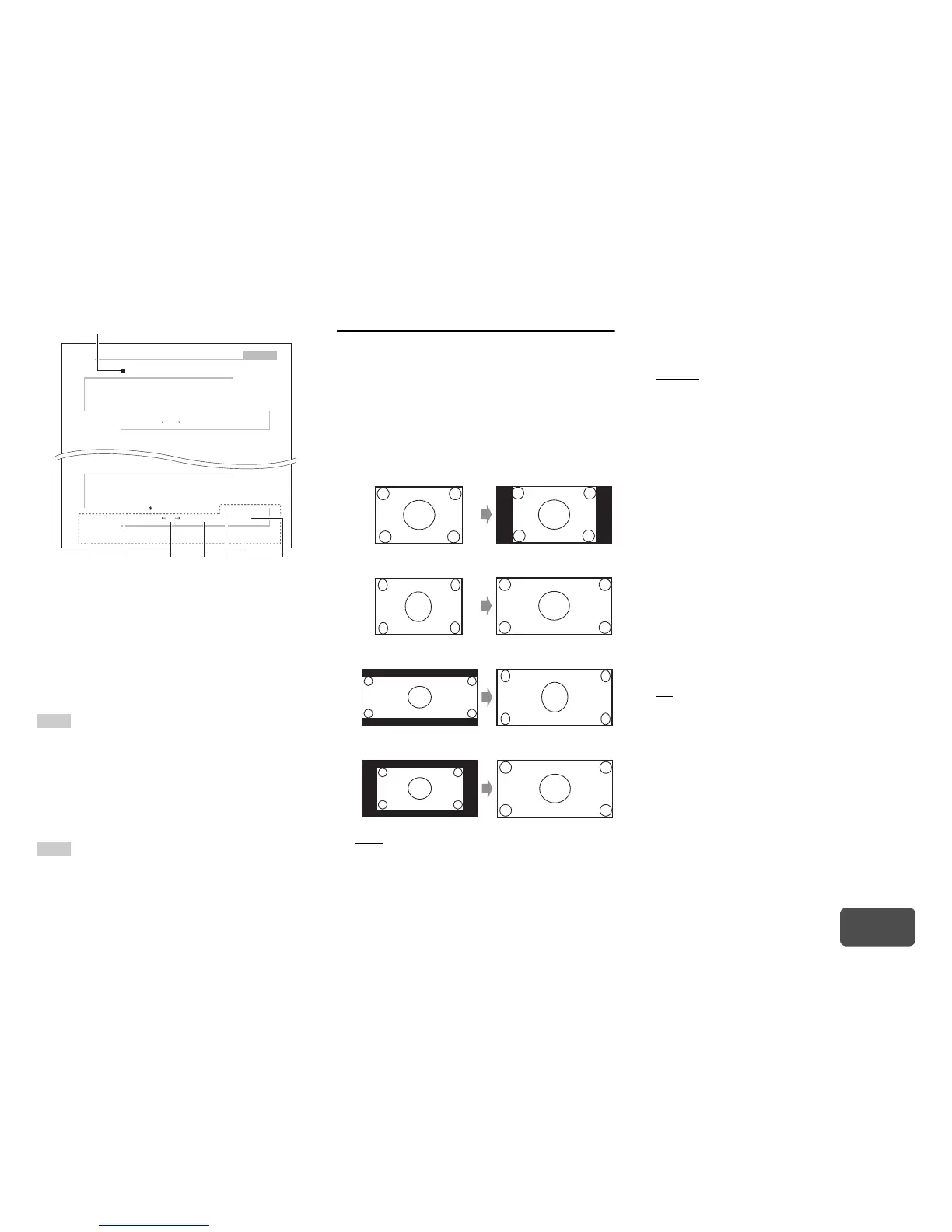
a Toggles between lower and upper case
characters.
*1
b Moves the cursor left or right in the Name input
area.
c Moves the cursor backward and deletes one
character.
*2
d Enters a space character.
e Confirms your entry.
Tip
• To name a radio preset, use Tuner to select AM or FM, and
then select the preset (➔ page 37).
• To restore a name to its default, erase all characters with
CLR, select “OK” and then press Enter.
*1
This can also be performed by using +10 on the remote
controller.
*2
Press CLR on the remote controller to delete all the
characters you have input.
Note
• This setting cannot be used for the “NET”, “USB” and
“BLUETOOTH” input selectors.
Picture Adjust
Using Picture Adjust, you can adjust the picture
quality and reduce any noise appearing on the
screen.
Press Enter to view the TV picture while setting when
the video source is output to HDMI OUT MAIN. To
return to the previous screen, press Return.
■ Wide Mode
*1*6
This setting determines the aspect ratio.
` 4:3:
` Full:
` Zoom:
` Wide Zoom:
` Auto
:
According to the input signals and monitor
output setting, the AV receiver automatically
selects the “4:3”, “Full”, “Zoom” or “Wide Zoom”
mode. See “Monitor Out” for details on the
monitor output setting (➔ page 51).
■ Picture Mode
*1
` Custom:
All settings can be performed manually.
` Cinema:
Select when the picture source is a movie or
alike.
` Game:
Select when the video source is a game
console.
` Standard:
Does not adjust picture quality (changes
resolution).
` Bypass:
Does not adjust picture quality (does not change
resolution).
With “Picture Mode”, you can change the following
settings to be suitable for the movie or game screen
by one operation: “Game Mode”, “Film Mode”, “Edge
Enhancement”, “Noise Reduction”, “Brightness”,
“Contrast”, “Hue”, “Saturation” or “Color
Temperature”.
■ Game Mode
*2*3*4
` Off
` On
If video signal delay occurs during playback on a video
component (i.e., game console), select the
corresponding input source and set the “Game Mode”
setting to “On”. The delay will decrease but in return
the picture quality will become poor.
BD/DVD
4 - 4. Name Edit
Name
+10 CLR
a b c d e f g h i j k l m
n o p q r s t u v w x y z
1 2 3 4 5 6 7 8 9 0 – ^ \
Space
Back Space
Shift OK
, . / ; : @ [ ]
Shift All Erase
A B C D E F G H I J K L M
N O P Q R S T U V W X Y Z
+ ?
` { } < >
! ˝ # $ % & ’
) ( _ = | ˜
Shift All Erase
+10 CLR
Space
Back Space
Shift OK
aebdc
Name input area
*1 *2


 To Next Page