11
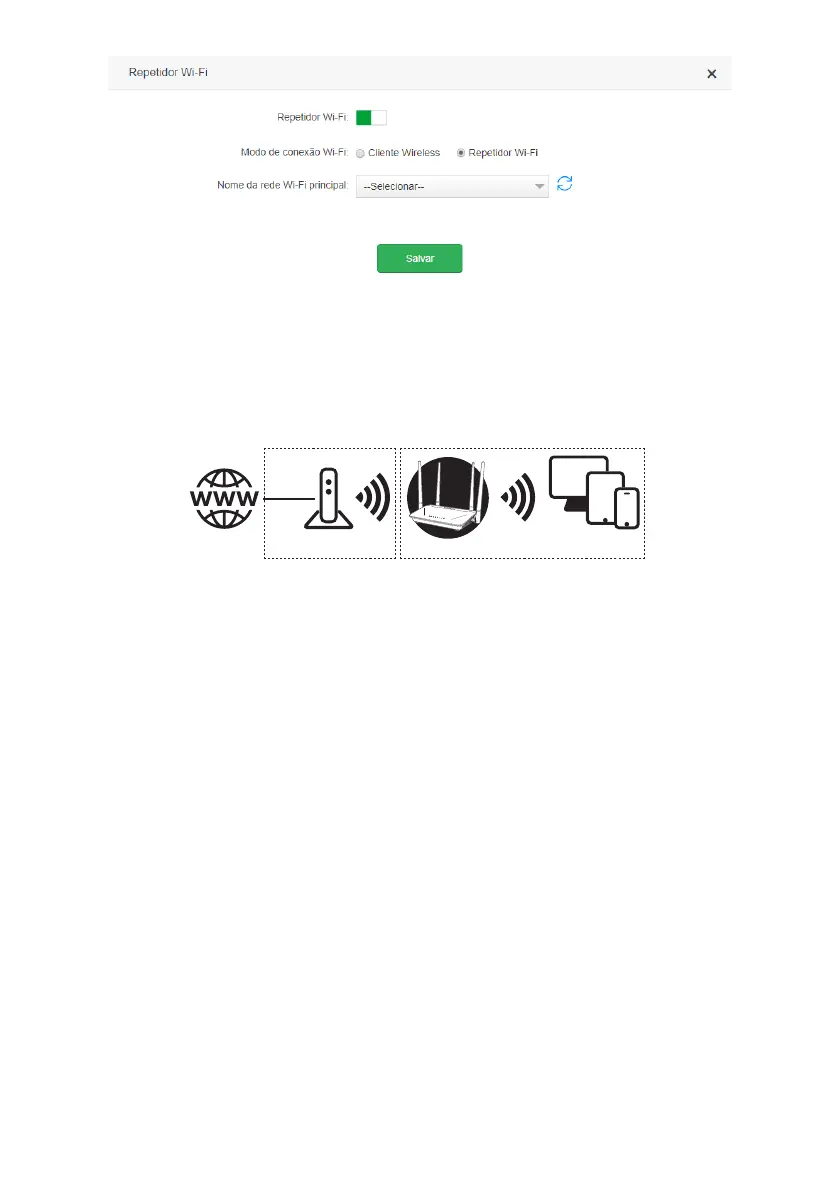
Wireless conguration repeater screen
Wireless client
If you have a Wi-Fi network and wish to create another separate network connected to your main network via a wire-
less connection, you can use the function
Wireless client
.
In this mode of operation, you will not need to connect the network cable to the port
WAN
of ACtion RF 1200. The
product will connect via Wi-Fi to an existing network.
Internet Modem / Roteador Cliente wireless
Rede principal Rede cliente
Example of
Wireless client
mode scenario
Attention: in this scenario, the main network and the client network will be on different IP addresses. If the main network has the
same address range as the ACtion RF 1200 LAN, conict will occur. ACtion RF 1200 is prepared to recognize this conict and change
its LAN address if necessary. To do so, follow the web interface guidelines if this occurs.
To congure this mode, in the router’s conguration web interface navigate to the menu
Wi-Fi Network Settings
and
click on
Wi-Fi Repeater
.
To congure the product as a
Wireless client
on an existing Wi-Fi network, do the following:
1. Enable the function
Wi-Fi Repeater
by changing the option
Wi-Fi Repeater
to enabled (button will turn green);
2. Choose the
Wireless client
connection mode from the option Wi-Fi Connection Mode;
3. Select the Wi-Fi network you wish to connect to in the eld
Main Wi-Fi Network Name
;
4. After choosing the Wi-Fi network, if it requires a password, you must enter it in the eld
Main Wi-Fi Network Password
;
5. Click on
Save
;
6. In the conrmation message, click
Ok
.
Note: If you wish to connect only via network cable to ACtion RF 1200, using the
LAN
ports, and do not want the
product to generate a Wi-Fi network, you can turn off the options
Wi-Fi 2.4 GHz Network
and
Wi-Fi 5 GHz Network
within the menu
Wi-Fi Network Settings > Wi-Fi Network Name and Password.


 To Next Page