17
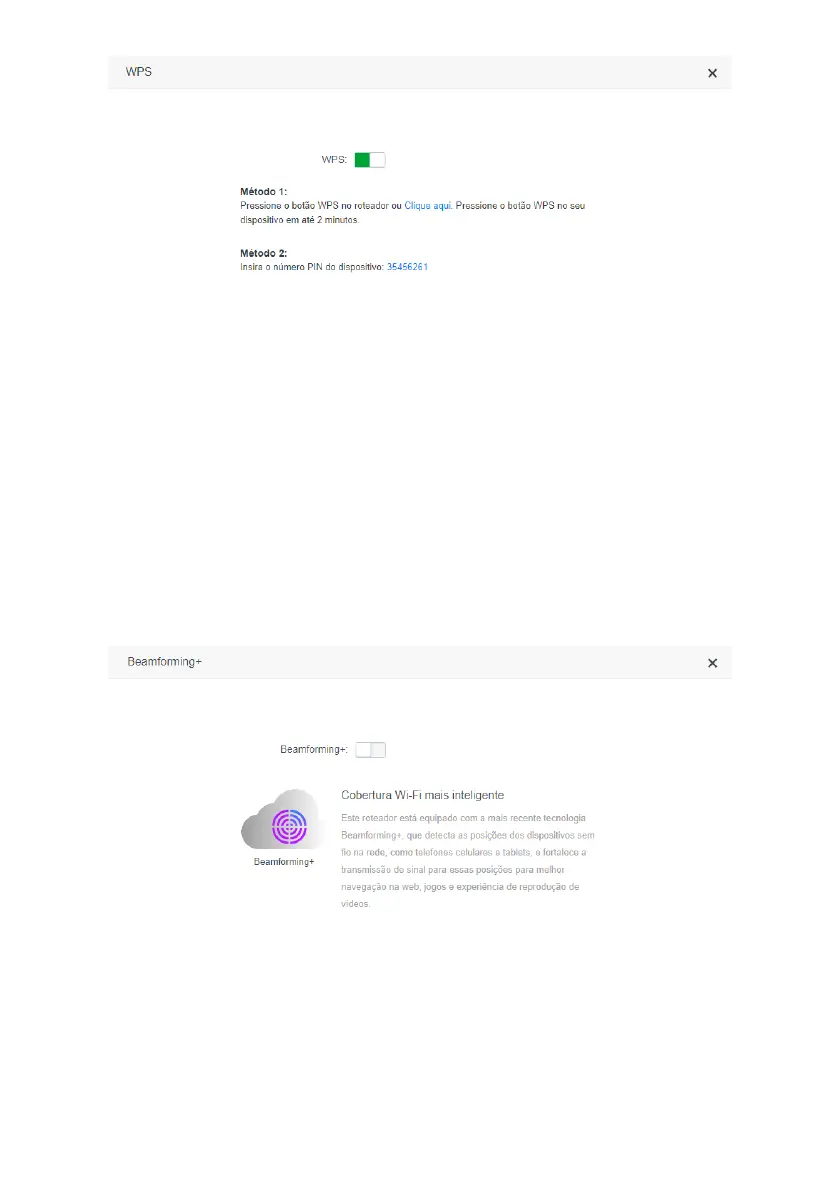
WPS conguration screen
The function
WPS
allows you to connect devices to your Wi-Fi network quickly and securely. If you have a WPS compa-
tible device you can allow it to access your router’s Wi-Fi network through one of the available WPS modes: physical
button (PBC) or PIN.
» Physical Button (PBC): if the device you wish to connect to your Wi-Fi network has a
WPS
, follow the procedure:
1. Press the button
RST/WPS
(one click only) located on the back of your ACtion RF 1200. Verify that the product’s Wi-Fi
LED will ash slowly, indicating that the network is available for WPS connection, for about 2 minutes. You can also
activate WPS through the button
Click here
, available in the web conguration interface;
2. Within 1 minute after pressing the button
RST/WPS
on your router, press the button
WPS
on your wireless device and
wait while the connection is established.
Tip: Some devices, for example smartphones with Android® operating system, have a
virtual WPS
button, i.e.,
option to activate WPS through the advanced Wi-Fi network settings. Please refer to the instructions for use or the manufac-
turer of your device if you need more information.
» PIN Mode: you can get the current PIN of your router in WPS settings. Simply enter the number on your wireless device
and then proceed with the connection.
Beamforming+
Beamforming+ conguration screen


 To Next Page