16
Channel and bandwidth conguration screen
In the menu
Channel and Bandwidth
you can congure the network mode, the channel and the bandwidth of the Wi-Fi
network for the two operating frequencies:
» Network mode: network mode allows you to choose which technologies your router will operate on.
Note: limiting to some technology may cause some device not to be able to connect to your Wi-Fi network, so
we recommend using the router’s default values.
» Wi-Fi network channel: operation channel of the router’s Wi-Fi network. You can check, through specic applications
for this purpose, which channel is less busy and then use it on your router to improve product performance.
» Wi-Fi network bandwidth:
» For Wi-Fi 2.4 GHz it is possible to:
» Set to 20 MHz or 40 MHz. With this option, all wireless devices will connect to your router using 20 MHz or 40
MHz as selected.
» Select 20/40 MHz. This way the router will set the best bandwidth to be used and x its operation automatically
in this mode.
» For Wi-Fi 5 GHz it is possible to:
» Set to 20 MHz, 40 MHz or 80 MHz.
» Select 20/40/80 MHz. This way the router will set the best bandwidth to be used and x its operation automatically
in this mode.
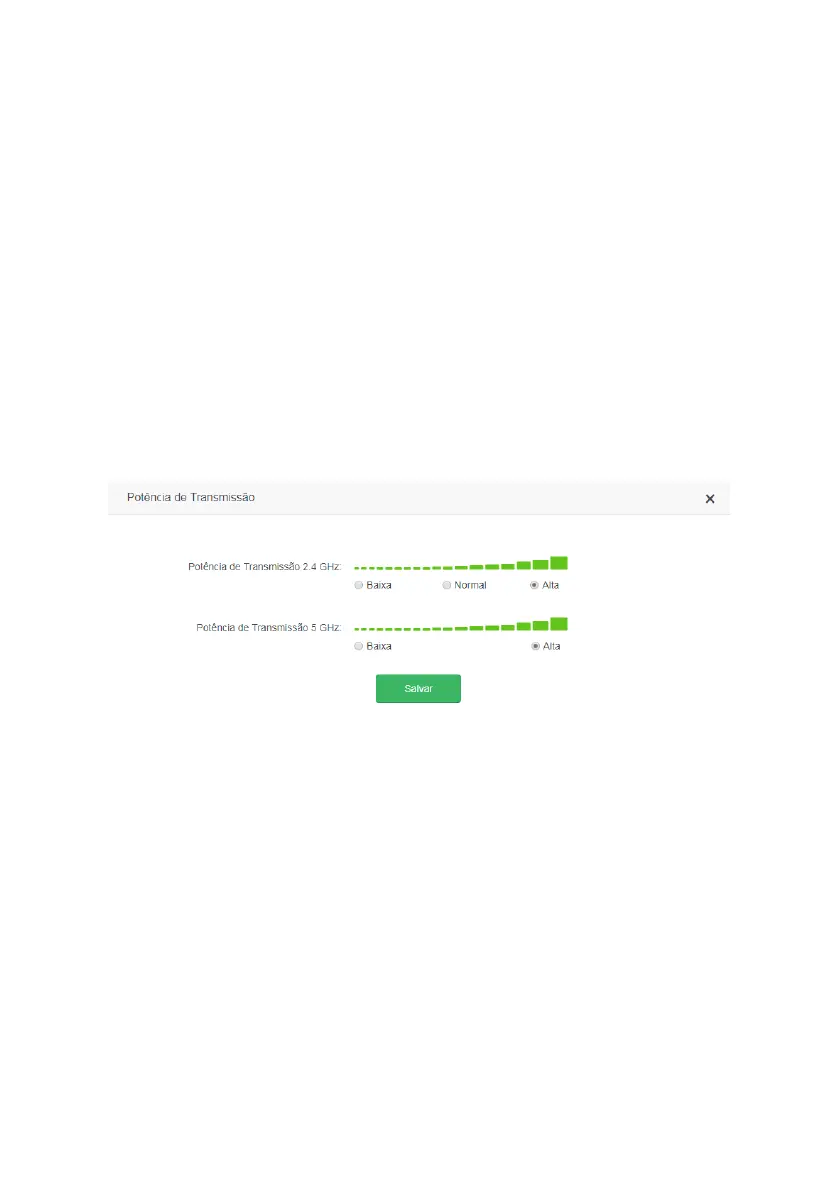
Transmission power
Transmission power conguration screen
In the menu
Transmission Power
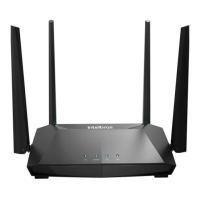
you can congure the signal strength of the ACtion RF 1200 for the frequencies of
2.4 GHz and 5 GHz. Use
High
Power if you want the router to operate at its maximum range. If you are still having
problems with the signal range, we recommend checking your router’s installation location as described in the item
Cui-
dados e segurança,
or using a Wi-Fi signal repeater.
WPS


 To Next Page