23
Band control conguration screen
Band control allows you to set your Internet speed use priorities.
To enable band control, go to
Advanced settings>Band control.
When doing this, the following options will be available:
» Device name: displays the device name and its IP address. The device name can be changed by clicking .
» Upload speed: informs the current upload consumption of the device.
» Download Speed: informs the current download consumption of the device.
» Upload limit: informs the maximum upload speed in Mbps for the selected device. Select
Unlimited
if you want the
device to be able to use the upload band of your internet without limitation.
» Download limit: informs the maximum download speed, in Mbps, for the selected device. Select
Unlimited
if you want
the device to be able to use the download band of your internet without limitation.
After lling in the information, click
Save
to apply the changes made.
Energy saving mode
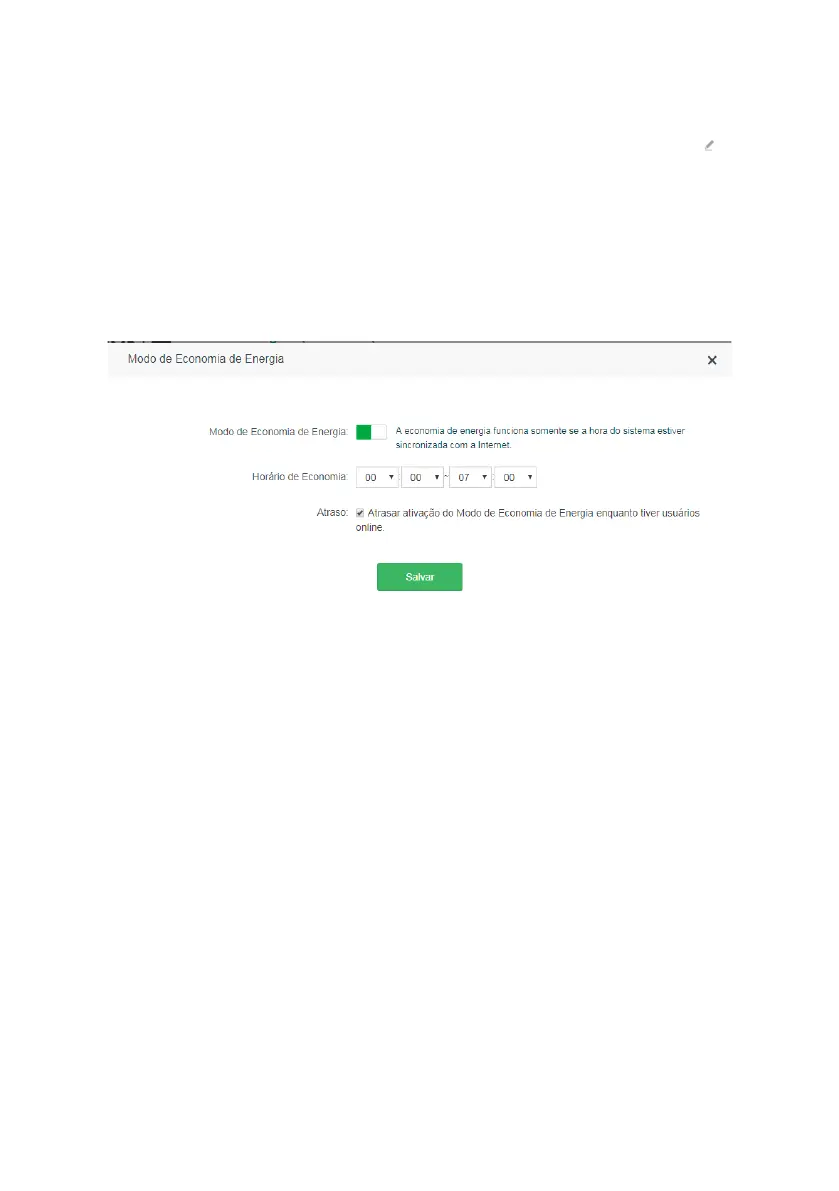
Energy saving mode conguration screen
In the menu
Energy saving mode
you can set a time when the product LEDs and the Wi-Fi network will be disabled to
save energy.
To enable Power Save Mode, go to the menu
Advanced Settings>Energy saving mode,
enable the option
Energy saving
mode
and choose the desired time in the option
Energy saving time.
By default the activation of the saving will be delayed
while you have users
online
. If you want to disable the delay, uncheck the option
Delay
.
After making the settings, click
Save
.
If you wish to use the Wi-Fi network when the router is in power saving mode, press the button
Wi-Fi
on the back of
the router.
Note: the energy saving only works if the system time is synchronized with the Internet.
LED control


 To Next Page