27
Through the DDNS feature you can add a dynamic No-IP and DynDNS service host to your router. You must register
your information directly on the website of one of the services, and then inform in the router the parameters for au-
thentication.
Tip: to access the page of each of the servers (DynDNS and No-IP), you can click on the link
Register
of the web interface, after selec-
ting the service in the eld
Service Provider
.
Fill in the information according to the host registration at your preferred provider and click
Save
.
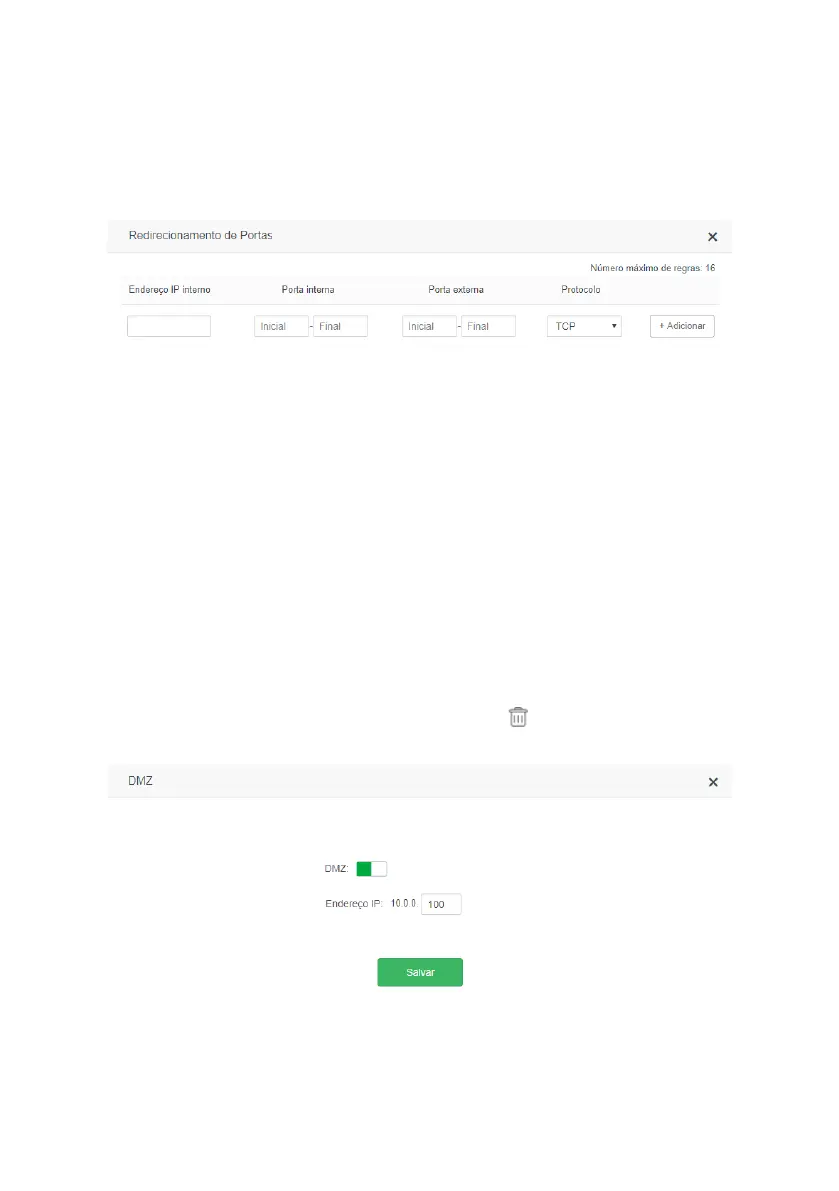
Port forwarding
Port forwarding conguration screen
Port forwarding is used to release Internet access to specic ports of your local area network (LAN) devices.
This feature can be accessed through the menu
Advanced Settings>Port forwarding
in the ACtion RF 1200 web con-
guration interface.
To add a new rule, ll in the elds according to the following guidelines.
» Internal IP Address: this must be the IP address of the device on your internal network that will receive the forwarded
trafc.
» Internal Port: these elds must indicate the port or range of ports used by the device application reported in the eld
Internal IP Address.
» External Port: these elds must indicate the port or range of ports that will concentrate the Internet trafc that will be
directed to the ports reported in the eld
Internal Port
of the device reported in the eld
Internal IP Address.
» Protocol: indicates the transport protocol to be used. You need to conrm this information for the forwarding to be
successful. The options are
TCP
,
UDP
and
TCP&UDP.
If you want to forward both protocols (TCP and UDP) to the same
destination, you must select
TCP&UDP
.
After completing the elds, click
Add
.
The list of rules created will appear right below. To delete a rule just click .
DMZ
DMZ conguration screen
This feature allows you to set up a device on your network to receive all connection requests received via the Internet
and that do not have any specic forwarding rules.
To set a device as DMZ:
1. Go to the menu
Advanced Settings>DMZ;


 To Next Page