33
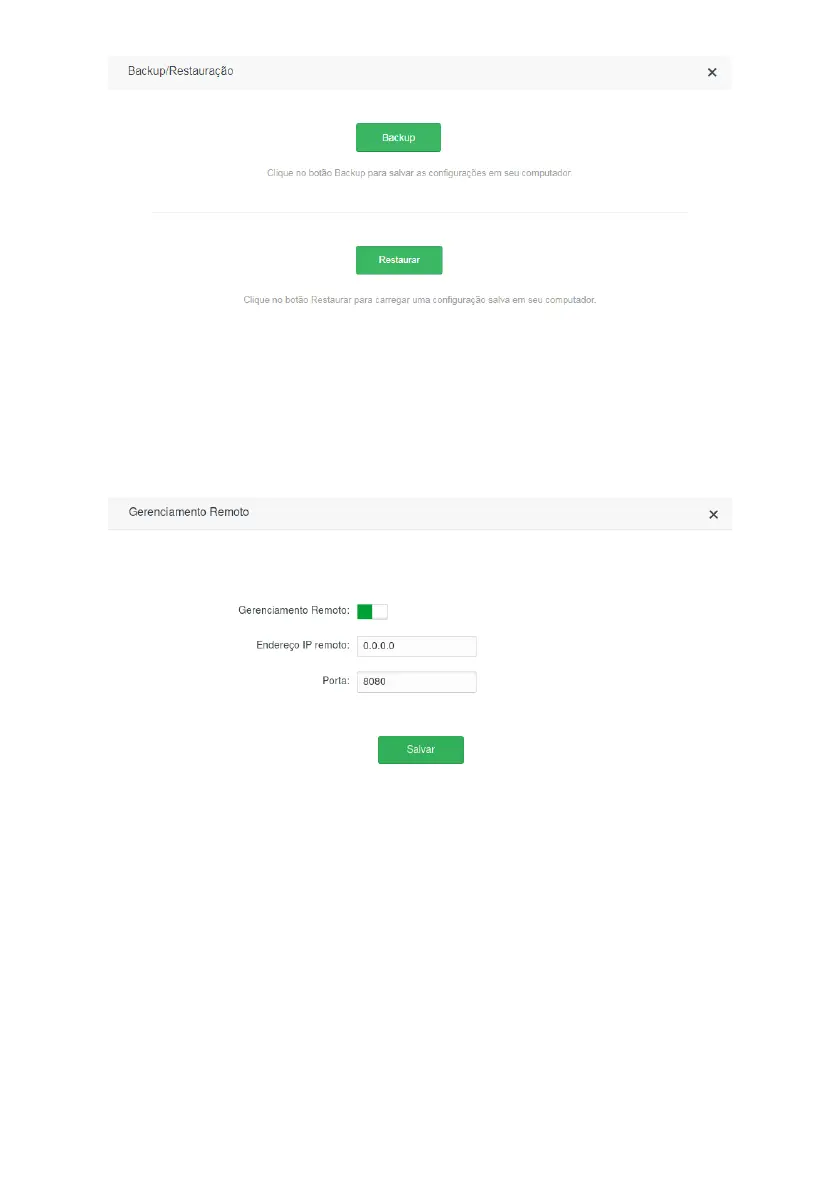
Screen with conguration backup and restore options
To generate the le with the backup of your router settings just click the button
Backup
and then conrm the operation.
The le will be downloaded according to your web browser settings and can be used to restore your ACtion RF 1200
when needed.
To restore the settings using a previously generated backup le, click the button
Restore
to choose the le from your
device and select the backup le. Please wait by following the on-screen instructions.
Remote management
Remote management conguration screen
Remote management settings allow access to the ACtion RF 1200 conguration web page via the Internet.
» Remote management: enables the function, so that the router allows access to the conguration web page via
incoming connections through the
Internet
port . Once the function is enabled, you can specify a port for the connection
through the eld
Port
.
» IP Address: if you want to limit access to the conguration web page to only one IP address, specify in this eld. The
default value
0.0.0.0
allows any IP address to remotely access the product web conguration page (through authentica-
tion using the login password of the page).
» Port: port through which you want to allow access, via internet, to the router’s web conguration interface. By default
the congured port is
8080
.
To make any change click
Save
and wait for the conguration to complete.
Note:
for security reasons, it is necessary to create
a password to access the product’s conguration web interface.
Avoid using simple values like
admin
,
1234
, among others. Prefer stronger passwords that prevent unwanted access
to your router settings.
System Status


 To Next Page