D-0134090-A – 2022/11
VisualEyes™ - Instructions for Use - EN Page 51
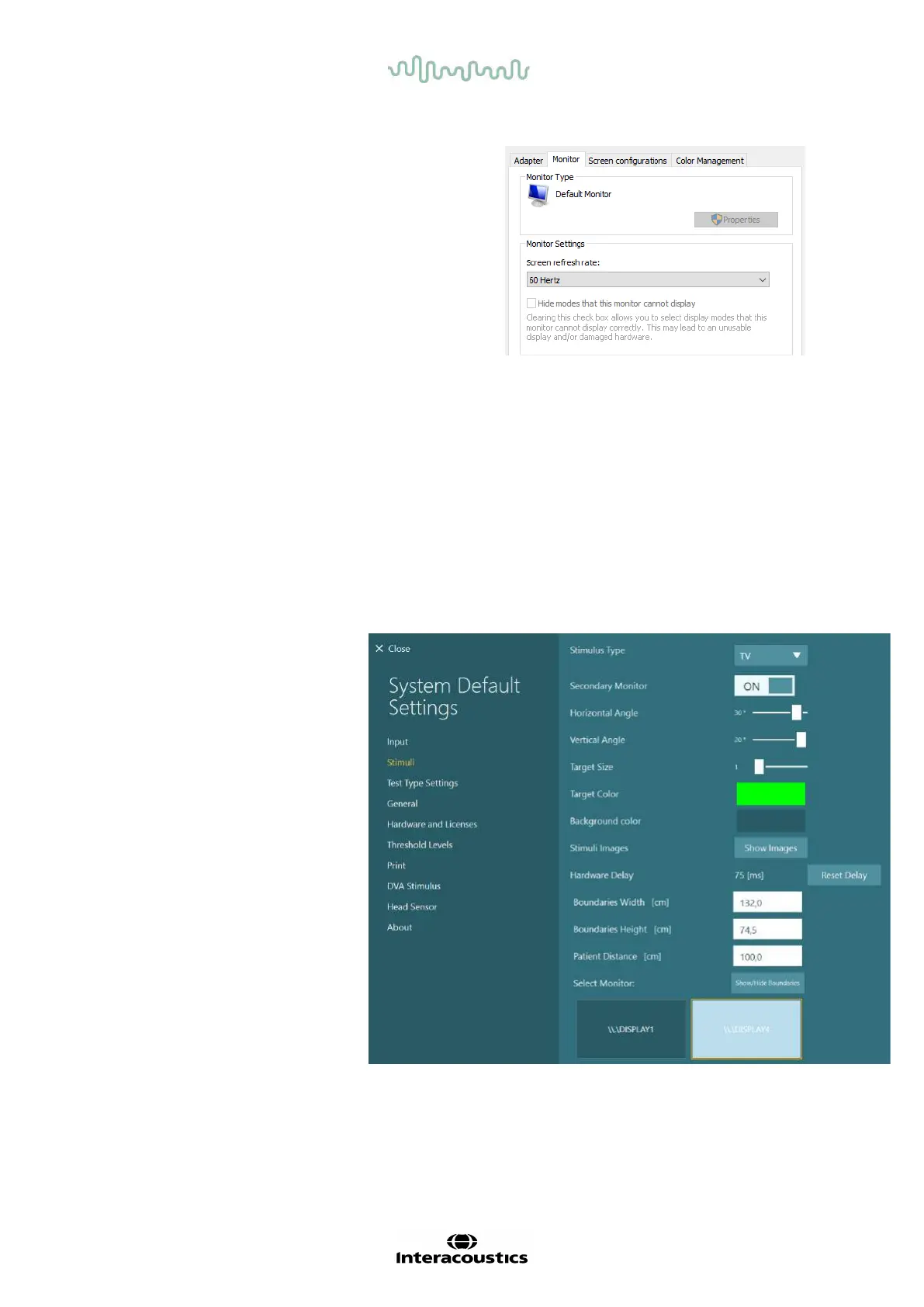
Then select the “Monitor” tab in the top of
the window, and select “60 Hertz” in the
drop down selection under Screen
refresh rate.
2.9.3 VisualEyes™ software settings
When the TV and Windows settings are configured correctly, launch the VisualEyes™ software, and
configure the displays in the software using the following instructions.
NOTICE: Even if “Migrate any existing VisualEyes™ system settings” was checked during installation, it is
highly recommended to remeasure the display size. Different versions of VisualEyes™ have used different
measurement methods. It is therefore important to validate the dimensions of the display.
2.9.3.1 Stimuli
Navigate to System Default Settings and select “Stimuli” in the panel on the left side of the screen.
• Select TV as Stimulus type
if using a TV or projector.
• Ensure that Secondary
Monitor is set to “ON”.
• Select the TV/monitor for
the visual stimuli to be
presented on, in the bottom
of the page.
The monitors are sized
relative to their respective
pixel resolutions.
• Click on Show/Hide
Boundaries to display
gridlines on the selected
monitor.














 To Next Page