EasyManua.ls Logo

Interlogix zerowire ZW-6400 - User Manual

Interlogix zerowire ZW-6400
36 pages
Print Icon
To Next Page IconTo Next Page
Loading...
P/N 466-xxxx • REVA • ISS xxMTH15 ZeroWire User Guide ©2015 United Technologies Corporation
USER GUIDE
MODEL ZW-6400

Other manuals for Interlogix zerowire ZW-6400

Questions and Answers

  • B
    brownjeanetteAug 1, 2025
    What to do if Interlogix Control Panel network connections fail?
    • K
      Kathleen PierceAug 1, 2025
      If your Interlogix Control Panel is failing to establish network connections, first check if your Wi-Fi router allows both b and g connections. Some newer routers might have these turned off by default, and some 802.11n access points might not accept 802.11g connections. Also, ensure your router is within range and has a strong signal. If not, a Wi-Fi range extender could help. Verify that auto-correct is turned off when entering the pass phrase, and that your wireless router has DHCP enabled. Make sure your wireless router doesn't have firewall or security rules blocking additional connections. Finally, confirm that IP addresses are available by connecting a new device to the router and checking its internet connection.
  • C
    Corey BarnettAug 7, 2025
    Why Interlogix zerowire ZW-6400 Control Panel cannot get an IP address?
    • T
      Thomas PorterAug 7, 2025
      If your Interlogix Control Panel cannot get an IP address, close the web browser on your device, restart your wireless router, and start the process again. If the issue persists, the wireless router may not be configured for automatic DHCP, or certain security settings may be enabled. Check your router settings and try again.
  • N
    Noah PerezAug 11, 2025
    What to do if I cannot see local Wi-Fi access point from smart device Interlogix Remote Control?
    • A
      adamscatherineAug 11, 2025
      If you cannot see the local Wi-Fi access point from your smart device and can’t access the internet, it could be due to several reasons. First, ensure your Wi-Fi access point accepts 802.11b or 802.11g connections, as some 802.11n access points may not. Also, make sure Wi-Fi is enabled on your smart device. You can also open a web browser on your mobile device to double-check internet access. As an alternative, once the ZeroWire is configured, try disabling Wi-Fi on your device and use the 3G/4G data connection with the UltraSync app.
  • M
    megan17Aug 16, 2025
    Why does Interlogix Remote Control UltraSync Site Creation fail?
    • J
      josephhardingAug 16, 2025
      UltraSync Site Creation may fail due to several reasons. Check the serial number on the back of your ZeroWire panel. Ensure you have correctly entered the Web Access Passcode obtained from your dealer. Verify that the User Name is entered with a space between the first and last name and with correct capitalization. Also, make sure your PIN was entered correctly.
  • T
    Thomas RojasAug 21, 2025
    How to fix Interlogix Remote Control when I cannot get IP address?
    • S
      Sara ParksAug 21, 2025
      If you cannot get an IP address, the wireless router may not be configured for automatic DHCP, or certain security settings may be enabled. To resolve this, check your router settings. Navigate to the router’s default IP address in a web browser (available in the router documentation). Enter the user name and password for the router, and navigate to DHCP settings. Enable DHCP and try again.
  • D
    David SchmittAug 27, 2025
    What to do if Interlogix Remote Control configuration setting changes fail?
    • M
      markwhiteAug 27, 2025
      If configuration setting changes fail, it may be because the devices are not responding to inputs. Re-initialize the equipment by power cycling the connected equipment, including the ZeroWire and customer-supplied router(s).

Summary

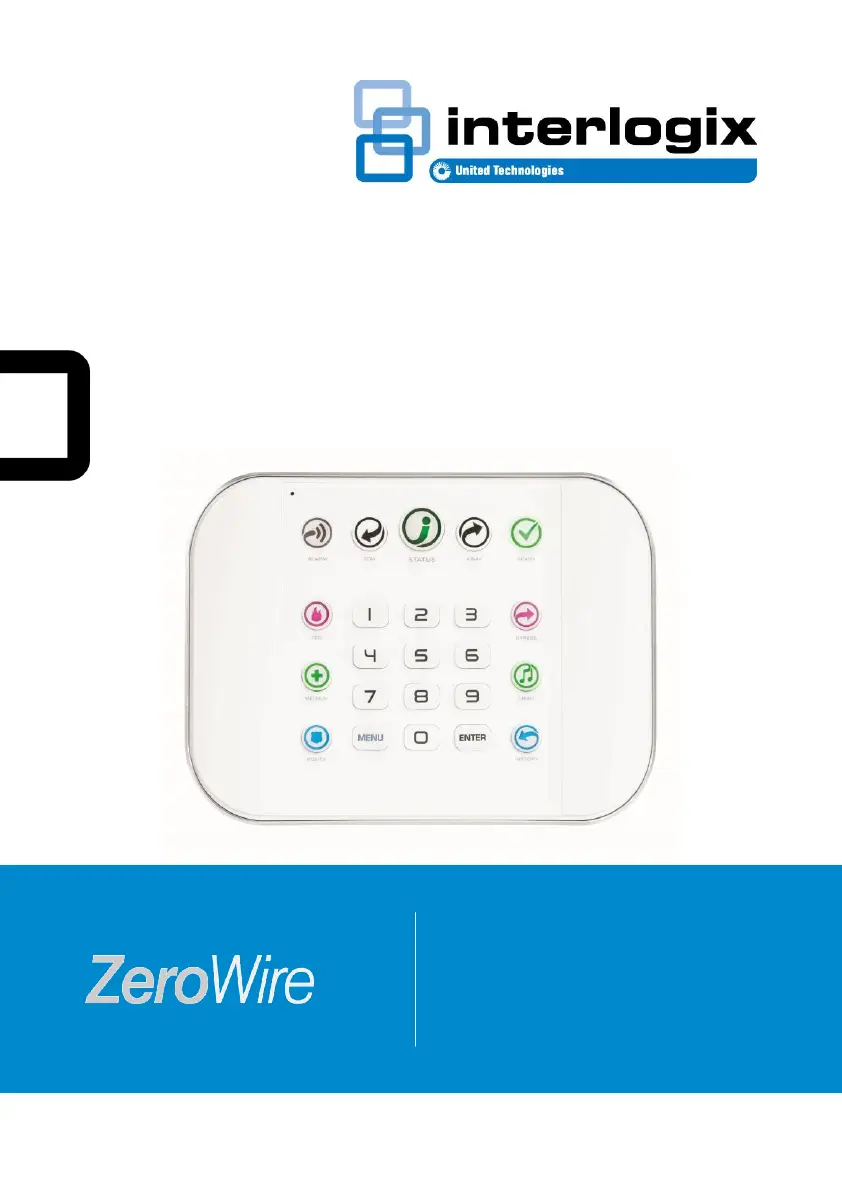
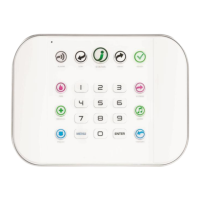
ZeroWire Front Panel Keypad

ZeroWire Keypad

UltraSync Color Codes

1 The UltraSync App

1.1 Install UltraSync App

Details on downloading and installing the UltraSync mobile application for controlling the ZeroWire system.

2 Basic Operations

2.1 Using UltraSync

Overview of the UltraSync app's Arm/Disarm screen and its functions for system control.

2.2 Arming in Away Mode, Illustrated

Step-by-step visual guide on how to arm the ZeroWire system in Away Mode using the panel or app.

2.3 Arming with UltraSync: Away Mode

Procedure for arming the system in Away Mode using the UltraSync mobile application.

2.4 Arming with ZeroWire: Away Mode with PIN

Instructions for arming the system in Away Mode using the ZeroWire panel with a user PIN.

2.5 Arming with ZeroWire: Quick Away Mode

Using the Quick-Arm feature on the ZeroWire panel to arm the system in Away Mode.

Interlogix zerowire ZW-6400 Specifications

General IconGeneral
Wireless ProtocolZ-Wave
Battery BackupYes
Operating Temperature0°C to 49°C (32°F to 120°F)
CommunicationZ-Wave
CompatibilityInterlogix

Related product manuals