52
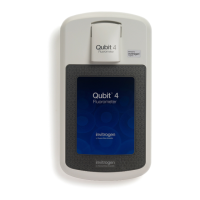
Qubit
™
4 Fluorometer User Guide
Software updates
software
To update the Qubit
™
4 Fluorometer with the latest software from Thermo Fisher
Scientific:
1. Download the latest software to a USB drive or to your computer from
thermofisher.com/qubit.
2. If using a USB drive, insert the USB drive into the instrument.
If using a computer, connect the Qubit
™
instrument to the computer using a
USB cable. The Qubit
™
Fluorometer will be recognized as an external device
by the computer.
Note: The connection between the computer and the Qubit
™
must be maintained until the transfer and update (described in the next
steps) are complete.
a. On your computer, find the Qubit
™
software update file that you wish to
upload.
b. Copy and paste or click-drag the software file to the Qubit
™
instrument
drive. This saves the software file to the root directory of your Qubit
™
instrument; however, the software file transfer will not be visible on the
Qubit
™
instrument.
3. On the Home screen, press Settings.
4. On the Settings screen, press Update software. The instrument searches the
USB drive or the computer for the update.
Note: If the USB drive is not inserted into the USB drive port or the
instrument does not recognize the USB drive, a warning message is
displayed.
To proceed with the software update, insert the correct USB drive into
the instrument, then press Close.


 To Next Page