ioSafe Duo User Manual
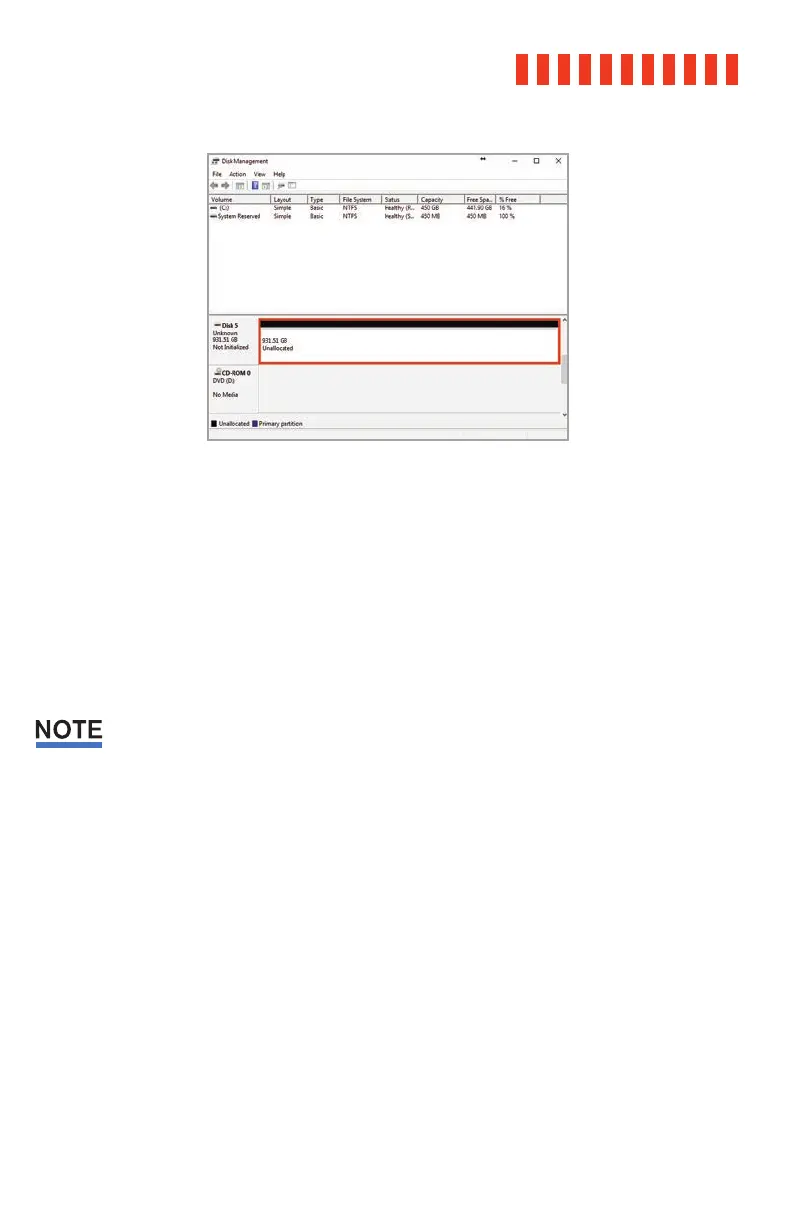
The Disk Management pane with the Drive Properties Box
highlighted in red.
d. Unless you wish to customize the settings in these dialog prompts, click Next on the
Select Partition, Specify Volume/Partition Size, and Assign Drive Letter or Path dialog
prompts, leaving the default settings.
e. Choose your preferred file system from the file system selection window that appears
and enter a name for the new volume. Then check the box labeled Quick Format,
which ensures that the formatting process will take less than a minute.
If you want to use your ioSafe Duo with both macOS and Windows, choose the ExFAT file
system.
f. Click Next and then Finish to start the format process. When the format is complete,
the Drive Properties Box will update to show the new volume name.
Once the ioSafe Duo is reformatted, a window may open on your computer to allow you
access it.
If you are using Windows 10 and no window appears, press Windows Key + E on your key-
board to open a File Explorer window. Then click on This PC in the File Explorer window’s
navigation pane.
If you are using Windows 8.1, press Windows Key + E on your keyboard to open a File
Explorer window. Then click on Computer in the File Explorer window’s navigation pane.
21



 To Next Page