4 RECORDING MANAGEMENT
4 RECORDING MANAGEMENT
4.1 Live View
4.1 Live View
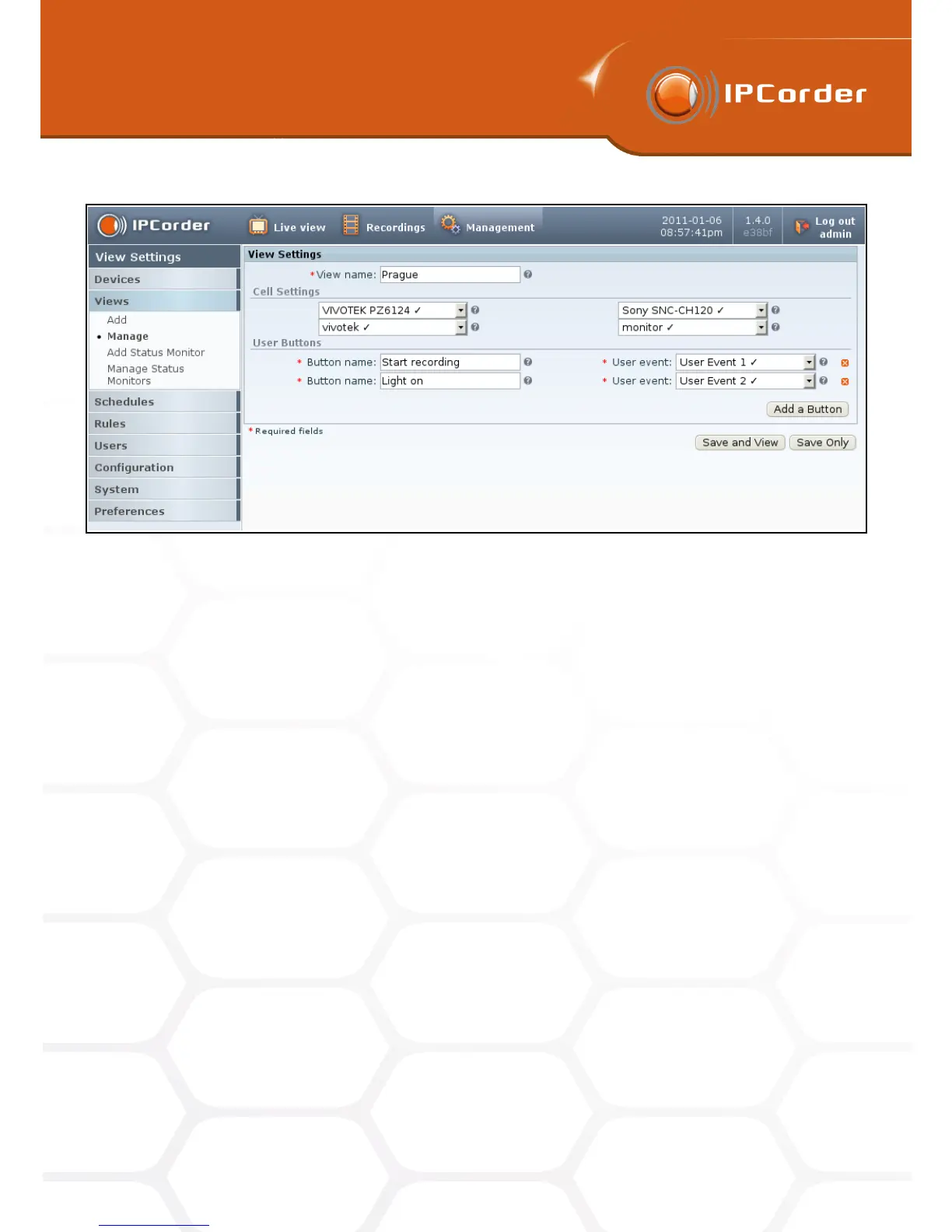
Figure 22: New view – defining the contents of the segments
a thermometer sensor).
To serve this purpose the IPCorder interface allows the user to define so-called status monitors. All in all, these
are lists of variables that are to be displayed. To add a monitor of this type, follow the same instructions as
when adding a regular monitor with live camera stream.
To create a status monitor, go into the menu Management – Views – Add Status Monitor.
Here insert the Status Monitor Name under which it will appear while creating a new view. The user must also
specify at least one pair of Device + Variable. To add more variables to the new monitor, click the Add Next
button. To erase one, use the Delete button in the appropriate line.
Confirm the creation of the monitor by clicking the Create button.
The list of status monitors is available in the menu Management – Views – Manage Status Monitors. (Figure
24).
To edit properties of a status monitor (for example to add another variable), click the Settings link in the
appropriate line. The settings form displayed is the same as when creating a new monitor.
Confirm the changes by clicking at the Apply Changes button.
To remove a redundant monitor, simply click the Remove link next to the Settings link (i.e. in the menu
Management – Views – Manage Status Monitors).
32



 To Next Page