4 RECORDING MANAGEMENT
4 RECORDING MANAGEMENT
4.5 Firmware upgrade
4.5 Firmware upgrade
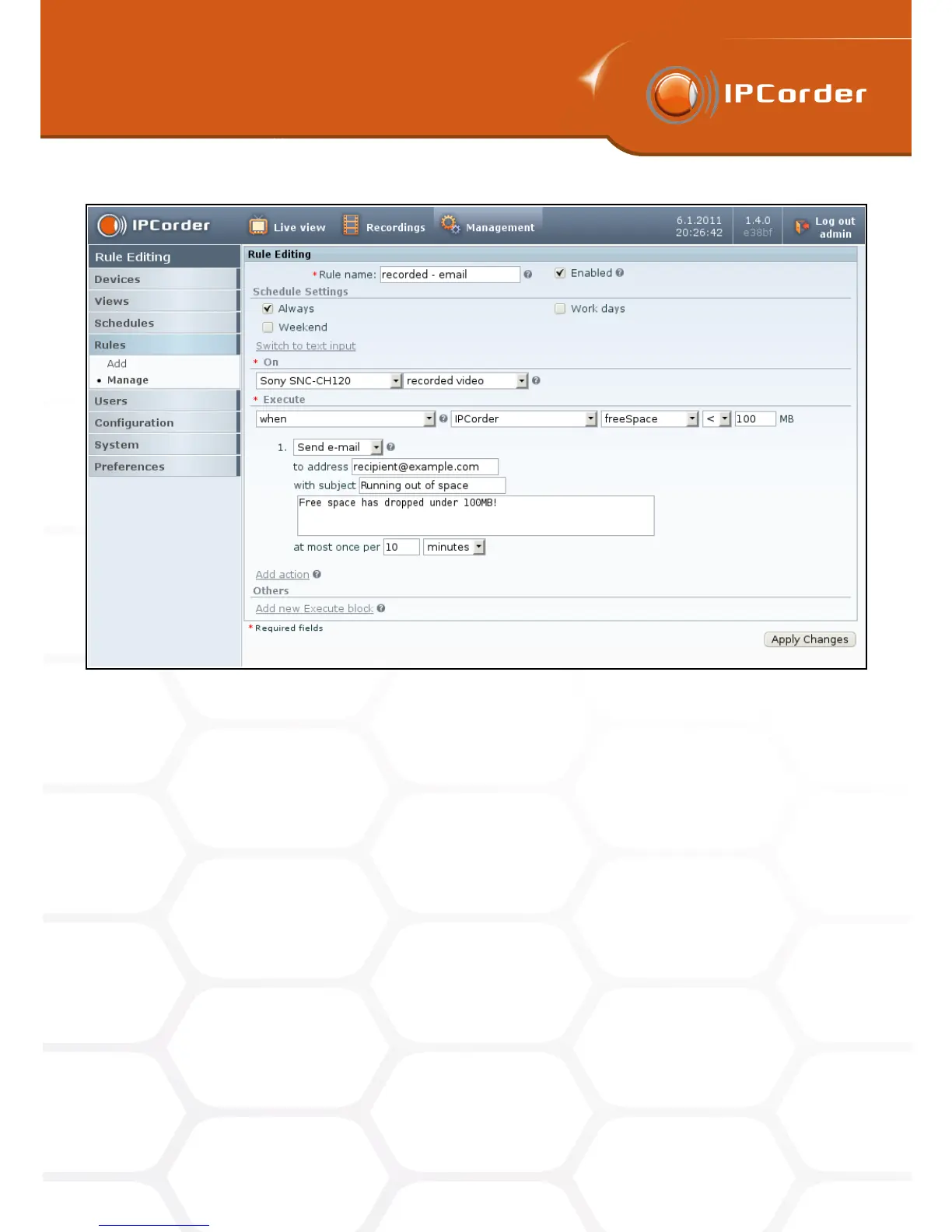
Figure 34: Free space on disk check rule
Firmware Upgrade. This will switch IPCorder into the Installation and Rescue mode (This will interrupt recording
and all users will be disconnected.)
In the rescue mode go to Firmware Upgrade page (Figure 43).
Browse for the saved firmware under the point 3. Start the Upgrade by clicking the Upload & Install Firmware
button.
The update must not be interrupted, as this may damage the device. After completing the upgrade the system
will announce its result. You can now switch to normal mode by clicking the Restart to normal mode button.
4.5.1 Firmware repair
In some rare cases an issue related to firmware, the device key or with other upgradable part of the system
(e.g. after disk upgrade the device key may change causing incompatibility) may appear. In such case IPCorder
automatically reboots to rescue mode. In the rescue mode menu you will see a link to Firmware repair section.
In the Firmware repair page (Picture 44) you will find a table listing the state of various system components.
The first line shows the device key validity information. If you see Bad, you need to repair the key using the
Repair link (you cannot repair the key in normal mode, only download it) and then download the repaired key
44



 To Next Page