4 RECORDING MANAGEMENT
4 RECORDING MANAGEMENT
4.5 Firmware upgrade
4.5 Firmware upgrade
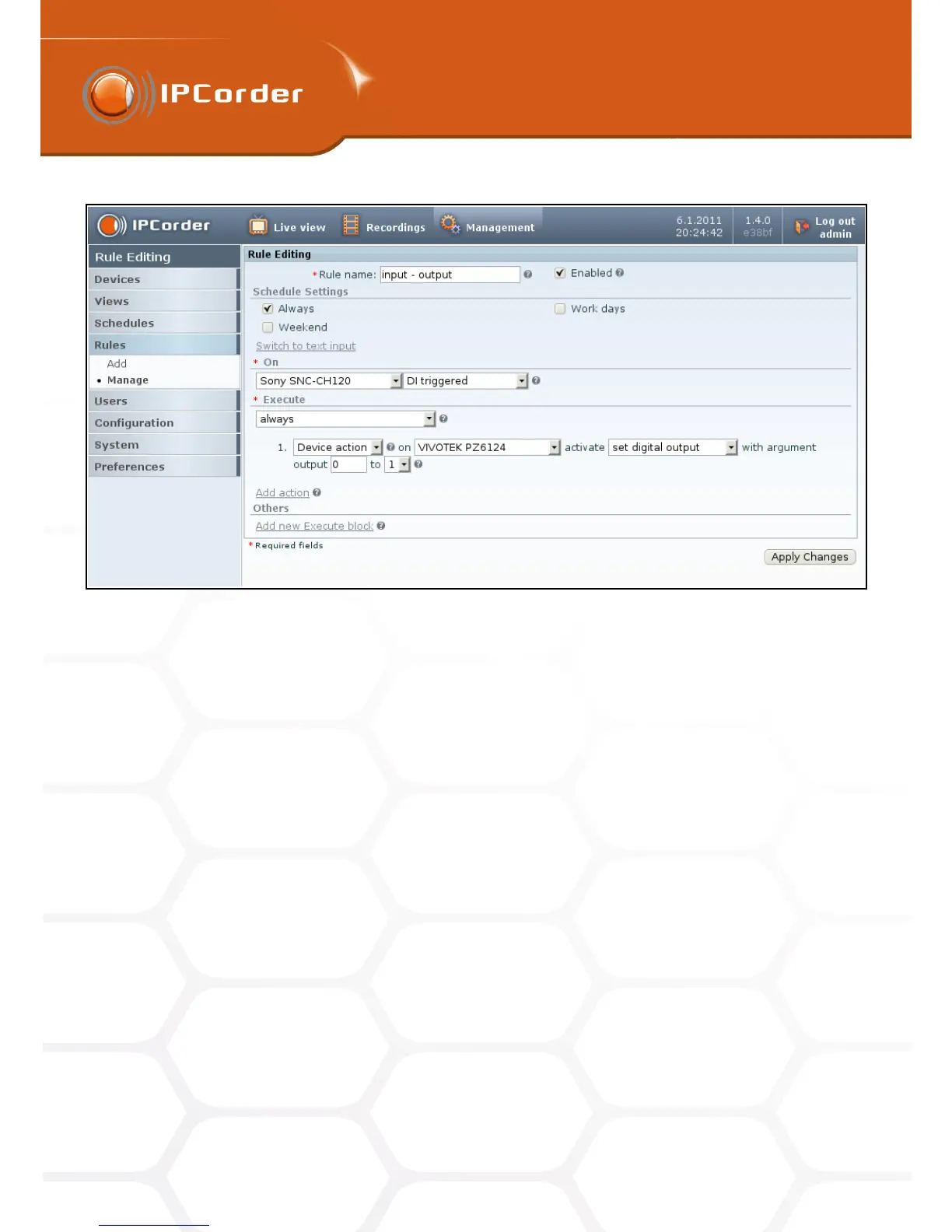
Figure 33: Reaction on digital impute by switching on digital output
If your IPCorder has no access to Internet or you prefer not to use automatic actualization, you can update
the firmware manually. Before the first update it is necessary to download the ”key”, which is unique for every
IPCorder and update is generated for every key separately. To obtain the key, switch into Offline upgrade mode
(Figure 37), click on Get Product Key and save downloaded key on your computer.
Register your IPCorder with this key on http://updates.ipcorder.com and login using the link that will appear
afterwards. (If you don’t have an account on this page, you have to register first. In case that you have more
than one IPCorder, you can use one account for all your devices.) (Figure 39)
After logging in, go to the page with the list of your devices (Figure 40). (You can use the link list of your devices
or my devices – Figure 39.)
If your device is already registered on http://updates.ipcorder.com just log in this page, if not click on the
New device, choose Device Name, place where is the saved key and then by clicking on Upload, register your
IPCorder.
On the page my devices click on the link view details (in part Action) next to the chosen device. The page with
all available firmware for chosen device will appear (Figure 42).
Choose the preferred version (the latest stable is recommended) and click on the Generate new firmware
button. After a while the link for downloading the firmware will appear in place of the button. Click on the link
and save the firmware on your computer. The downloaded firmware is unique and it is not possible to use it on
different devices and therefore every device has to be registered.
Back on the web form of your IPCorder go to Management – System – Firmware Upgrade and click the
43



 To Next Page