3 DEVICE MANAGEMENT
3 DEVICE MANAGEMENT
3.5 Device Authentication Settings
3.5 Device Authentication Settings
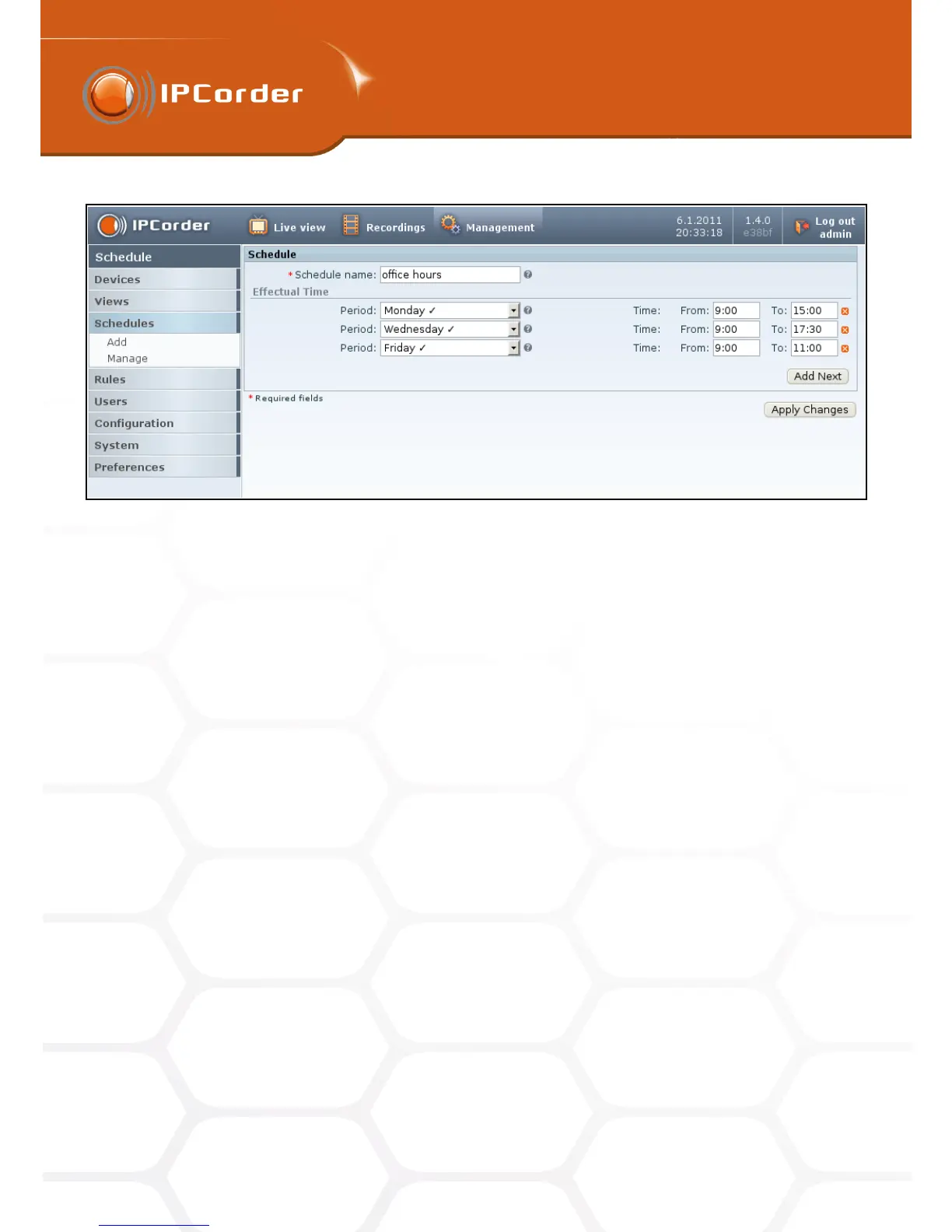
Figure 18: Creating a schedule
Management – Schedules – Manage, you can also delete already existing schedules. This can be done by the
link Delete next to the selected schedule.
3.5 Device Authentication Settings
To change the security parameters of a device, go to the menu Management – Devices – Manage, open the
selected device’s settings ang click Edit authentication settings link.
Depending on the camera type, this menu allows the configuration of:
• Whether the device is password protected at all (checkboxs Device is password protected and Free view
access)
• Administrator Account – Here you can change the Login and Password that allow editing the camera
settings. Correct setting of the administrator account is essential for any changes to the device settings
(including changes to the administrator account itself) IPCorder should make.
• View Account – Here you can change the Login and Password that allow viewing the camera signal.
Depending on the type of device, access without authentification, entering a particular account or using
the administrator account (however this is not recommended for security reasons described in the chapter
3.1) can be set.
• Specify credentials – With this option IPCorder will use an already existing account for view access to the
remote device.
• Generate new credentials – The system automatically replaces the respective account by a new one with
secure randomly generated password.
27



 To Next Page