4 RECORDING MANAGEMENT
4 RECORDING MANAGEMENT
4.6 Factory Reset
4.6 Factory Reset
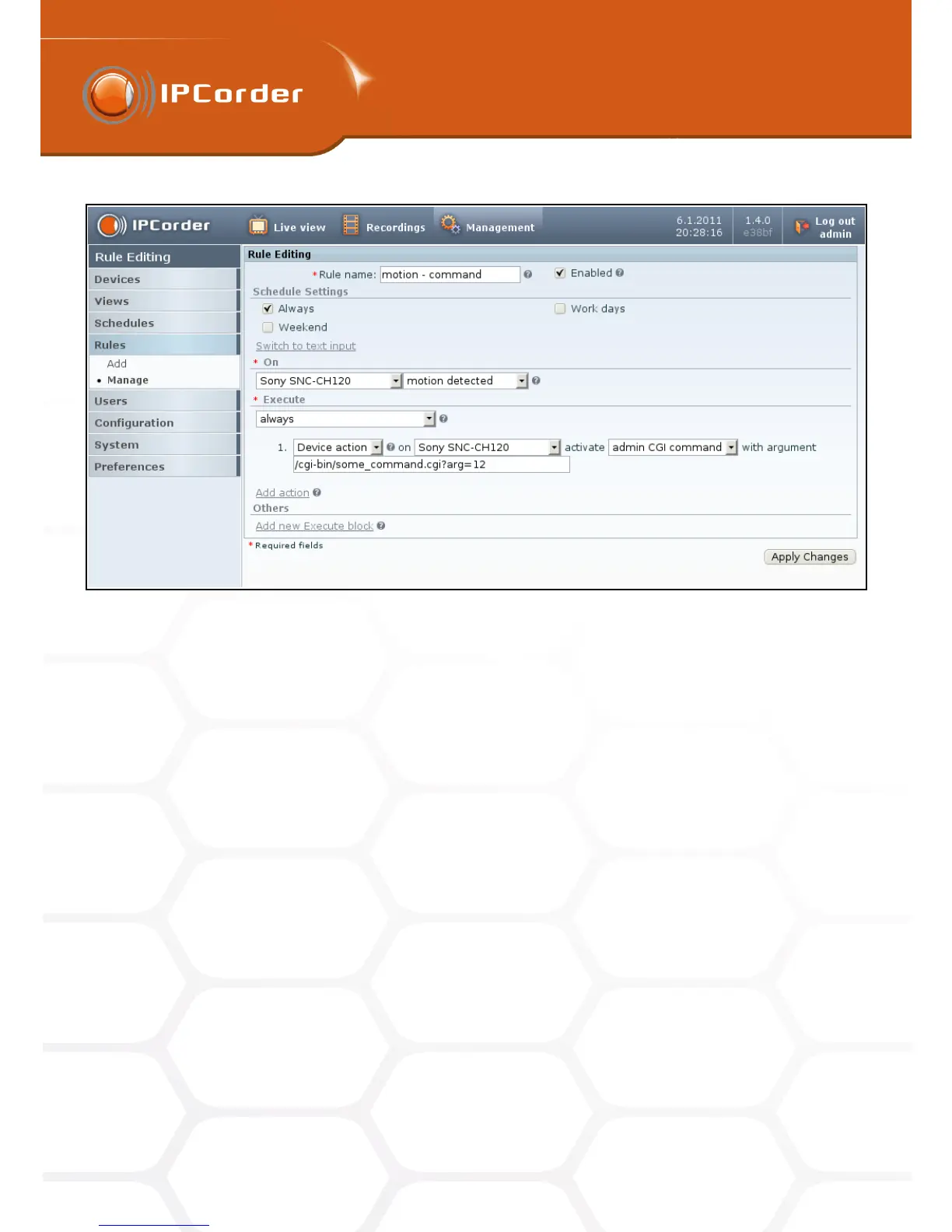
Figure 35: Rule with cgi command
by clicking Download. Use the downloaded repaired key to upgrade the firmware as described in chapter 4.5
Firmware update using the Updates page to download an updated firmware.
The second line informs on firmware status. If you see Bad, you need to download a new firmware from
http://updates.ipcorder.com, select the downloaded firmware in the selection field and by clicking Upload FW
button install the new firmware to fix the issue.
4.6 Factory Reset
It is possible to reset IPCorder to its factory defaults in section Settings – System – Factory reset . This can be
useful in situations when the device cannot be accessed by other means or when it is sold. The factory reset
erases all data on disk/disks and all settings are reset to their default values
Before you start the process of Factory reset you should make sure that the power supply for the device is
stable as the device must be on for the duration of reset process. A power failure before the reset is finished
can cause damage to the device.
By clicking the Factory reset the system is restarted in rescue mode. In the rescue mode navigate to the
Factory Reset page. Select reset options as required: Preserve network configuration to preserve network
settings and Preserve storage configuration to preserve disk storage.
When you click the Factory Reset button the systems starts with erasing data. This can take a while and you
45



 To Next Page